• Skip to primary navigation
  • Skip to main content
  • Skip to primary sidebar
  • Skip to footer
WPArena

WPArena

WPArena is a premium online resource site of WordPress and is focused on providing excellent WordPress Tutorials, Guides, Tips, and Collections.

  • Plugins
  • Themes
  • Hosting
  • Tools
  • Tutorials
    • SEO
    • Marketing
    • WordPress Security
    • eCommerce
  • News
  • Services

Tutorials

How to Fix the Most Common SEO and UX Issues on Your Site Using 301 Redirects

February 1, 2020 by Editorial Staff 1 Comment

Whenever you see a commercial or an article talking about creating websites, or you hear someone talking about starting one, the emphasis is always on “I was surprised at how quickly I have created my website, it only took me a couple of days!”. It makes you feel like creating an online presence, and earning a living online is a mere piece of cake that takes two days tops.

Still, the ugly truth behind it is that there is no “set it up & leave it” aspect to having an online presence that puts the bread on the table. Maintaining your website is constant work.

First, you need to work on your Search Engine Optimization (SEO) to actually get some visitors to your site. Then you have to work on their user experience (UX) to keep them there and help them make the decision to leave their money with you.

While setting up your website is no brain surgery nowadays with WordPress’ Gutenberg, for example, getting on the first page of Google’s Search Engine Results Page (SERP) so that your visitors will find you, almost is as difficult as open-heart surgery. Keeping your visitors on your site and having them spend their money with you is a result of a good user experience. The catch here is that there is no such thing as rules when it comes to UX, with everything being mere guidelines. UX takes a lot of testing and implementing feedback for the results to show.

Luckily, there is a technique that will help you make your customers happy, and that can help with both SEO and UX. It is called 301 redirections. What are 301 redirects, and in what instances would you use 301 redirects to help? Let’s check it out.

What are 301 redirects, and why should I use them?

301 redirects are a technique that you can implement to guide your traffic from one URL to another. They state that something that was on URL1 has moved permanently to URL2, directing traffic to URL2 without them realizing it.

a photo showing way with arrow

It comes quite handy in numerous instances and plays a huge role in keeping your visitors happy and coming back, which is the key to making a living online. Here are some scenarios when you would find this technique useful.

Moving from one domain to another

Many people, when creating their new site, tend to overlook the importance of a proper domain name, especially when they are trying to get their online presence up and running in no time. This can prove to be a costly mistake later, as having a proper domain name can help immensely with your SEO score.

However, even if that’s the case with your site, not everything is lost. You can always move to another domain. This is where 301 redirects come handy, as they can help you ensure that your visitors will be moving to the new site as well, without going to the old one.

Taking care of 404’s on your site

Those pesky 404s tend to creep into every site every now and then and are usually no reason to worry. However, if left unattended, they can do some serious damage to your website’s UX. Just think about how you feel when you are trying to find something online, you click on a link, and you get “Nothing found here” error.

In frustration, you probably click back and head on to the next result. Your visitors do the same. So, it is quite important to set up a 301 redirect, and have your visitors land somewhere else instead of on the 404 page in the first place, no matter how nicely you designed it.

An illustration showing lost sailor on an island

Making sure your content is updated at all times

On the same note, if you are searching online for “the best SEO practices,” and you click on the first result only to find that that result goes way back to 2016, you might feel rather disappointed. This is another situation where 301 redirects can help with your user experience.

What you should do is create a new article “the best SEO practices in 2020”, and set up a redirect for the older article to take the visitors to the new one. Not only are you providing your visitors with relevant and useful information, but you are also helping the new article rank higher in SERP, meaning more visitors!

Google will take notice that your visitors are actually reading the article instead of hitting back – which is what Search Engine Optimization is all about.

The Cocktail Technique

Speaking of helping the article rank higher using redirects, “The Cocktail Technique,” coined by ahref, which is a technique of merging two pieces of content into one. This helps immensely with page or post’s authority, as now a single piece of content has the authority of the two combined, meaning that it gets more credit from Google, too. Ultimately, the new piece will have a better result in SERP!

Setting up 301 Redirects on a WordPress site

You might have figured out the importance of setting up 301 redirects before but kept postponing it or trying to avoid it because messing up with .htaccess file is really not your thing.

That’s okay – not everyone is comfortable with writing code. It is probably why you are running your site on the WordPress platform, too.

However, every WordPress-er knows that when it comes to WordPress solutions, all you should do is find a proper plugin to help you out. With over fifty-thousand plugins in the official WordPress repository, it is quite impossible not to find the one to help you out with any kind of problem you might have.

The same goes for setting up 301 redirects on your site. The good news is that you don’t have to dig deep. There is a plugin called “301 redirects” which can help you with setting them up in no time.

Set redirects up with 301 Redirects plugin

301 Redirects plugin is by far the simplest way to set up your 301 redirects and win the battle with any of the instances mentioned above. Not only will this plugin help you set up your redirects in no time, but it is also very safe to use.

It doesn’t come with any unnecessary code that would slow down your site, or collide with other plugins.
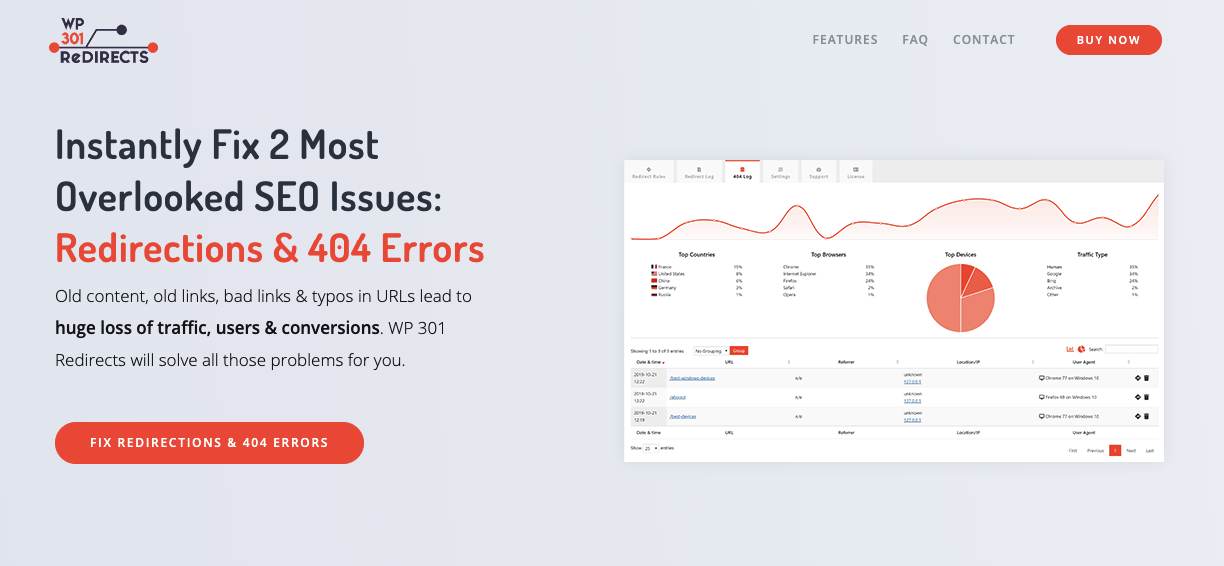
wp 301 redirects image showing stats

Let’s check the few, carefully selected features this plugin comes with.

Effortlessly set up 301 redirects

With this plugin, setting up redirects is as simple as a copy and paste. No complicated editing, trying to figure out code, or anything of the kind. All you should be aware of is the URL of the page you want to redirect from, and the URL of the page you want to redirect to.

Once you figure that out, the location of your 404 page, for example, all you have to do is to copy and paste the URL in the “redirect from” provided field and copy and paste the new URL into “redirect to” field. The plugin will do the rest.
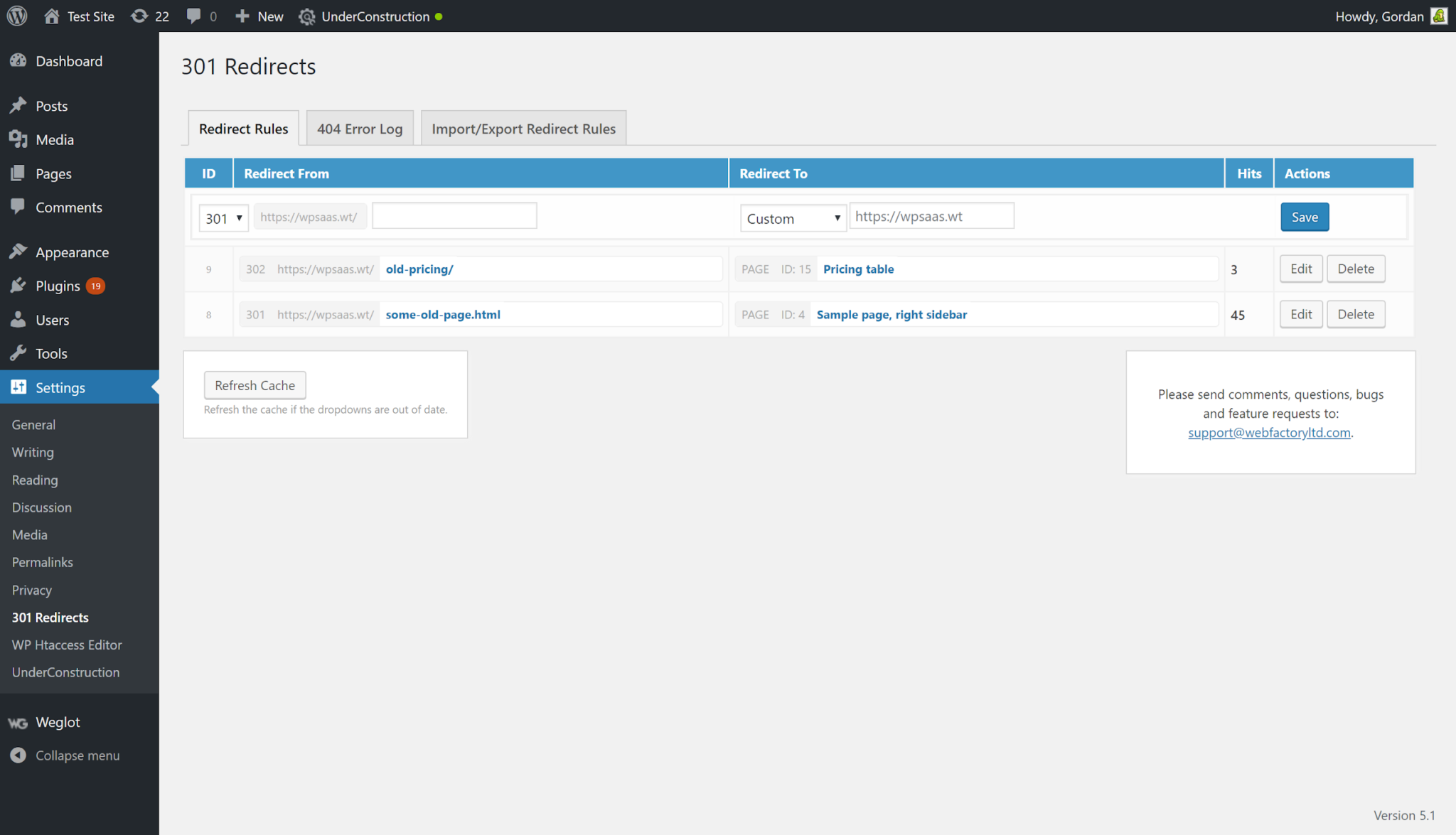
wp 301 redirect wordpress panel

Managing the redirects on your site can be done in another way – using the provided dropdown menu, which makes the process even simpler. Instead of pasting the “redirect to,” you can effortlessly choose the destination from the dropdown menu, which includes Custom, Post, Page, Media, and also Term Archive for you to select from.
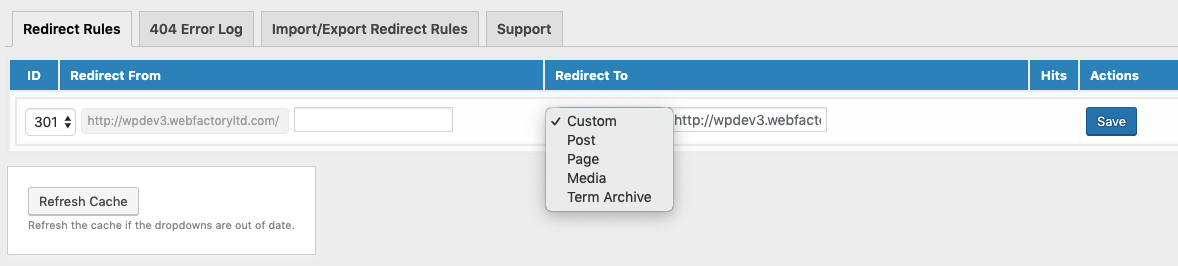
redirect rules in wp redirect

Simple preview of all existing redirects and number of times they were used

As soon as you create a redirect, it will be neatly listed under the redirect rules feature. From there, you can effortlessly edit them, remove them, or, overall, modify them to fit your needs. Apart from being able to preview them, you will also be able to see how many times a specific redirect was used – thanks to the hits tab. This way, you can monitor the effectiveness of the redirects you set up.

Import or Export redirects in Bulk

You might have prepared an Excel file containing all the redirects you need to set up, and are now frustrated about the amount of copy-paste you need to do. Everybody hates repetitive, manual work, which is why the Import/Export feature is a true nerve-saver.
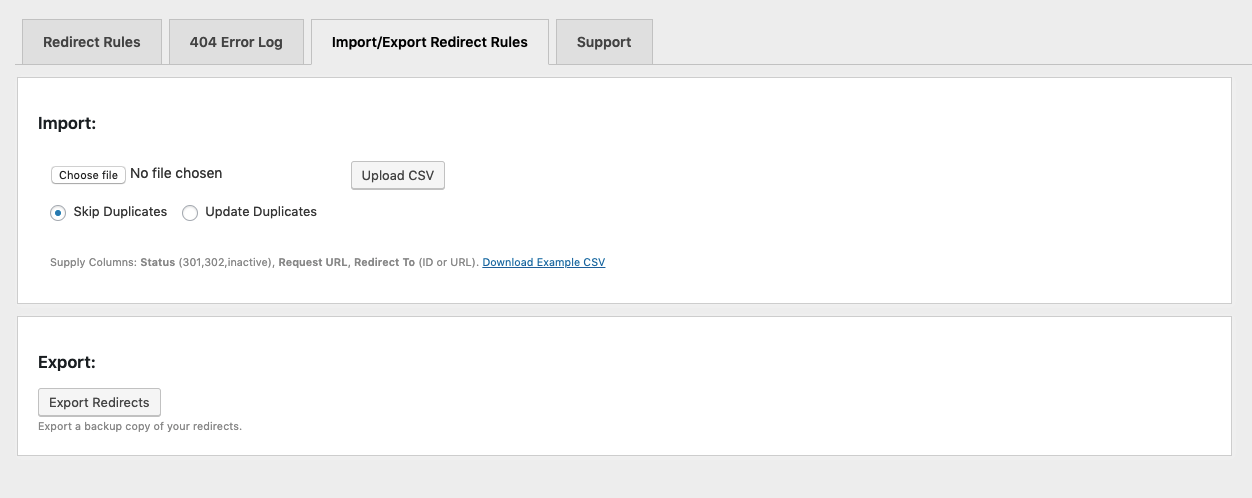
import option and others in wp 301 redirect

Thanks to this feature, you can simply export your table as a CSV file, and then upload your CSV file into the plugin. The plugin will take it from there, turn those values into redirects, while you sit back and relax.

On the same note, you can take advantage of the Export feature, and export all the existing redirects into a CSV file. It’s perfect if you are looking to share them, or store them outside WordPress.

The expert support team at your disposal

When you start with something new, or you’re doing something for the first time, it is good to know that you can rely on expert support in case of a hiccup. The team that has created and has been using this plugin on a daily basis is there to help. Under the “Support” tab, you can find all the ways to contact them for help in case anything goes south – they have your back.

Upcoming – the 404 error log

If you are looking to handle all 404 on your site for good, then this upcoming feature is what makes this plugin perfect for your needs. With this log, you will be able to see if there is a 404 page hiding somewhere on your site before your visitors get the chance to see it at all. If you know where the 404s are hiding, and since you can effortlessly set up the redirects to handle them, you can get rid of those 404s for good and prevent them from ruining your users’ experience on your site!

Summing it up

All in all, gaining new visitors and keeping them happy with fresh and relevant content is what SEO and UX are all about. It is mandatory that you provide them with what the information they were searching for instead of a 404 page or outdated piece of content, which is why redirects are an important aspect of every online presence.

With 301 Redirects plugin, setting them up is a piece of cake, even if you have never done it before. Just a couple of ctrl+v’s, and you are good to go. Overall, if you need to handle those UX and SEO mistakes, this is the plugin to keep in your arsenal!
Filed Under: SEO, Tutorials Tagged With: Tutorial

How To Create Google Site Kit In WordPress

February 1, 2020 by Muhammad Abdullah 1 Comment

Get started with your business decisions in WordPress by creating a Google Site Kit as one of your many tools to use online. Creating a Google Site Kit as a tool in WordPress lets you use several SEO tools like Google Analytics for doing that statistical business analysis. So, if you wish to create a Google Site Kit in your WordPress account, this article will help you.

Overview of Google Site Kit in WordPress

Google Site Kit is one of the most popular SEO tools plugin available for streamlining and marketing of blogs online on WordPress. Using this plugin in WordPress, lets you add and retrieve data directly to your admin dashboard. Writers and bloggers in WordPress are often known to use Google Site Kit to check their milestones in the market.

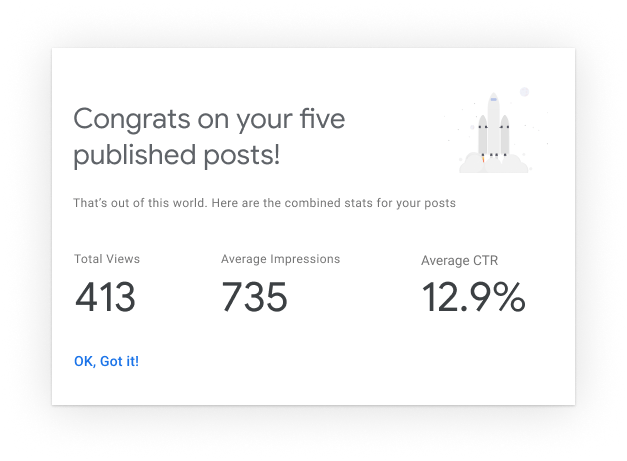
congratulations message on publishing five posts

Reasons for Creating ‘Google Site Kit’ Plugin in WordPress

Now, before creating a Google Site Kit plugin in WordPress, you must know why you should do this practice in WordPress. Firstly, creating a Google Site Kit allows you to manage more than one product on WordPress. Not only this, it even provides all milestones and statistics for analysis on your admin dashboard.

How to Add ‘Google Site Kit’ in WordPress?

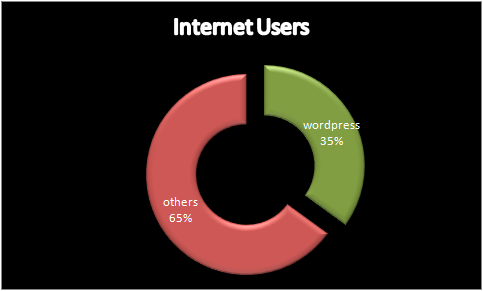
number of internet users and WordPress users

It is a well-known fact that WordPress alone holds the power of 35% of all internet users in the world. This was one of the many reasons why Google collaborated with WordPress to provide the plugin of the Google Site Kit. This WordPress plugin enables you to utilize several Google tools like Google Analytics, Google Drive, and photos, along with other Google apps, to help you streamline your business. Here is how you can add a Google Site Kit plugin in WordPress.

Install and Authorise that Google Site Kit plugin

So, before I go into how to create a Google Site Kit in WordPress, understand that there are always some requirements that you need to fulfill to experience that flawless streamlining of SEO services in your blogs and business articles. Just like any plugin device, you need to activate your WordPress blog page or account.

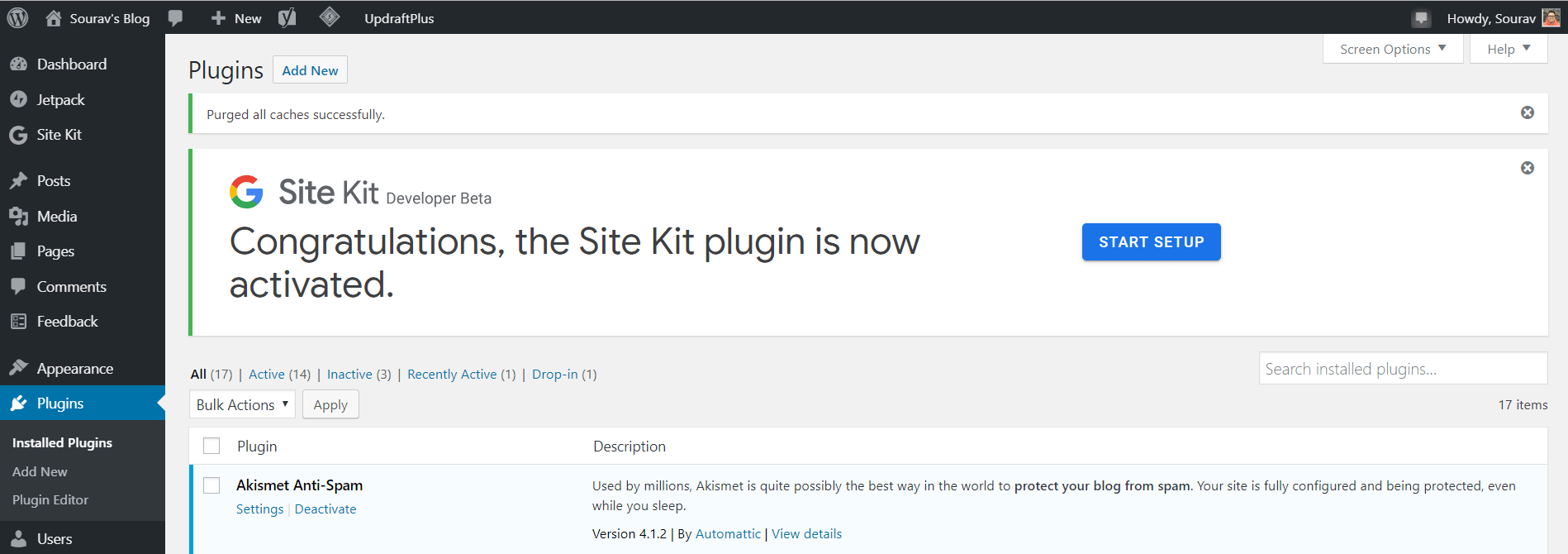
Congratulations message on Site Kit installation

Firstly, go to the official website page to install and activate the Google Site Kit plugin option. It is advised that you manually do this activity, like the one you did on laptops devices. Simply download your WordPress app and run the app. Open this application and go to the dashboard section option. Once you have done this, go to the upload plugin option and add the Google Site Kit zip file, and run it on by tap clicking on the activate plugin option.

Time to Configure the Plugin in WordPress

Let me tell you; you will not be able to successfully create the Google Site Kit in WordPress as your plugin unless you configure the same. This is mainly done to use the Google tools of search console through the Google Developer Console in WordPress. This is usually done by creating a client configuration. To do this, you need to provide the credentials for O Authorisation configuration through your Google Account.

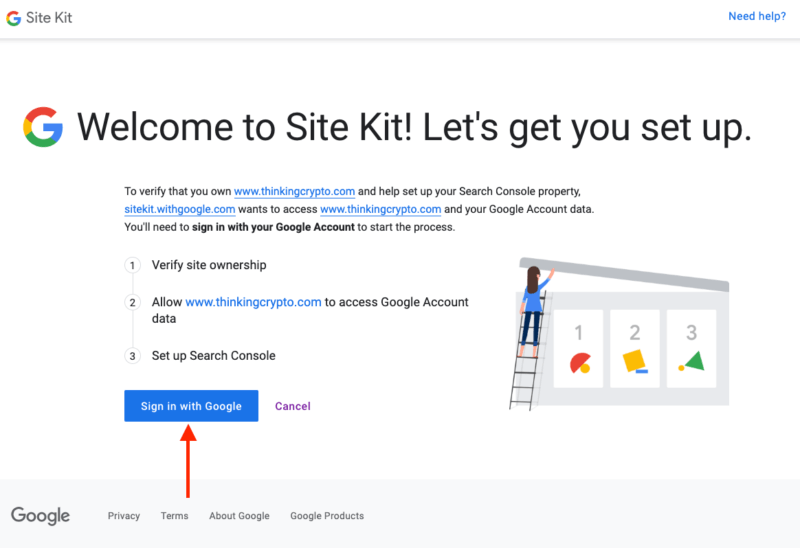
Sitekit Welcome message

Remember, the entire procedure is automated, and you need to have access to Google Analytics for this use in business. You can simply create this Google Site Kit plugin by tap clicking on the copy-paste matter. Simply log in to your primary Google account and disable the ad-blocker plugin. Now, go to your admin dashboard and go to developers.google.com/web/site-kit and project name on the admin dashboard. When providing the project name, simply do not provide the word “demo” in it. Once all credentials are filled, you will receive a customer configuration code, copy and follow it by tap clicking proceed. This completes your basic Google Site Kit set up in WordPress.

Linking Google Search Console account to Site Kit

If you wish to enjoy using SEO tools through Google Apps in your business, then you need to link your Google Search Console account to your site kit. Since you have already set up your basic Google Site Kit through the configuration of your plugin in WordPress, it is time to get it authorized. This step taken to authenticate your site kit lets you search console for your WordPress username by helping you manage your domains in business.

Site Kit granting access pop-up

From your dashboard, go to Google and provide the required permission for search consoling the data to the dashboard. Follow this up by going to your primary Google account and logging into the account. Click on allow the option to grant the required permission for the search console of data.

Verification of URL

You need to confirm that the provided URL is correct. Simply check all the requirements and recheck the credential information provided on the site or dashboard. Once you confirm the same, tap click on CONTINUE. You will find that it is automatically connected.

Let’s get on creating and adding some additional services: linking Google Analytics with WordPress

Get to enjoy the statistics on Google by engaging in the use of Google Analytics. Simply add some additional services when creating Google Site Kit in WordPress. Go to the settings tab. Now click on connect additional services option. Some of the many additional services added as site insights letting you analyze the data from the very website. However, Google Analytics is connected to Google Site Kit in WordPress to analyze quantitative data from the dashboard.

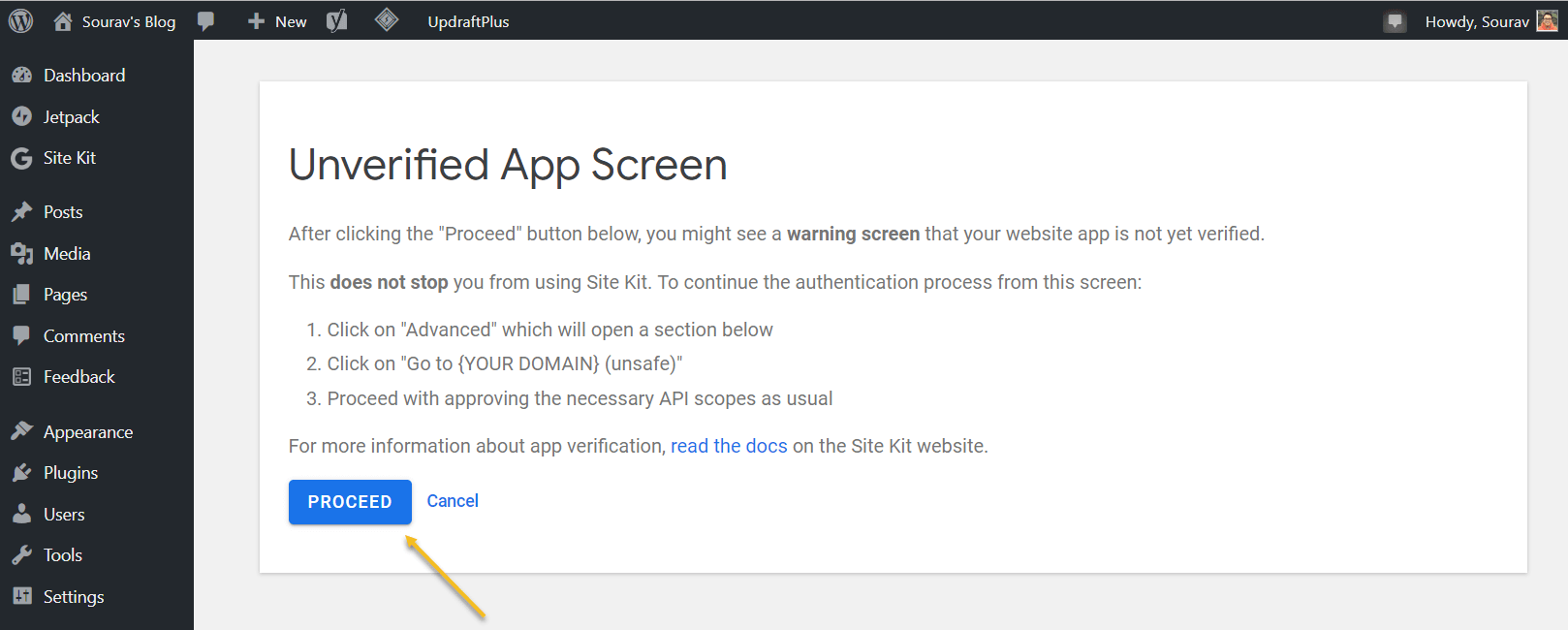
Site Kit unverified app screen message on WordPress

To link Google Analytics facilities of Google Site Kit in WordPress plugin, go to WordPress dashboard and opt for settings tab page. Once the settings page opens, click on connect to more services option. You will come across a screen that will pop up, showing about the unverified app.

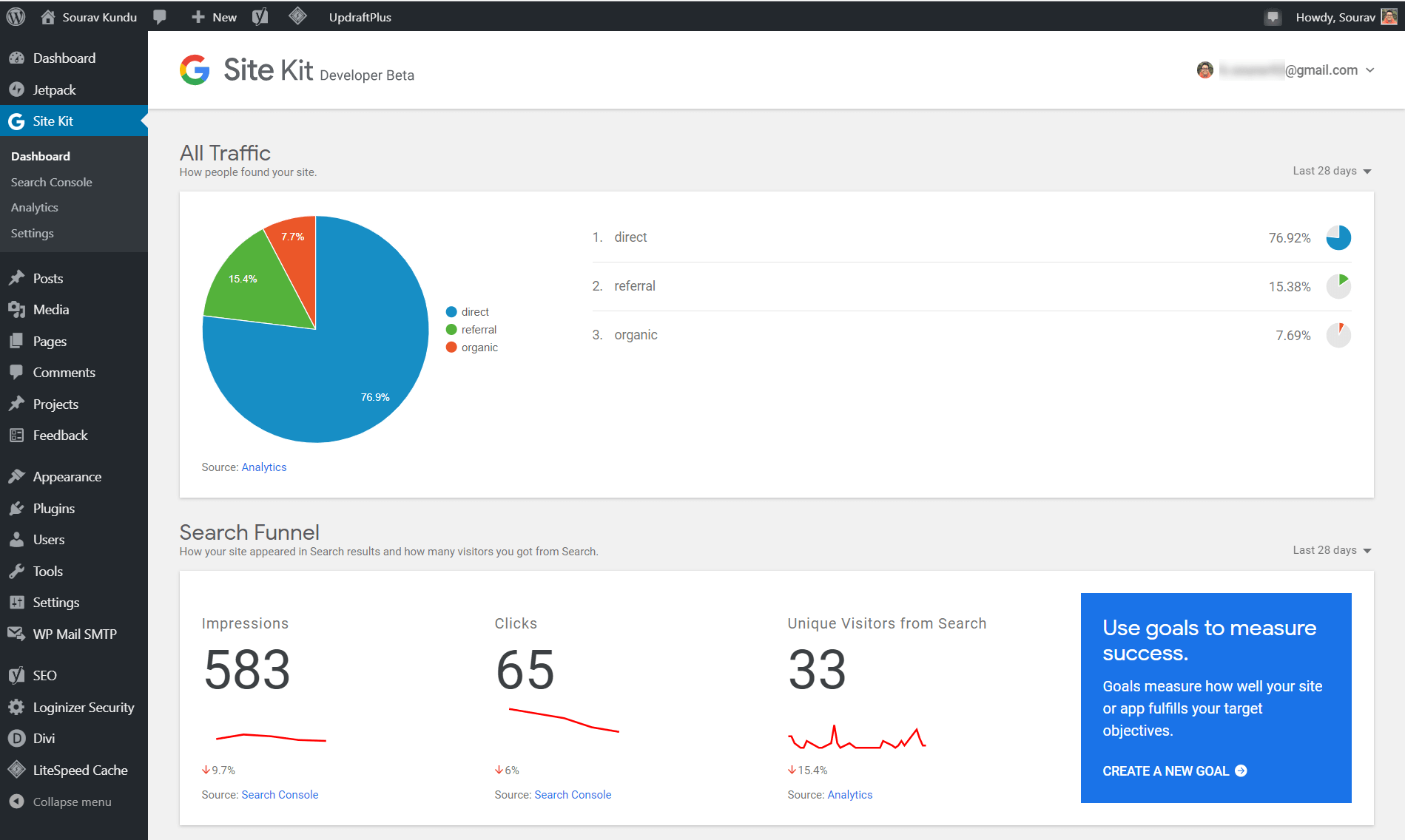
Google Site Kit stats panel in WordPress

No need to worry. Just click on the proceed option you get on this screen pop up. You will be asked to grant permission regarding some domains. Simply provide the required permission to this app. Review all the permission granting credentials and click allow to grant permission. You will be returned to the WordPress dashboard. Simply go ahead and configure Google analytics.

Overall, WordPress is one of the many popularly used websites by bloggers, writers, and business enterprises. It is due to this very reason that Google collaborated with WordPress and came up with Google Site Kit in WordPress plugin, letting you use the SEO tool to monitor your social media engagement and website in business or even when you are blogging away. So stop thinking, and go ahead to down WordPress and create those Google Site Kits in your WordPress dashboard right now.

FAQs

  1. Is Google Site Kit a free SEO tool?

Yes, Google Site Kit is very much a free WordPress plugin made available for all of you. There are several individual Google apps available in this kit. However, if you wish, you can add some premium Google apps in your kit.

  1. Why should I create a Google Site Kit in WordPress?

One of the many reasons for creating a Google Site Kit in WordPress is the easy to understand statistical information available on the admin dashboard, letting you directly retrieve the quantitative information for analysis. Creating Google Site Kit in WordPress lets you use several Google apps like Adsense, which lets you monitor how much your site is earning, of using Google Analytics to analyze your website, along with Google search console to configure and verify your client information.

Filed Under: Tutorials Tagged With: Adsense, Google Analytics, Google Page Speed Insights, Page Speed Score, Tutorial

How to Build a Strong Online Business

January 27, 2020 by Muhammad Abdullah Leave a Comment

Building a new business isn’t something to take lightly. It takes a lot of time and effort, not to mention a clear business plan. But what does it take to build a solid online business? Below, we’ll discuss some of our tips for building a strong foundation for a new online business.

Build a Solid Website

Perhaps this goes without saying, but you can’t build a strong online business without first building a good website. Your website will communicate what your brand is all about, and it’ll be the main way that clients and customers interact with your business. Your website should have a simple and attractive design, and not be overloaded with words, images, or ads, especially on the homepage. The key is balance.

Additionally, you’ll want to make sure that your website is easy to navigate and includes all of the major information that a newcomer or loyal customer would need. An “About” and “Contact” section are vital, as are pages clearly describing your products and services. A blog and FAQ section is also great ideas because they invite customers to engage with your website for a longer period and allow them to look for answers on your site before contacting anyone.

As for the mechanics of building a website, WordPress is a great tool for new entrepreneurs to use because it’s easy to set up and maintain. All of the hard work is taken care of for you, so you can focus more on your business and less on tech issues.

A person using phone to call while using laptop in a coffee shop

Important Skills to Develop

There are many life lessons that you can learn from strategy games that will aid you far beyond the table — like when you’re starting a new business. Two of the most important takeaways to apply to include understanding risk and learning discipline. When you’re starting a new business, some risk is unavoidable. But in order to make smarter business decisions, you need to be able to take calculated risks. This is the key to growth, and it won’t happen unless you make the right moves.

As for discipline, you need to be focused each day on small goals that will help you to achieve your end goal. You need to be disciplined about this through all the setbacks, rejections, and failures (because they will happen). This doesn’t mean you shouldn’t take some time to regroup or de-stress after a major setback, but don’t take too much time away from focusing on your end goal, or you’ll lose momentum.

Other skills entrepreneurs should focus on are networking, time management, and financial management. In addition to taking calculated risks and being disciplined, these will be the other skills that you need to develop in order to build a strong online business.

Brand Identity and Reputation

From the start, you should have a clear and developed brand identity, and your brand identity should be consistent across platforms — i.e., your website, social media, email marketing, and so on. This includes having a strong brand name, logo, and voice. You not only want customers and clients to remember you, but you want them to have a clear idea of who you are from the start. Plus, a strong brand identity will help to establish you as a trustworthy brand — you’ll immediately look as if you know what you’re talking about.

In relation to this, your brand’s reputation is also key, and this should be a priority from the beginning. Here it’s all about quality control in your products, services, and overall web presence. You are responsible for what you create and sell, how your business interacts with the world, your own behavior (since it’s tied to your brand), and the behavior of any employees you choose to hire.

Quality customer service is also a huge factor in brand reputation. It’s pretty simple: Happy customers and clients are loyal to a brand, and unhappy ones go somewhere else. Make sure that all customer complaints and issues are addressed in an appropriate and timely manner across platforms. As a bonus to retention, satisfied customers and clients will definitely recommend you to others, helping to grow your brand reputation further.

Filed Under: Tutorials Tagged With: Branding, Business, Guide, Online Business, Tutorial

How to install MongoDB on Ubuntu Server 18.04

January 22, 2020 by Editorial Staff Leave a Comment

If your company is in the business of using, handling or depending on data, chances are you’re in need of a document-oriented, NoSQL database. If you’re unfamiliar with the term, a NoSQL database is a non-relational database that doesn’t use tables filled with rows and columns. Instead, they make use of a storage model that is optimized specifically for the data.

These types of databases offer scalability, flexibility, data distribution, and speed of processing that relational databases can’t match.

One NoSQL database is MongoDB. This database has been adopted by big data and enterprise companies including Adobe, Craigslist, eBay, FIFA, Foursquare, and LinkedIn. MongoDB comes in both an enterprise and community edition. I’ll be demonstrating with the open-source community edition, installing it on Ubuntu Server 18.04.

This edition can be installed from the standard repositories, however, that will likely install an outdated version. Because of that, I’ll show how to deploy a version from the official MongoDB repository. This will install:

  • mongodb-org (this is the meta-package that will install everything below)
  • mongodb-org-server (the mongod daemon)
  • mongodb-org-mongos (the mongos daemon)
  • mongodb-org-shell (the mongo shell)
  • mongodb-org-tools (the MongoDB tools package which includes import, dump, export, files, performance, restore, and stats tools)

Do note that this package only supports 64-bit architecture and LTS (Long Term Support) versions of Ubuntu (so 14.04, 16.04, and 18.04).

Once installed, your Java development company (or whatever sector your business serves) can begin developing for big data.

Update/Upgrade

When installing a major application/service, it’s always best to first run an update/upgrade on the server. Not only will this ensure you have the most recent software, but it’ll also apply any security patches. Do note, however, that should the kernel be updated in this process, you will need to reboot the machine before the updates take effect.

To update and upgrade Ubuntu, log into the server, and issue the following two commands:

sudo apt-get update
sudo apt-get upgrade -y

Once up the update and upgrade completes, reboot your server (if required). You are now ready to install MongoDB, and you won’t even need to bring in your Java developers to take care of this task.

Adding the Repository

The first thing to be done is the addition of the necessary MongoDB repository. To do this, log into your Ubuntu server. From the command line, add the required MongoDB key with the command:

wget -qO - https://www.mongodb.org/static/pgp/server-4.2.asc | sudo apt-key add -

If you see an error regarding the wget command, install that tool with:

sudo apt-get install wget

Once you’ve added the key, create a new apt source list file with the command:

echo "deb [ arch=amd64 ] https://repo.mongodb.org/apt/ubuntu bionic/mongodb-org/4.2 multiverse" | sudo tee /etc/apt/sources.list.d/mongodb.list

Installation

Now it’s time to install MongoDB. Update apt with the command:

sudo apt-get update

Once apt is updated, install MongoDB with the command:

sudo apt-get install mongodb-org -y

Starting and Enabling the Community Edition

With the database installed, you’ll want to start and enable it to run upon server reboot. Otherwise, you’ll have to manually start it every time the server is restarted.

To start the MongoDB database engine, issue the command:

sudo systemctl start mongod

You’ll then want to enable MongoDB with the command:

sudo systemctl enable mongod

Using MongoDB

In order to start working with Mongo, issue the command:

mongo

If you get an error status 62, it means that the version of MongoDB is too new for your server. If that’s the case, you’ll need to uninstall the latest version and install the version from the official Ubuntu repositories. Here are the steps for that process:

  1. Remove the latest version with the command sudo apt-get purge mongodb-org.
  2. Remove any extra dependencies with the command sudo apt-get autoremove.
  3. Install the older version of MongoDB with the command sudo apt-get install mongodb -y.

At this point, you should then have access to the MongoDB command prompt (Figure 1) by issuing the mongo command.

Figure 1

The MongoDB command prompt.

Let’s say you want to create a new database. Unlike relational databases, you don’t use the CREATE command. Instead, you simply issue the use command like so:

use DATABASE

Where DATABASE is the name of the database to be created.

This doesn’t actually create the database. In order to finalize that, you must insert data into the new database. Say you create a database named albums. You can then insert data into that database with the command:

db.artists.insert({artistname: "Devin Townsend" })

The above command would insert the string “Devin Townsend” associated with artistname in the database albums. You should see WriteResult({ “nInserted” : 1 }) as a result (Figure 2).

Figure 2

Successfully insertion of data into the new db.

And that’s all there is to installing MongoDB on Ubuntu 18.04 and creating your first database. For more information on using MongoDB, make sure to read the official documentation for the release you’ve installed.

Filed Under: Tutorials, Hosting Tagged With: Tutorial

WordPress Developer Salary Overview Around the World

January 17, 2020 by Editorial Staff 3 Comments

WordPress is very popular to date. Visit any website and, most likely, it is built with the help of WordPress. Because of its popularity, a lot of freelancers and in-house programmers from many locations work with this CMS. As a result, we have a big variety in WordPress programmer salary, which is, in general, estimated to be low compared to salaries in other development fields. Studies show that the popularity of the system is growing rapidly, so it is hard to say what the future will bring to WordPress developers.

Since there are developers from many countries, there comes a varied salary based on the location. Ukraine developers have their salary range while other countries also have a range of salary for the developers.


A little of WordPress history

WordPress is a free open-source content management system that allows you to manage the content of your WordPress website. To date, there are many guides that describe how to use WordPress and provide instructions that will help to build a website, blog, etc. Even a beginner can easily build a required website, however, this will take longer than for an experienced WordPress developer. The history of WordPress begins back in 2001 when the French programmer Michael Valdrighi developed a B2/cafelog system that generated pages dynamically using the MySQL database content. However, over time Micheal abandoned the project. Users liked the idea so much that one of them, namely Matt Mullenweg, decided to update the existing system by adding new interesting properties. Matt easily found a like-minded person, Mike Little. So in 2003, a new CMS appeared. It was named WordPress and was written in PHP, using the same MySQL database.

The popularity of WordPress

The creation of WordPress greatly facilitated the web development process. For example, you yourself wanted to write a web page or to maintain and update the content on a page that someone has already created for you. If this system didn’t exist, you would need a lot of special knowledge such as knowledge of programming languages like PHP, JavaScript, HTML, CSS, MySQL database, etc. WordPress allows creating web pages much faster, and they come out better and more reliable. Perhaps it is the simplicity and the extensive functionality of the system that made WordPress development so popular.

The resource W3Techs constantly publishes web technology surveys. Their data are based on the research of the Top 10 million websites rated by Alexa rank. The survey on the usage of various CMS showed that 47.5% of all the researched websites are not based on any management system at all. However, 31.5% of websites in this huge list are using WordPress CMS. This means that almost 60% of web pages using CMS are WordPress websites. Also, W3Techs stating that this CMS continues to be the fastest-growing outstripping WooCommerce and Wix.

WordPress programmer salary worldwide

The huge popularity of this CMS generates a great demand. Consequently, around the world, many junior web developers learn WordPress. Some of them continue their careers in this direction, but the others move further, going deeper, studying new programming languages for themselves, opening the boundaries, etc. However, specialists using this CMS will be in demand for a long time. As for now, WordPress jobs exist for developers at any level, and of any locations. The salary rate takes into account the developers’ professional level, the cost of living in their locations, working conditions, etc. For example, in the US WordPress programmer will earn an average of $50,000 per year. In Canada, such a web developer will receive approximately $35,000 annually. The UK offers an even smaller reward of $30,000. In Germany, a WordPress developer will get $44,000 annually. Australia offers vacancies with an average salary rate of $42,000. In Eastern Europe, things are a little different. Taking into account the average developer salaries of other programming languages, a WordPress programmer salary is low in general. WordPress developer salary in Ukraine is even smaller. As an example, in Ukraine, it is possible to find an inexperienced programmer for only $400 per month. However, many outsourcing and software development companies have WordPress programmers with a monthly average wage of about $800 and more.

WordPress salary forecast

The fact that WordPress is a free CMS greatly affects the cost of the programmer’s work. Most WordPress developers are freelancers of various levels. Someone is a junior developer, another is on the senior level, and some work in software development companies getting a relatively good salary. Nevertheless, for a long time, the impression was established that the developers using such CMS are mostly freelancers. One of the reasons for the average low wages is the big number of WordPress freelancers and free software, mostly. The value of a freelance WordPress product can differ a lot, from $3,000 up to $15,000. While most freelancers will work for a relatively low price, the salary in the labor market is unlikely to change in the nearest future, which is a threat to WordPress security. For example, cooperating with a small business, the freelancer may think that a customer has scarce resources. In addition, freelancer uses free software, so the thought ‘the work is not worth high financial reward’ may also appear. This is a common misconception. For every developer, it is necessary to have confidence in what they do. In other words, it is better to provide the solution rather than selling a casual WordPress website based on a sample. ‘Code is poetry’ is the wording written at the end of each page of the official WordPress site. Just take a look at the number of existing WP plugins. Everything is made up to be a successful WordPress product creator.

WordPress will last long

WordPress is a worldwide famous content management system. Thanks to its functionality and extensive use, developers are able to operate with a huge number of plugins and tools, to hold any requirements they meet. The creators wanted to build a system that would help to make web pages and they’ve done a pretty good job. Such popularity all over the world has resulted in a big number of WordPress developers with different salary rates. The cost of a project depends on the developer level, the complexity of the website, as well as the location of the developer. In general, WordPress programmers are freelancers, therefore, the price for that job is much lower. Despite that, the WordPress community creates various beautiful products. As WordPress still remains popular and seems to hold its position, it will be used for web development for a long time.

Filed Under: Tutorials Tagged With: Tutorial, WordPress Developer

8 Reasons Why Entrepreneurs Should Use WordPress

December 30, 2019 by Editorial Staff 1 Comment

Since 2003, WordPress is taking the world of content management by storm. So, if you are leading an online business portal, WordPress is your cup of tea! With more than 74 million sites relying on WordPress today, its popularity is quite evident.

Isn’t it?

Haven’t you opted for it yet? You are certainly running slow in the race then. WordPress can really take your business website to just another level.

Here are the reasons which make WordPress one of the most powerful tools.

Just have a look!

1. Search engine friendly

When it comes to the majestic search engine tool, Google, it always prefers WordPress based websites.

Why?

Well, the Google bots can easily crawl them. So, if you are not using WordPress, your site might probably not rank at the top. It will further let you lose the number of visitors on your website. So, just make the right move now itself!

2. Easy setup and update

Interestingly, any common man can set up WordPress easily. Yes! You don’t have to be an internet expert to do that. This is what makes WordPress an amazing tool for everyone. All that you will need a web browser to come up with your website.

So, isn’t it easy? Just try your hands on now. Browse through WordPress.com to create a free account. Once you do this, you’ll have your website in just a couple of minutes. Moreover, if you intend to pay a nominal additional fee, you can set your domain name there.

WordPress is definitely a perfect starting point for any website!

3. Pliability

WordPress doesn’t have any hard and fast rule, of course. It is quite flexible. This astounding feature of WordPress couldn’t be beaten at all. Whether you are using WordPress for a personal blog or any e-commerce website, WordPress can be used for everything. With its strikingly extensive features and extension, it will leave you absolutely spellbound!

4. Safe and secured

If you are using WordPress, you can definitely keep the hackers at bay. It is one of the most guarded CMS available in the world. With its increasing security features, WordPress always tries to remain safe.

Moreover, with such amazing security measures, WordPress always updates its software. Also, with the launch of the new 3.7 version, there’s an automatic update feature accompanied with it.

So, all in all, WordPress is certainly an awesome tool for your website. Keep your website always sheltered with WordPress!

5. Mobile-ready

Nowadays, it is quite genuine that people visit websites through mobile more than their desktops. Yes! Mobile browsing is simply exploding now like before.

Moreover, if you don’t opt for WordPress, you will lose your customers. WordPress is totally mobile-friendly. Many of the themes which are present in WordPress are designed in such a way that they are responsive to smartphones. So, it will lead your customers to open your website on their smartphones. You can find more themes on QualityWordPress.

6. Highly Integrative

WordPress can easily combine with almost all effective platforms. It can really give your business an amazing extra boost. Whether you need to launch an email campaign or if you want to get paid for the products or services, WordPress can help you with every such thing.

For the former purpose, Aweber or MailChimp is there for you. And, if you consider the latter option, WordPress can help you with even the most prominent gateways in the world.

7. Extremely affordable

Always remember that WordPress is free software. It doesn’t cost you huge dollars to get access to WordPress. Moreover, it is abundantly user-friendly and a completely open-source platform.

You don’t have to actually hire any web designer or technical person to launch your WordPress site. So, if you have been thinking still now that WordPress will cost you huge, it is not at all right! So, what are you waiting for? Just opt for it now itself!

8. Deal with any hosting provider

If you think that you need to switch a provider, you can do that easily. It is quite natural for you to get frustrated with a particular hosting provider. Sometimes you might feel that they are not able to handle the traffic. Moreover, there can be many other such harassing reasons.

In such a scenario, you can go to any other hosting provider without much hassle. It’s because WordPress works on almost every server. If you want such a change, you can easily do that. Also, you can look for various free WordPress hosting chances available out there.

This is how WordPress can let you relish a lot of amazing benefits! However, there are many other potential perks of WordPress for entrepreneurs like you. If you choose it, you can completely control your website like the way you want.

Isn’t it simply incredible?

So, just go for WordPress now and see the difference by yourself!

Filed Under: Tutorials Tagged With: Tips, Tutorial

  • « Go to Previous Page
  • Page 1
  • Interim pages omitted …
  • Page 14
  • Page 15
  • Page 16
  • Page 17
  • Page 18
  • Interim pages omitted …
  • Page 74
  • Go to Next Page »

Primary Sidebar

Quick Links

  • About us
  • Brand Material
  • Site Updates
  • Transparency Report
  • Write for us

Footer

Reviews

  • Beaver Builder Review
  • Blockonomics Review
  • WP User Frontend Pro Review
  • Imagely NextGEN Gallery Pro Review
  • Visual Product Designer Review
  • WP Event Manager Review

Resources

  • Choose a Domain name
  • Best WP Hosting Providers 2025
  • Start a WordPress Blog
  • WordPress Permalinks Structure
  • Email Management System
  • Envato Free Files of The Month

Top Resources

  • Choose a Domain name
  • Best WP Hosting Providers 2025
  • Start a WordPress Blog
  • WordPress Permalinks Structure
  • Email Management System
  • Envato Free Files of The Month

Copyright © 2026 · WordPress Arena - A Project of TechAbout LLC.

  • Terms & Conditions
  • Advertise
  • Write for us
  • Disclosure
  • Terms
  • Privacy
  • Contact