Category: Tutorials

  • How To Enable WordPress Author Tracking In Google Analytics

    How To Enable WordPress Author Tracking In Google Analytics

    Are you ready to track your’s author’s posts performance on search engines?

    Typically, with Google Analytics, we will be able to see the top-performing posts, countries, and related stats in our Google Analytics account. But, if we are running a multi-author blog, it is a great practice to track the author’s performance on search engines.

    Google Analytics needs some additional configuration for that. Well, in this post, we are going to show you how can you enable WordPress author tracking using the MonsterInsights WordPress plugin!

    How To Enable WordPress Author Tracking?

    You might want to get your hands on the premium version of MonsterInsights. MonsterInsights is a freemium WordPress plugin. The free version plugin got only limited features, and the premium one will unlock more advanced features. For the author tracking feature, you need to get the premium plan.

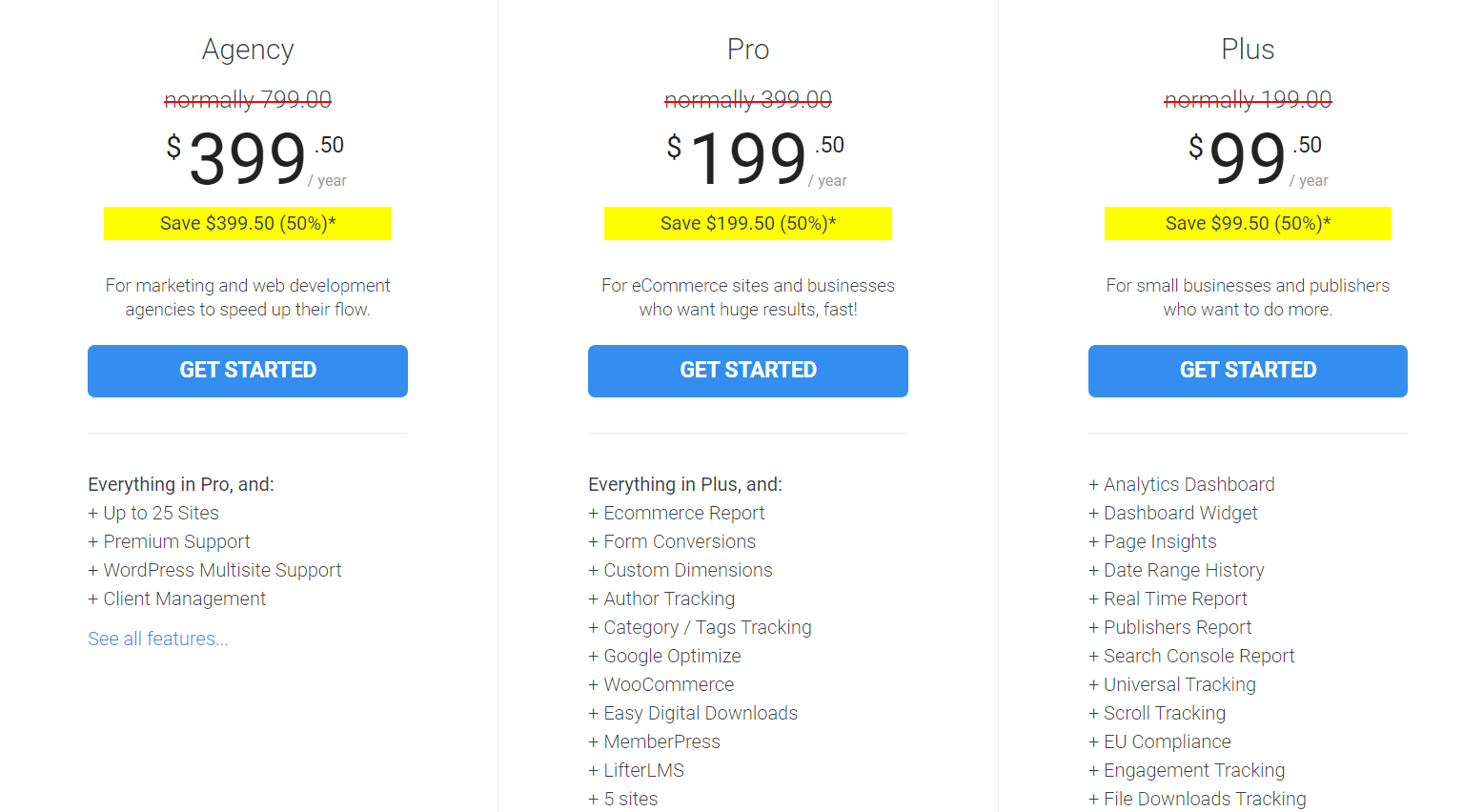
    Head over to MonsterInsights, choose a plan according to your use.

    monsterinsights plans

    You need the pro or agency plan for the feature. Complete the purchase using your Credit Card or PayPal account. Once you got completed the purchase, you will be able to log in to your MonsterInsights account, download the latest version of the plugin.

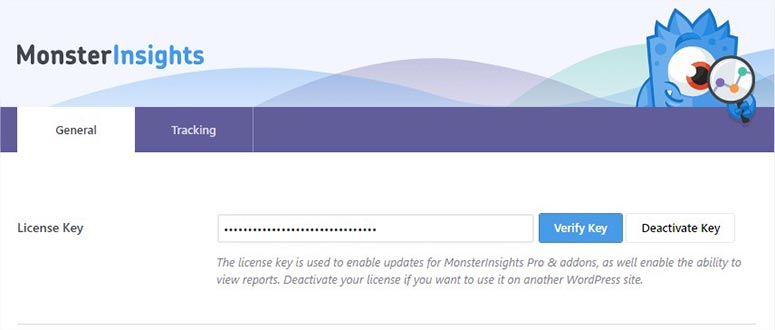
    Now, log in to your WordPress blog, install and activate the plugin on your blog. Plus, you will get a license key in your MonsterInsights account. Copy the key and paste it in your MonsterInsights settings.

    license

    A valid and working license key is required for receiving plugin updates and for accessing the premium addons. After verifying the license, go to the addons section. There, you can see an addon called Dimensions. Install and activate it.

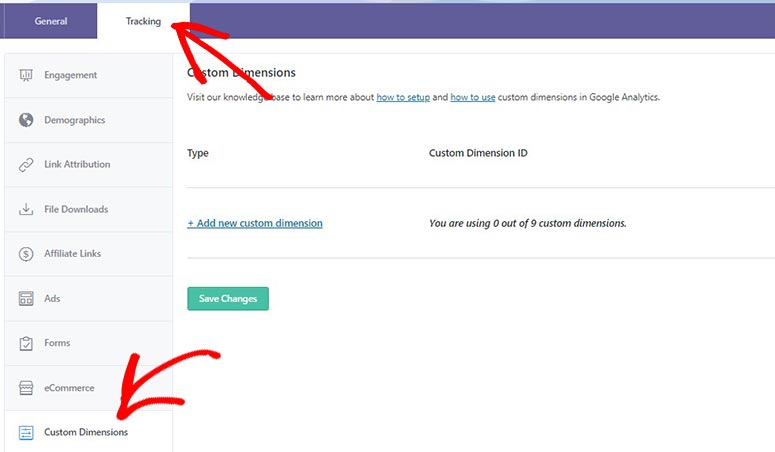
    Go to the tracking section. You will see the custom dimensions, go there.

    tracking

    You have no custom dimensions there. All you need to do is, click on the add new custom dimension. Another form will be opened up.

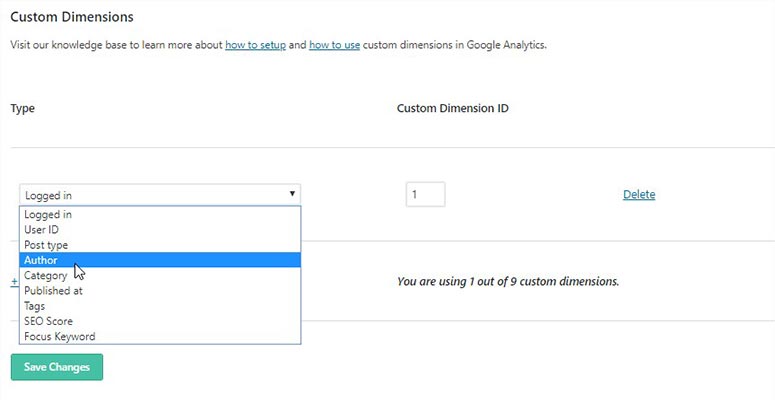
    author

    From the dropdown, choose the author as the type. You can skip the custom dimension ID part. We will change it later. You need to save the changes.

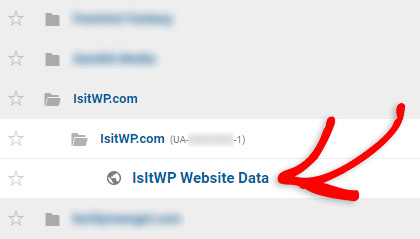
    The next thing we need to do is, add the custom dimension to our Google Analytics property. Log in to your Google Analytics account, go to your analytics property.

    google analytics property

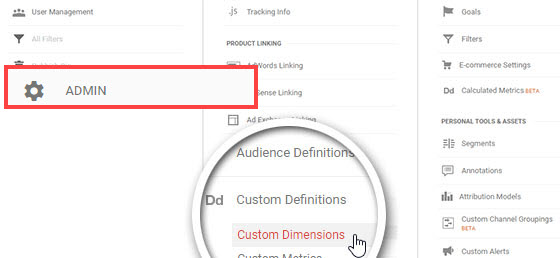
    After opening the property, go to the admin section. There, you could see a section for adding custom dimensions.

    ga admin

    Select that option.

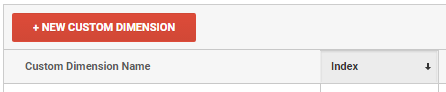
    From there, you can add new custom dimensions.

    add dimension

    You will see a new form in the next page load. There, in the name field, add Author. Then click on the create button. The custom dimension will be created almost instantly. You don’t want to make changes to any other configuration.

    Now, Google Analytics will give you a custom dimension ID for your Author type.

    ga id

    You might want to copy the custom ID from there. Go back to your MonsterInsights settings, to the custom dimensions section we just created for the author type.

    In the ID field, paste the custom dimension ID Google Analytics gave.

    new dimension id

    Save the changes again.

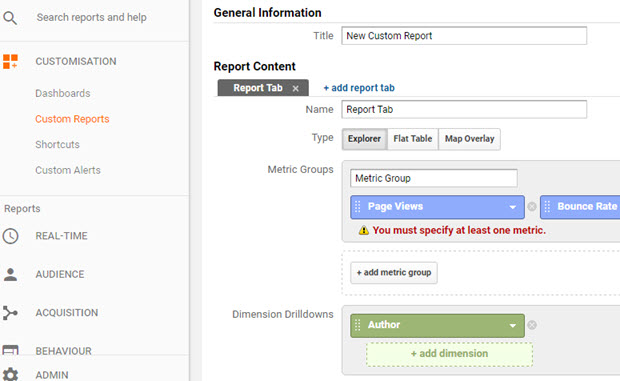
    Now, we need to go to the Google Analytics property dashboard, create a custom report. Under customization, you can see a section for pulling custom reports. Select that option.

    custom report

    Give a name for your custom report/ And in the report content choose Metric Group. As you can see in the above image, select the dimension drilldowns as Author.

    Simple! Click on the Save button.

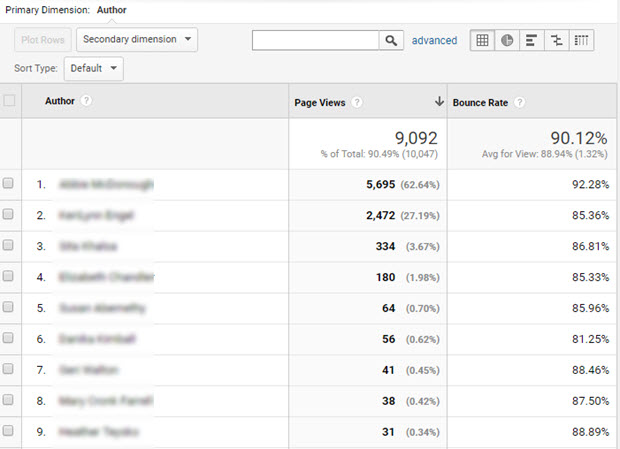
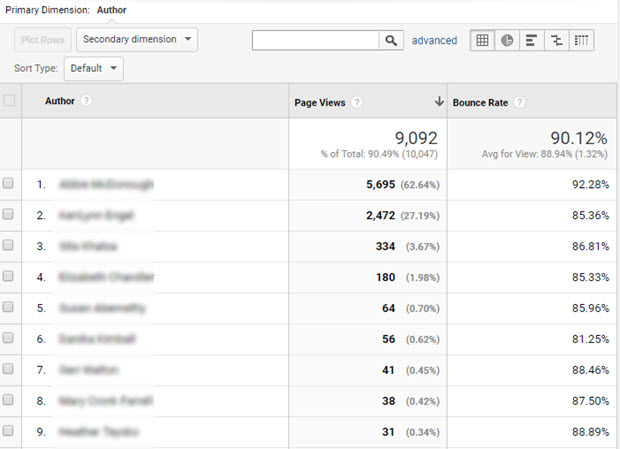
    The page will display a complete custom report with your blog authors, page views received by them, bounce rate, etc.

    author report

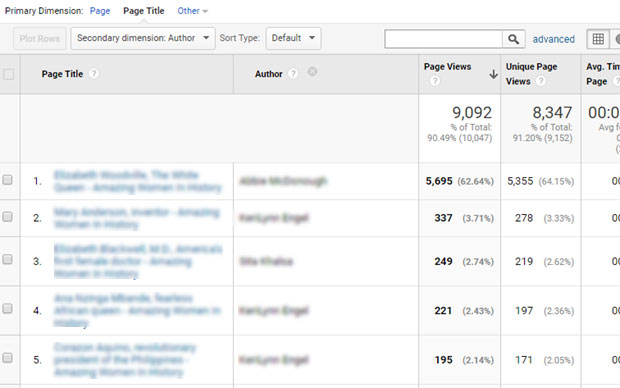
    For more detailed reports, choose Author as the secondary dimension.

    author report 1

    The page will now pull a completely new report with the popular posts, author of it, page views, unique page views, average time on page, etc.

    new report

    This is how you can enable WordPress author tracking using MonsterInsights WordPress plugin. As you can see, we don’t want to write a single line of code for enabling this feature!

    Download MonsterInsights Premium

    You can visit the official plugin site and download the premium version of it from below.

    Get Started With MonsterInsights

    Every MonsterInsights plans come with a 14-days money-back guarantee. So, if you think the plugin is not working as you expected, you can contact the support team via tickets, get a full refund.

    I hope you found this post helpful and enjoyed the read. If you did, please consider sharing this post with your friends and fellow bloggers on social media. It will help someone to configure the author tracking properly.

  • Keeping your Team Informed via Effective Reporting

    Keeping your Team Informed via Effective Reporting

    There’s almost no business threat more insidious than a team unable to communicate with each other. Usually, this problem is indicative of an even stronger issue, that the team are confused to begin with. Businesses spend good amounts of time and investment trying to keep their team up to speed, as this cannot be considered something that you may ever take for granted.

    Keeping your team informed via effective reporting, then, will be the most important preventative solution to enact ahead of time. Further measures such as encouraging the use of intra-team IM apps such as Slack or utilizing your WordPress platform to its best capacities can be important.

    However, we would also recommend that the need for an effective digital annual report can help you curate all of the lessons learned from that year into a document worth considering. But what should be included in that report, and how might you best offer it to your team in a manner that both educates and suggests actionable results? These are great questions to ask. Let us consider them ahead of time:

    Successes & Failings

    Discuss the successes and failings you may or may not have managed to gain thus far. Doing so will enable you to take a more rational, reasoned perspective to the year gone by. It will also help you provide further context to the decisions made by management or the struggles everyone on the team has lived through and will be familiar with. When you can honestly approximate which decisions panned out, which didn’t, and how you’re going to use those results to encourage your future convenience or success can be important. It will also enable your team to see you know what the problems are.

    Statistics

    Researching statistics and presenting that to your staff can be important. Maybe you’re aware that your failings came from the marketing direction you took rather than the productivity issues within your departments, as you’ve noticed less staff turnover and fewer absences or sick days than ever in the last twelve months. When you have statistics to back up your arguments, noting where things went wrong or admitting blame can help the team seem like a cohesive unit rather than a collective pointing the finger at one another. This will be truly appreciated.

    Personal Results

    It can also be worthwhile to give staff a summary of their own personal results at this time of year. Perhaps you are quite happy with their progress, or maybe you have things to work on next year. These ideals can help staff understand, in a confidential and respectful manner, just what the goals are for next year. It can also help you better illustrate where you hope to take their professional development. Of course, coming to insightful conclusions is always the first step before approaching someone with this data, because it must be used as a platform, not a means in which to denigrate.

    With this advice, we’re sure you’ll keep your team informed via effective reporting.

  • Crafting Stories: Turning Your Hobby into a Monetizable Blog

    Crafting Stories: Turning Your Hobby into a Monetizable Blog

    The rise of social media was once seen as the end of blogging. After all, sharing content on social media is not only simpler but also more effective in some situations. However, the long lifespan of a blogpost and the extra flexibility offered by CMS platforms like WordPress are still invaluable.

    You only need to look at the list of plugins reviewed here on WPArena to see the kind of user experience you can deliver to your audience. The only missing ingredient is quality content to fill your site, and we have just the tips to get you started with turning your hobby into stories for your blog.

    Find a Niche

    Blogging post ideas WordPress
    Photo by Fikret tozak on Unsplash

    A hobby can still be too general to discuss. If you like photography, for example, there are multiple genres you can focus on. The same is true with hobbies like filmmaking, crafts, and even writing. The best thing to do is find a niche as early as possible.

    To do that, think about parts of your hobby that you like the most. For instance, you can talk about CAD software for PCB design, and how this is useful in DIY projects if you enjoy making IoT devices or building gadgets from Arduino or Raspberry starter kits.

    The goal of finding a niche is identifying your primary audience early. When you know your primary audience, you can tailor your stories for them, allowing your blog to gain a substantial audience base faster in return.

    Be Personal

    tools for serious blogger

    There are thousands of websites filled with resources, articles, tutorials, and other content. Creating just another blog for tutorials isn’t going to cut it in today’s competitive landscape. Your strong suit is the personal view you have, so take advantage of it when crafting stories.

    Using the previous example of writing posts about CAD software, you can add your own personal touches to your articles. Small details such as the difficulties you face when you are trying to create a particular CAD design are actually the most valuable to your audience.

    Take it a step further and develop a personalized style of writing. Now that you have a personal point of view to work with, you can master the art of telling your stories the way you would in real life. It takes a bit of practice, but your audience will start recognizing your posts from the style.

    Leverage Social Media

    social media monetization
    Photo by Merakist / via Unsplash

    As mentioned before, social media is really taking over the content landscape, but that doesn’t mean you have to use them exclusively. In fact, social media is the perfect tool for taking your audience along the journey.

    A good example is sharing Instagram stories about a CAD project you are working on, and then writing a comprehensive post about the project from start to finish. The stories help build anticipation and allow the audience to get closer to the actual process.

    Your blog post, on the other hand, ties everything together. In the end, your blog acts as the anchor for all of your online activities. Combined with the previous tips, you will be able to develop a strong, highly personalized series of stories for a specific audience.

  • How to Move Your WordPress Client to a New Server Correctly

    How to Move Your WordPress Client to a New Server Correctly

    Moving a client to a new server is a part of the job that can come up from time to time. There have been a surprising number of clients that I have met who were hosting with their web developers. This was an old way to make a lot of money with a client – the whole idea is you would build a website for them for let’s say $1,000 – then you would charge them $50p/m for hosting – but the hosting would literally be a server in your garage that cost you $100p/m to maintain and you could have 100 clients on there.

    The problem is – anytime I get one of these clients – I know right away when the developer has screwed them over on hosting.

    You see as a cost-benefit analysis goes it’s just much better to go with a reputable hosting company. What ends up happening is these clients have bad support for their host and an inferior product – not to mention getting overcharged. It would make sense as to why a client would want to move away from their previous developer’s hosting once they make a switch to a new web developer.

    Moving to a new host is not always straightforward though – so I wanted to show you how I do it and some mistakes you could make.

    Step 1: Install WordPress On New Host

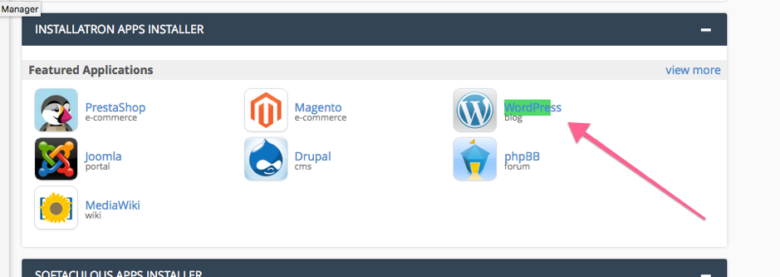
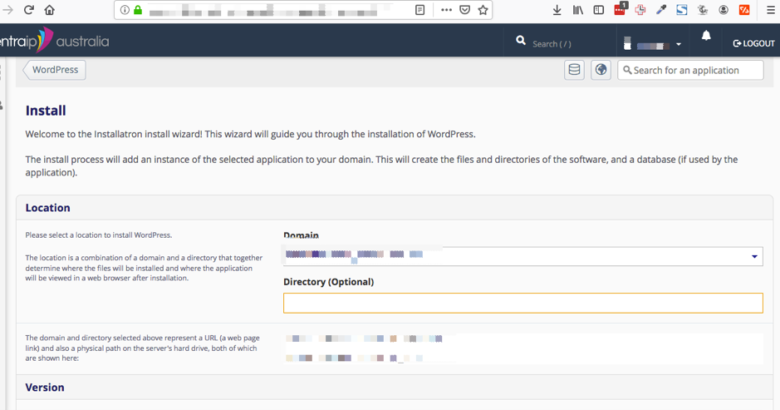
    There hasn’t been a single cPanel I’ve used that didn’t allow installation of WordPress. Simply go to cPanel and you’ll see an option somewhere to install WordPress. You’ll go through the standard Installatron/Softalicious installation.

    cPanel Migration

    Here – everything is straightforward

    Installatron/Softalicious installation

    The only thing you need to be concerned with is installing WordPress on the root domain and not in a subdomain (sometimes it sets the directory to be ‘wp’ by default or something like that).

    Don’t worry too much about what the Site Title and other options like this would be because you’ll be overwriting the database.

    Step 2: Make a Backup of the wp-content and Move Over

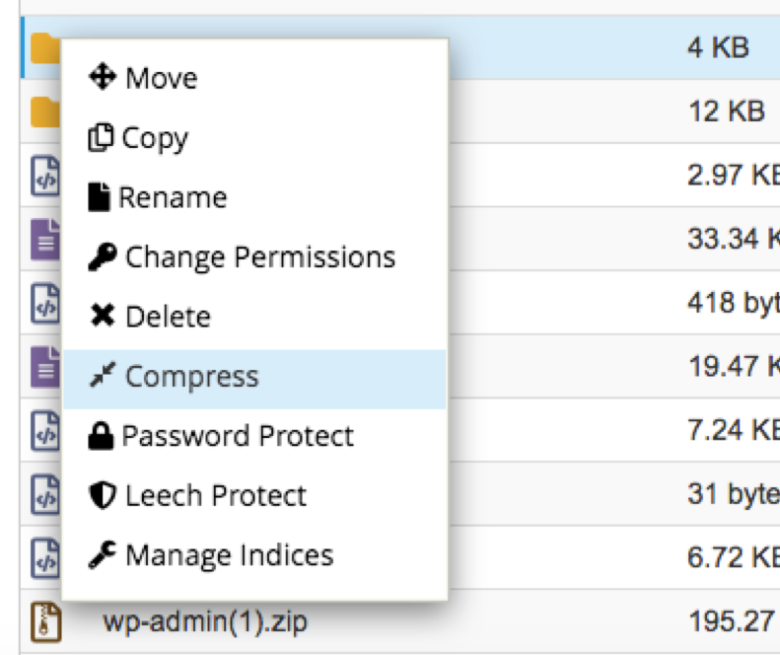
    What you need to do now is go to the old host and make a backup of the wp-content folder (which I’ll show you how to do in a sec) – and the database. With the wp-content folder simply go to the public_html folder and right-click on ‘wp-content’ in the File Manager and click on Compress

    image 3

    You’ll have a zip file ready once this is done (if you don’t see it go into another folder and then go back because it may need to refresh the file list). Right-click on this file and click ‘Download’ – then go to the File Manager of your new host and completely delete the wp-content folder in the root, upload the wp-content zip file, extract it and you’re halfway done. Now we need to get the backup of the database.

    Step 3: Make a Backup of the Database and Move Over

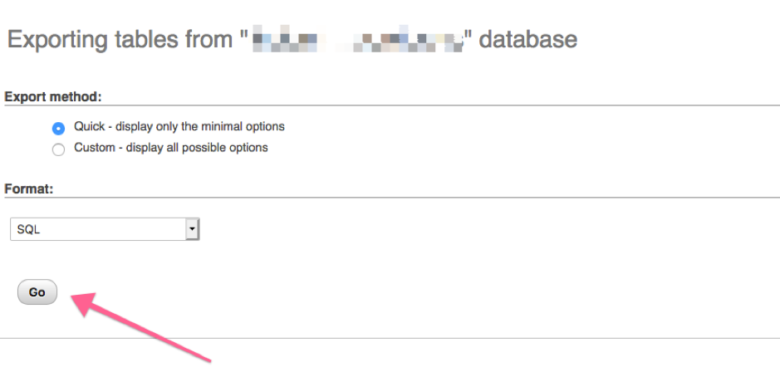
    Transferring the database is a little more tricky – what you need to do is go to phpMyAdmin – select the database from the left and then click Export.

    image 4

    Lucky you – there’s nothing really that complicated here – just click the ‘Go’ button without changing any of the options. Now we need to import the database.

    This is going to be a little tricky because you need to not only add the new database and import it but you also need to change some settings in a file called wp-config.php but I’ll guide you through it.

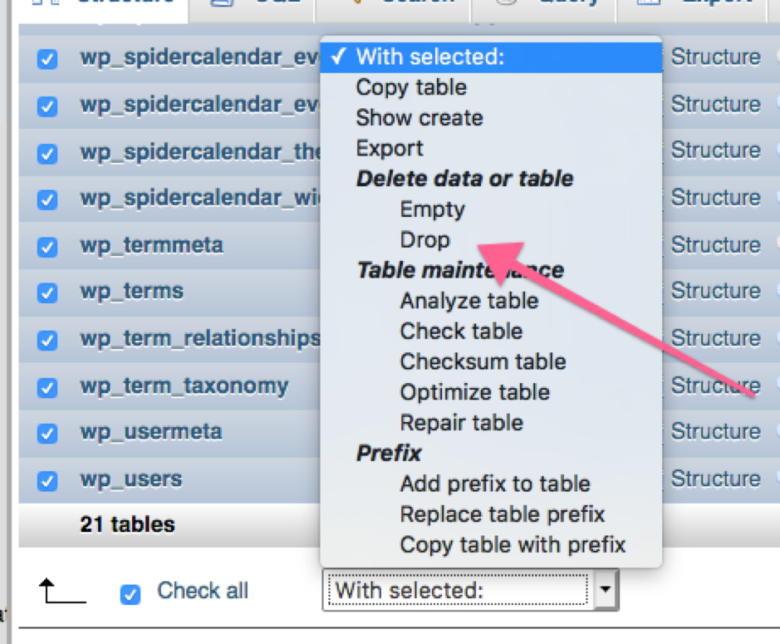
    So first things first go into phpMyAdmin – select all the tables in the database and then scroll down to the drop-down and select ‘Drop’

    image 5

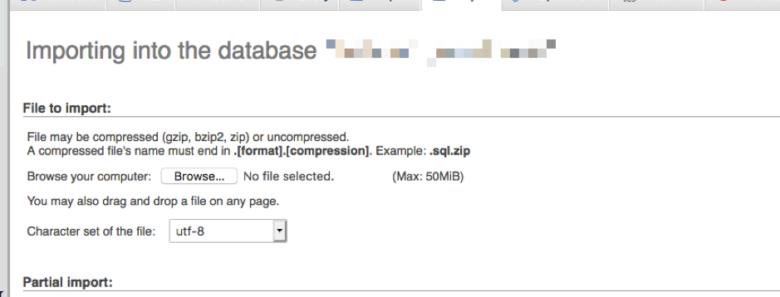
    Once you do that all the database tables will be deleted. But don’t worry – just go to ‘Import’ at the top – select the file export of the database (it should be a .sql file) and then click ‘Import’ to import the new database.

    image 6

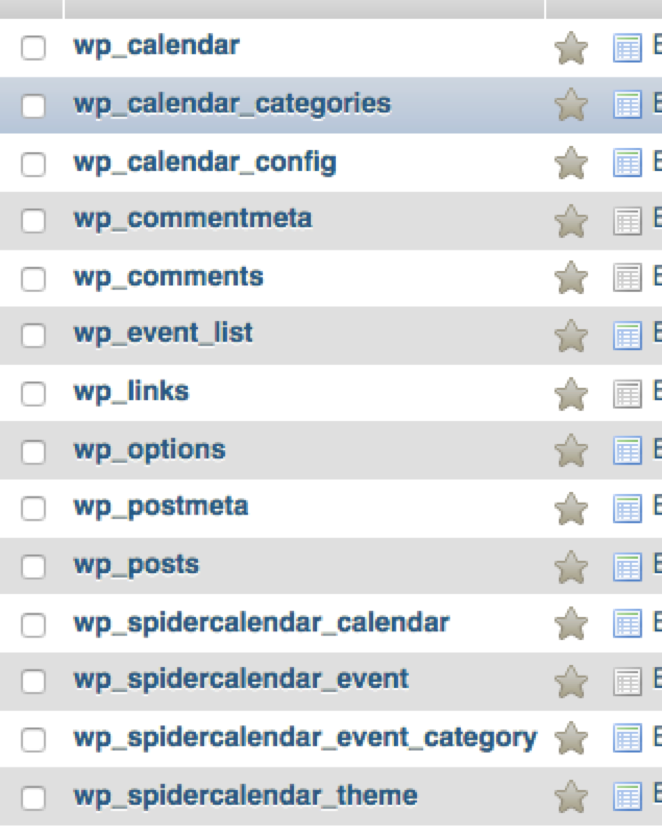
    After that, all you need to do is take a note of the wp_ prefix. For example below is the standard ‘wp_’ prefix behind every database name:

    image 7

    But I’ve seen everything from wpx1_ or anything like that – basically you could have any prefix you want.

    Now go into wp-config.php and make sure you change the prefix to whatever is in the database (there should be a constant for it).

    Then all you need to do is redirect the name servers to your new domain!

    Step 4: Don’t Forget the Mail!

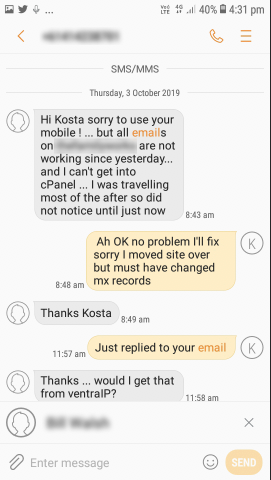
    One thing is you don’t want to be receiving SMS messages like this once you transfer the name servers of the domain

    SMS messages

    Make sure you replicate the name servers from the old cPanel

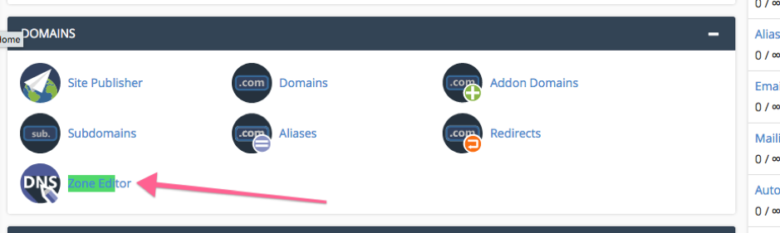
    You can find the MX records in the Zone Editor:

    image 8

    Make sure they are replicated over from the previous cPanel.

    Then if you’ve done correctly voila! You have the new site live!

    Note: to test if the new site is indeed correct I upload a file called testme.php in the root directory that just echoes out “This is the new site” – then I go myclientdomain.com.au/testme.php to confirm the site has moved over.

    Good luck!

  • 3 Ways to Build Better Internal Links

    3 Ways to Build Better Internal Links

    You know the drill by now: internal links are a big SEO signal for Google, as well as a great way to retain users longer on your website.

    As a refresher, the dual benefits of quality internal links are that they:

    1. Help Google understand the structure and topics of your website for indexing in search
    2. Make it easier for visitors to engage with more of your content and boost your average session duration

    Here’s a quick look at what great internal linking can do:

    • Help users quickly navigate your website
    • Keep older content relevant by directing traffic to it
    • Ensure all of your content can be found
    • Inform Google what your site is about

    Logically, with all these benefits, there’s NO reason why you shouldn’t have fantastic internal linking. But if we’re being honest, a less-than-ideal internal linking situation may not really be a motivation problem – it’s often because the job gets harder as you grow more successful with your content site.

    The Internal Linking Challenge

    It can be difficult to add links between all of your different content pieces, especially as the number of posts and pages on the backend of your site starts to climb.

    Say your website has 50 blog posts and 20 pages. After you post that 51st blog, you’ll need the post to link back to at least three to five existing pieces of content – and some of those older articles need to link back to your new post as well.

    Now, imagine if you actually had 500 posts – or even 5,000! The more content you add, the more intimidating internal linking can be. So, let’s look at a few ways to simplify the process of building powerful internal links on your website!

    1) Link Whisper

    Hands-down, the best way to build internal links on your website is with an excellent tool called Link Whisper. In case you’re new to it, Link Whisper is a WordPress plugin that does a lot of the heavy lifting for you.
    word image 1 scaled

    As you write a new post, Link Whisper scans the body copy and automatically identifies anchor text and other pages and posts on your site that the new post can link to. word image 2
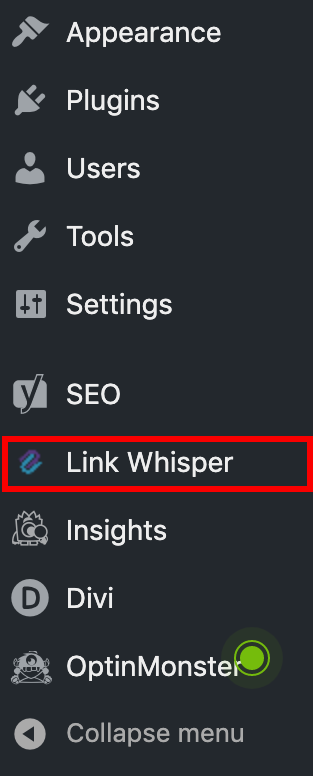
    When you click on the plugin itself on your WordPress sidebar, you’ll get a handy view of all the posts you’ve published, along with the number of internal and external links each of your posts has.

    By displaying the list of posts with their current links, Link Whisper makes it easier than ever to stay on top of your linking game.

    How to Use Link Whisper

    When you use Link Whisper, keep in mind that there are two main stages where it comes in handy.

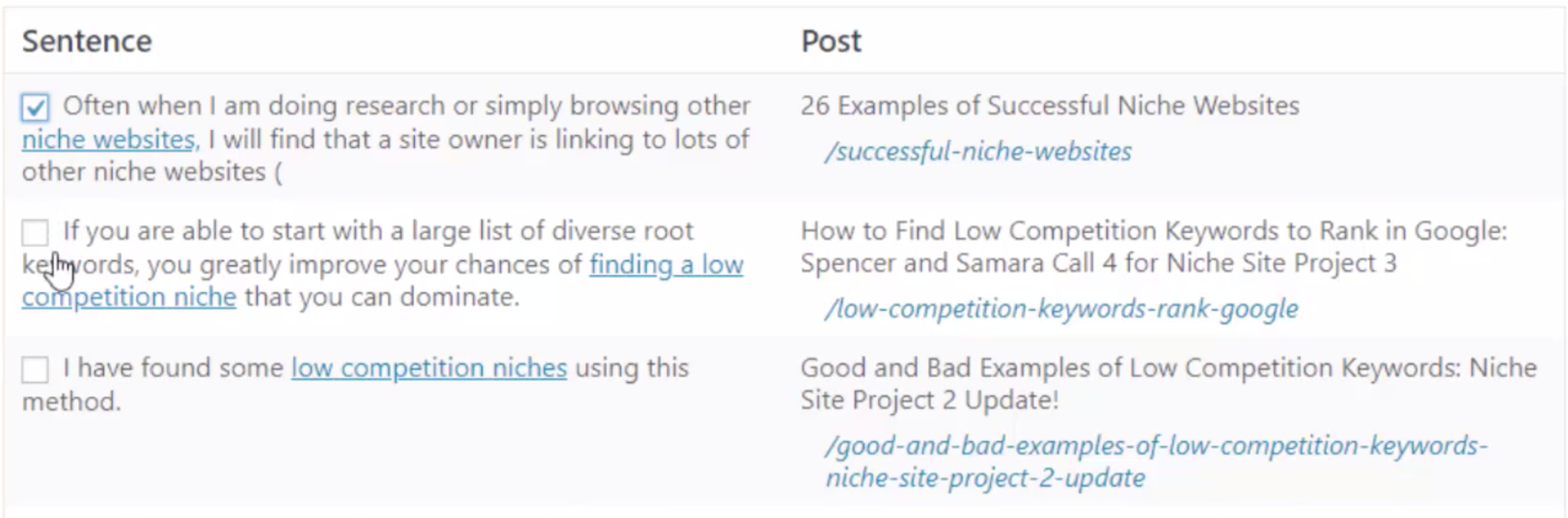
    1. Linking a New Post to Older Posts: After you’ve finished writing a post, you can scroll down to the bottom to a section called “Link Whisper Suggested Links” and see which other posts Link Whisper is recommending you link to. Simply check a few boxes next to the links you want and hit the update button to have them added to your post right away.
    word image 3 scaled

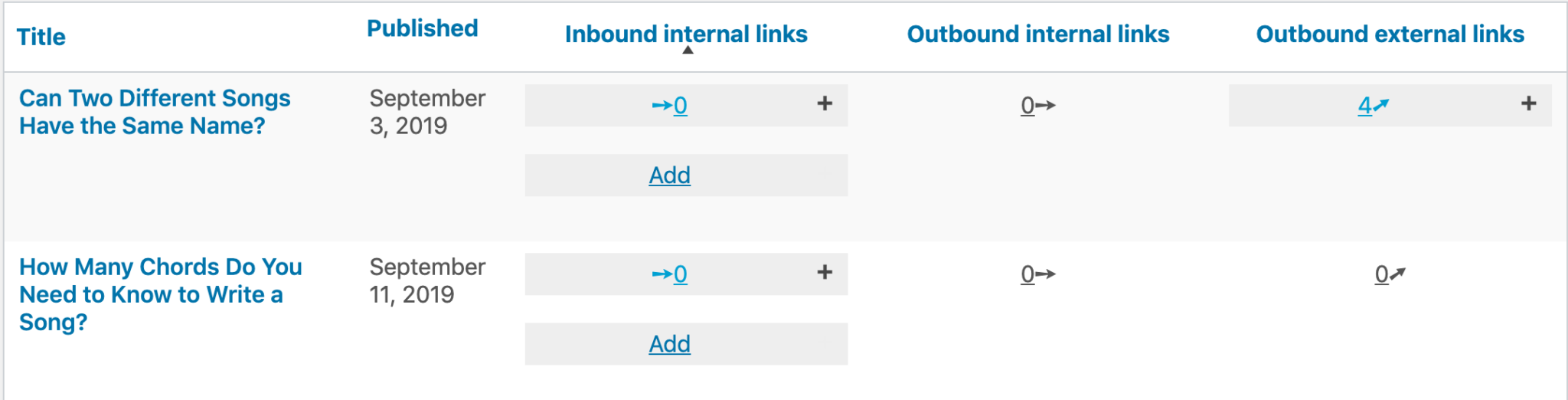
    2. Linking Older Posts to a New Post: After a new post goes live, you can jump into the Link Whisper plugin from the sidebar in WordPress. In this area, you’ll see your latest published post in the list, allowing you to add a few incoming internal links from some of your other content right there.

    Link Whisper makes it easy to find relevant posts with text that should point to your post – for example, if you just published a post like “Can Two Different Songs Have the Same Name?” and you already had another post about chords, Link Whisper may suggest that the old post link to your new one where it has a keyword phrase about chords.
    word image 4 scaled

    To see suggestions, just click “Add” and go through the list to add links. Sometimes, Link Whisper can find existing anchor text that works perfectly – at other times, it shows you which posts would work best so that you can add or update their wording to accommodate a relevant incoming link.

    However you choose to do it, you’ll quickly come to appreciate how much time you’re saving on internal linking with Link Whisper, while building higher quality links along the way!

    2) The Manual Method

    Link Whisper is a perfect way to speed up your internal linking workflow, especially as you publish more content on your site. But if you’re willing to put in the time and effort, you can always opt to do the same thing manually.

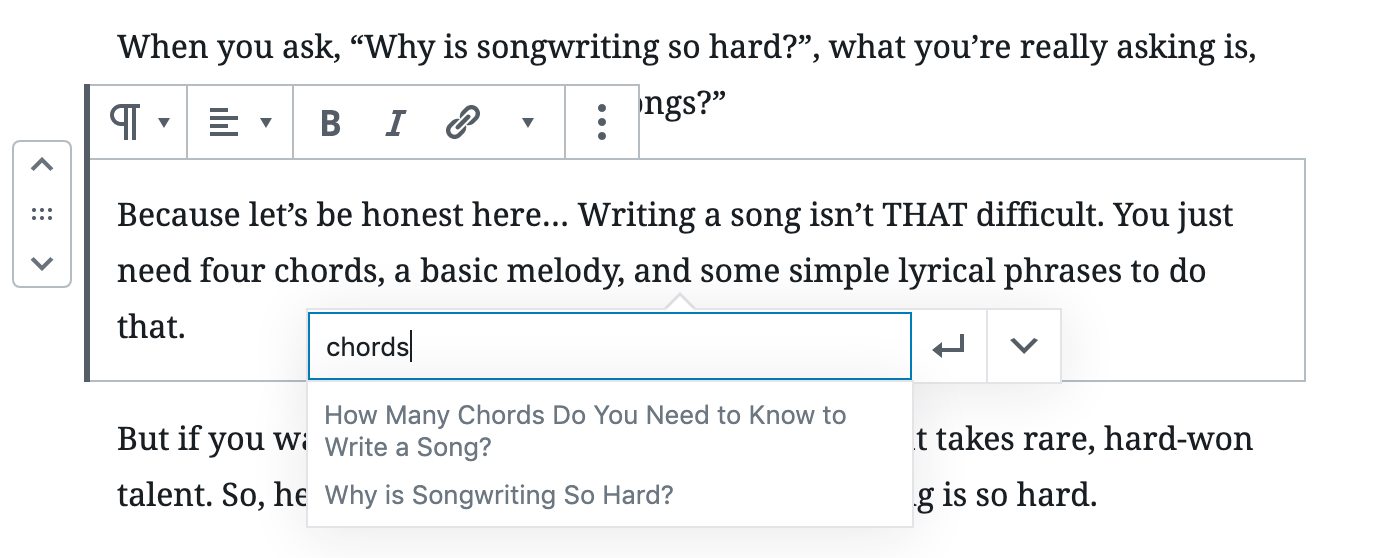
    First, remember that by highlighting a phrase in the WordPress editor and hitting control-K (command-K on a Mac), you can quickly see if there are other posts on your site that might fit that phrase and add relevant links as you go.
    word image 5

    Second, in order to keep track of your entire site’s content and internal links, your best bet is to create a spreadsheet, either in Excel or with a Google Sheet. Here’s what you’ll want it to include:

    • A column with the titles of your published posts
    • A column with the live URL for each piece of content
    • A column for the focus keyword/anchor text on each post
    • A column to track the number of internal links within each post

    Obviously, you can make this as simple or complex as you want it to be, but maintaining a spreadsheet allows you to see all of the articles you have to work with when you sit down to add new internal links.

    If you use Link Whisper, internal linking will be an obvious part of your workflow. If you’re doing it manually, you’ll have to remember to visit your spreadsheet after you’ve finished writing a post, as well as after the post goes live.

    The spreadsheet allows you to go back through the list and see articles you’ve already published that you can link to and from.

    3) Online Domain Search

    There’s one other tip that can actually be used along with both Link Whisper or the manual internal linking approach: searching your website domain on Google.

    As a quick reminder, it’s easy to search the contents of a specific website domain by using the following syntax:

    Site:amazon.com “black friday”

    word image 6

    This allows you to see the related content that the search engine has indexed from JUST your site.

    To search your website, simply type in site:yourwebsite.com into Google, followed by the keyword or search term you’re looking for, and you’ll instantly see your relevant pages and posts pop up.

    This can be incredibly useful if you want to find all of the articles on your site that might be related to a topic – and as a bonus, it can also help you come up with new article ideas if you don’t see a post in the SERPs covering specific keywords or phrases.

    In conjunction with Link Whisper, online domain search ensures you have all of your link bases covered.

    Some Final Internal Linking Tips

    These three methods – Link Whisper, manual tracking, and domain search – are some of the best ways to execute a solid internal linking strategy.

    However, it’s still important to adhere to the principles of good internal links. Here are a few more things to keep in mind to ensure you’re getting the best results.

    Use Keyword-Rich Anchor Text

    A big part of quality internal links is the anchor text (the clickable text that a visitor sees on the page). Ideally, any anchor text that takes users to a new page should include a relevant keyword for that topic.

    Of course, even though you want this text to be an on-topic keyword, you should be careful about spamming the same keyword too many times. Google has gotten smart, so your goal should be to provide the most helpful links to your users.

    Rescue Your Orphaned Content

    Orphaned content refers to a post or page without any links or navigation to it. You want to avoid orphaned content, particularly with posts that you’ve allowed Google to index. The problem is, Google doesn’t like too much orphaned content, and just as importantly, your visitors may be missing out if they can’t find your post.

    Fortunately, Link Whisper can be incredibly helpful in locating these orphaned posts. All it takes is a glance through your list of posts in the Link Whisper plugin to see the number of posts on your website that are linking to a specific post. If the number is zero, you have an orphan to rescue!
    word image 7

    Make Linking a Habit

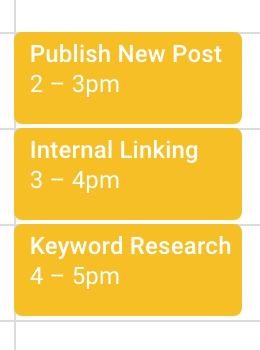
    Consistency isn’t unique to internal linking, but it’s still essential that you either add internal linking to your list of tasks for posting content or put it on your calendar as a regular event.

    However you choose to schedule it, internal linking is an easy task to overlook – but one you need to make time for!

    Conclusion

    With so much for an online marketer to think about, why put such an emphasis on internal linking? Well, it’s one activity that offers a pretty big payoff for fairly little effort, especially with the right approach.

    Another perk of internal linking is that YOU have all the control! When it comes to building external links, you have to deal with outreach and various link building tactics, but internal links are a simple and free way to dramatically improve your site.

    Whether you choose to handle it manually or maximize your results with the Link Whisper plugin, you’re sure to see greater online success when you get on top of your internal linking game!

    To learn more about the popular internal linking WordPress plugin  Link Whisper, visit the Link Whisper site here.
  • Free Vs. Paid WordPress Themes: Which Option Should You Go For?

    Free Vs. Paid WordPress Themes: Which Option Should You Go For?

    One of the most crucial decisions you probably have to make before launching a new website is which theme you should go for. Though there are countless fantastic WordPress themes, the confusion that builds up here is whether to choose a free or paid theme. Premium or paid WordPress themes tend to lure visitors with their rich features and sleek appearances. On the other hand, free WordPress themes are worthwhile as they allow you to experiment with your new project without spending money on the theme. Though both options have several pros and cons, you’ll be left chasing your tail all day without our guidance.

    To avoid getting confused while choosing between a free and a paid theme, it’s crucial to have complete knowledge of the pros and cons of both sides. Such information will assist you in making the right decision. The question is pretty straightforward; free or paid WordPress themes? As you are about to discover, the answer to this question isn’t that challenging.

    In this blog, we’ll point out the differences between paid and free WordPress themes so that you can evaluate both options and make the right choice according to your requirements.

    Difference between Paid and Free WordPress Themes?

    Paid WordPress themes cost money for a pretty good reason. Such themes are responsive, feature-rich, and well supported by the publisher’s support team. Though that’s not always the case, you should also be careful from which vendor you buy the theme. However, most of the time, you can expect to receive better quality through paid themes compared to free ones.

    On the other hand, free themes are created by individuals with limited to no support. However, you’ll also witness quality vendors offering free themes to market their services and high-end themes. Regardless, the customization options and quality may vary significantly due to their lack of revenue. In addition, such themes aren’t even close to the benchmark set for paid WordPress themes.

    The purpose of launching your website has a strong influence on your decision. For example, are you merely planning on launching a blog to share your thoughts in the form of content? Or are you planning on establishing a new international B2B marketplace that attracts leading global manufacturers and suppliers? Bloggers can go for a free theme as their focus will mainly be on the content they have to offer. However, to launch a B2B marketplace, you’ll need a paid theme that can be customized and handle loads of data.

    That said, here are a few pros and cons of free and paid themes to help you get a clearer picture of what you are about to invest in.

    Pros of Using Free WordPress Themes

    Free Free Free!

    The most vital benefit of free WordPress themes is that they won’t even cost you a penny. This benefit is perfect for those individuals who are simply itching for a change or experimenting with a new idea. Paid themes cost an average of over $55. On the other hand, many vendors don’t approve of money-back guarantees. Therefore, going for something free is always a wiser choice to reduce the risk.

    Simple Designs

    If you aren’t hunting for something complicated and high-end, then free themes can satisfy your demands at best. On the other hand, premium themes are associated with many widgets and premium features that upgrade your site to make it look too professional.

    Officially Approved

    The safe part about free themes is that you can get them approved through a multi-step process on WordPress. So no need to worry about verification. Also, you can always buy the paid version of a free theme.

    Cons of Using Free WordPress Themes

    No Uniqueness

    The majority of free themes have thousands, sometimes even millions of downloads. That means there are many sites already surfing the net similar to yours.

    Limited Features

    A free theme usually has limited features. That means you can’t go for customized features to make your website look high-end or well customized.

    Zero Support

    If you ever get lost or end up at a dead end, no one is coming to rescue you. Due to the theme’s zero-cost nature, the provider won’t offer support to any user. That means you’re on your own if you opt for this option.

    Pros of Using Paid WordPress Themes

    Round the Clock Support

    Paid themes are usually sold by leading and trusted developers. Therefore, you can expect them to offer after-sale support. You can get help through email, phone, and even Skype. You can utilize the support to discuss any problem related to the theme you bought.

    Outstanding Quality

    Most of the themes are designed by leading companies that have hired teams of qualified and experienced designers. Testing, designing, and maintaining these themes is considered a crucial task that these developers have to work on. Therefore, you can expect superb quality themes loaded with high-end features, plugins, and widgets.

    Built-in Customization

    One of the vital benefits of working with a paid theme is that you can make changes according to your requirements. For example, you can change the content layout, site navigation, image display, or font styles. Also, some themes offer a responsive backend for mobile users as well.

    Cons of Using Paid WordPress Themes

    Too Many Features

    Subject designers can include many pointless features in their designs in a request to sell more themes. You will most likely never utilize each of those features. However, they are still there, making your site slow down.

    High Cost

    The cost is one thing that can never be ignored. Especially if you are a startup with a limited budget, if the vendor you buy from doesn’t offer a return, you can’t get your money back even if you aren’t satisfied with the theme.

    Crossing Over Plugins Domain

    Sometimes, WP themes can traverse into the plugin domain, offering unessential features that vanish when you switch the theme—making shortcodes and custom post types.

    Wrap Up

    Now that I’ve highlighted the pros and cons of both options, it should make it easier for you to come to a final decision and launch your website with the best WordPress theme.