• Skip to primary navigation
  • Skip to main content
  • Skip to primary sidebar
  • Skip to footer
WPArena

WPArena

WPArena is a premium online resource site of WordPress and is focused on providing excellent WordPress Tutorials, Guides, Tips, and Collections.

  • Plugins
  • Themes
  • Hosting
  • Tools
  • Tutorials
    • SEO
    • Marketing
    • WordPress Security
    • eCommerce
  • News
  • Services

Tutorials

How To Find WordPress Documentation Fast?

March 15, 2009 by Editorial Staff Leave a Comment

Have you ever spent what seems like hours looking for information about WordPress code? Spending too much Google time and not enough time actually finding the correct WordPress information you are searching for? There is now a neat tool, actually a website, that can help you find what you are looking for fast.

The new site is called WPGist. This is a very simple tool with one function: quickly find WordPress Codex documentation for a function or template tag. So if you see a function in a theme and want to learn more about it just type it into the search box. It only searches and returns results from the WordPress Codex. For those of you unfamiliar with the WordPress Codex, it is the complete, ever evolving documentation of WordPress. It has everything from “Where To Start” to “Writing a Plugin” and everything in between. I will say that the reading is a bit geeky and not very newbie friendly.

So if you are into messing with your WordPress Theme or into the code and need quick answers check out support forums.

Filed Under: Tutorials Tagged With: Tutorial

How To Install WordPress With Simple Scripts

March 11, 2009 by Editorial Staff Leave a Comment

Installing WordPress can be a very daunting task for those with limited knowledge. Especially if you try to read the official guide. Uploading the files in the proper location and then setting up a database and getting the correct information in the configuration file. So much for the famous 5-minute install huh? If you have picked the correct hosting account then you might be lucky enough to be able to install WordPress with a few clicks of your mouse.

wordpress-version

What used to be a multiple step process is now down to a few mouse clicks. Most of the better hosting accounts now offer automatic installation of most of the popular website scripts right from the hosting account control panel. First, there was Fantastico and now there is Simple Scripts Application (One Click Installs and More). The last time I used an installation script to install WordPress both were available to choose from and having used both I noticed a slight difference in the time it took with Simple Scripts being a bit faster. By faster, I mean Simple Scripts took like 30 seconds!

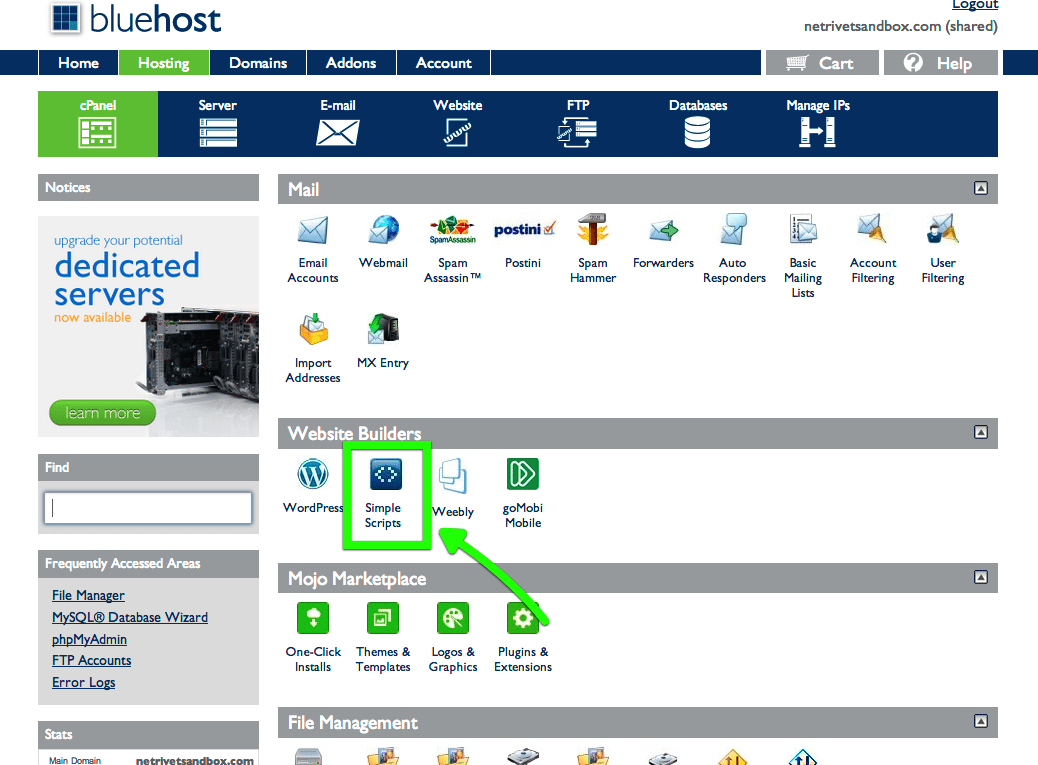
You should be able to easily verify if Simple Scripts or Fantastico is available in the host’s control panel. As I said most decent hosting accounts offer it right on the main menu page as shown below.

Install WordPress with Simple Scripts

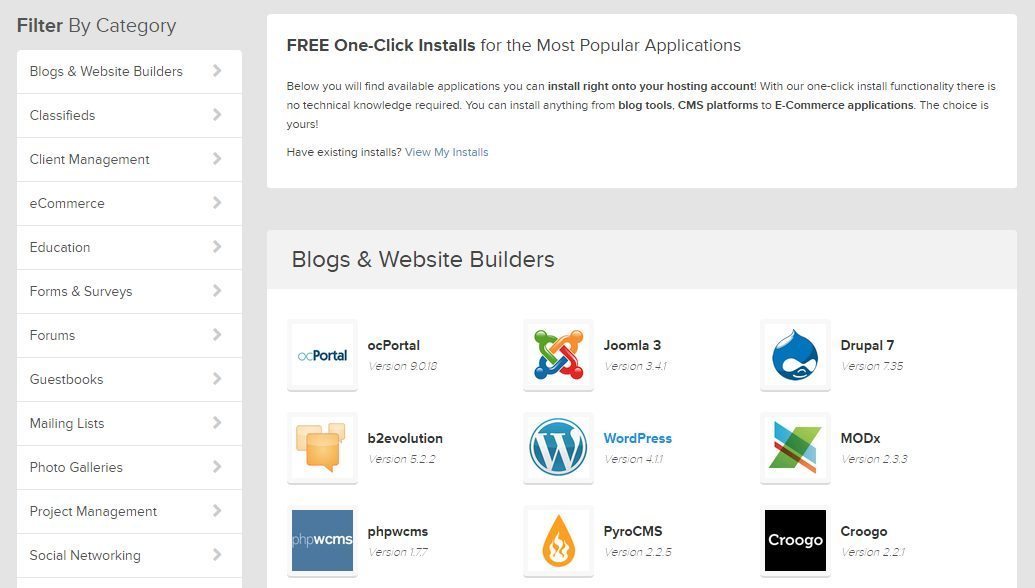
Just click the Simple Scripts icon to get started. The next page shows you all of the available scripts to choose from.

Install WordPress in one minute

In this case, WordPress was in the second row of the list, click the WordPress icon and next you will get a short overview of the script and then an icon on the bottom to Install Now.

Add WordPress with Simple Scripts

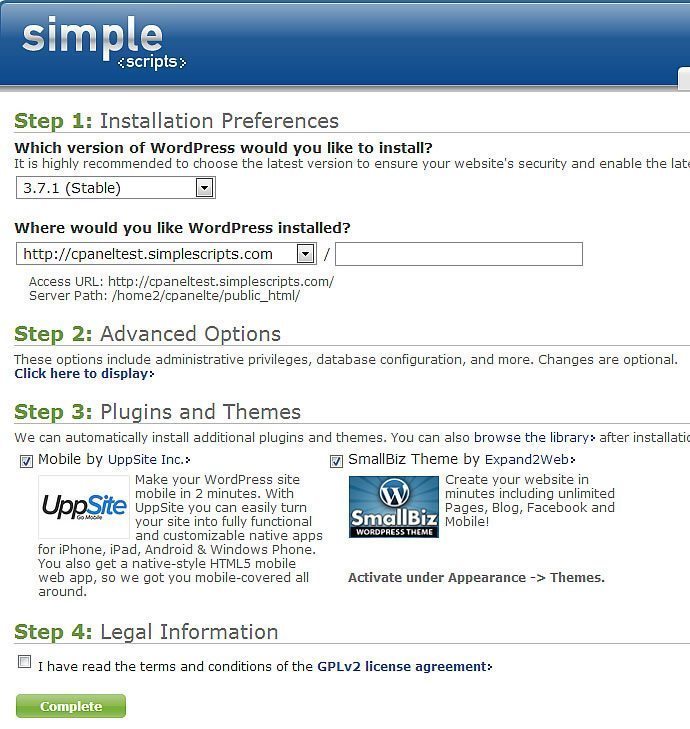
The next screen gives you several options to choose the version you want to install, I recommend the latest stable version.

WordPress Installation Simple Scripts

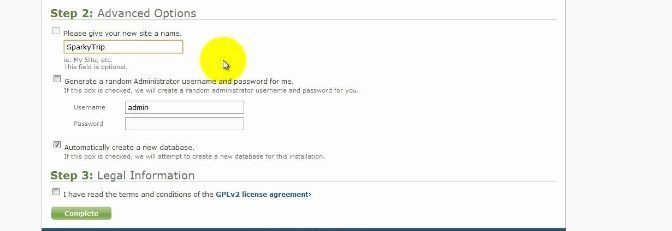
Next fill in the site name and choose whether or not to let the script generate an administration login which is a username and password and create a database. I suggest to uncheck the Generate me an Administrator Login box and make your own username and password. Keep the Automatically create a new database option checked unless you know how to or already have a database setup to use.

Below is the options page with the Generate me an Administrator Login box not checked. You will also need to check the bottom two legal agreement boxes to continue.

Simple Scripts username and password

Once you have the options filled in and checked click the Complete icon and your WordPress blog will be done in a matter of seconds, Or at least it was on this Bluehost account.

  • Also Read: Codester Marketplace Review: Buy Themes, Plugins, Apps & Much More

The next few screens will go by pretty fast depending on your connection speed, in this case, they went by so fast I had no time to make a screen capture of them. When it’s done you will be presented with a completion page with the login details.

Now you will have the latest version of WordPress installed, but guess what? You will still need to use and FTP client to install your theme and all your plugins and then learn how to optimize it. In fact, the easy part is installing WordPress. The hard, time-consuming part is figuring out how to optimize and correctly use your WordPress blog. If you need help check out my WordPress Optimization service. I also highly recommend Bluehost Hosting for your WordPress site.

Filed Under: Tutorials Tagged With: Tutorial

How To Install WordPress Plugins From Dashboard

March 8, 2009 by Editorial Staff Leave a Comment

WordPress plugins are powerful tools that add features to or enhance the functionality of your WordPress blog or website. One of the best features of WordPress is its extensive plugin ecosystem, which allows you to extend your site’s capabilities without coding. There is now an easy way to install WordPress plugins directly from within the WordPress dashboard, making the process simple even for beginners.

If you’re new to WordPress, you might want to check out our Complete Guide to Building a WordPress Website from Scratch to get started.

Why Use WordPress Plugins?

WordPress plugins are one of the best features of using WordPress as a blogging platform or CMS. They allow you to add functionality like contact forms, SEO optimization, security features, performance enhancements, and much more. However, it’s important to use plugins wisely to maintain your site’s performance and security.

For recommendations on essential plugins, see our guide on 10 Essential Free WordPress Plugins for Every Website.

Important Considerations Before Installing Plugins

Before installing new WordPress plugins, you should be aware of several important factors that can impact your website’s performance, security, and maintainability.

Plugin Bloat

Plugin bloat refers to the use of too many plugins that can adversely affect your WordPress blog’s performance. Each plugin adds code that runs on your site, which can slow down page load times and increase server resource usage.

You should also carefully consider whether a plugin performs a function similar to another already active plugin. This may cause the two plugins to conflict with each other, potentially breaking functionality or causing errors. Less is always better for WordPress plugin use, so try to keep them to just the essential ones.

For more insights on this topic, read our article on Why Less is More for WordPress Plugins.

Plugin Dependency

Plugin dependency is another critical consideration. Building a WordPress blog or site around plugins can turn into a nightmare if the plugin is no longer supported and fails to work in future versions of WordPress. Always check:

  • When the plugin was last updated
  • Compatibility with your WordPress version
  • Active support from the developer
  • User reviews and ratings

Security Concerns

Only install plugins from trusted sources. The WordPress Plugin Directory is the safest source as all plugins are reviewed for security and code quality. Premium plugins from reputable developers are also generally safe, but always verify the source before installation.

For comprehensive security guidance, check out our Complete WordPress Security Guide.

How to Install Plugins From the Dashboard

The built-in feature to add WordPress plugins from the dashboard can be found under the main Plugins module in your WordPress admin area. This feature has been available since WordPress 2.7 and has been continuously improved in subsequent versions.

Step 1: Navigate to the Plugins Section

Click Plugins in the left sidebar of your WordPress dashboard, then click Add New. You will be presented with multiple options to find and install new plugins.

Step 2: Search for Plugins

If the plugin you want to install is available in the official WordPress Plugin Directory, you can search by term, author, or tag. The search option allows you to search and install a plugin directly from the WordPress Plugin Directory.

Pro Tip: If you know what plugin you want to install, find the exact plugin you want to use by researching on Google or reading reviews, and then use the plugin’s exact name in the search box in the WordPress dashboard. Choose the Term option for best results. This ensures you find the correct plugin quickly.

You can also explore our guide on 3 Methods of Finding Free WordPress Plugins for alternative sources.

Step 3: Browse Featured and Popular Plugins

You can browse for new plugins by clicking the available Featured, Popular, Newest, and Recently Updated links. There is also a Popular Tags cloud shown to help you discover plugins by category.

This is a great way to discover useful plugins you might not have known about. For curated recommendations, see our list of Top Premium WordPress Plugins and Themes.

Step 4: Upload a Plugin Manually

If you have already downloaded a plugin (such as a premium plugin from a third-party developer), the option to upload a .zip file is also available. This option will not limit you to the WordPress Plugin Directory, so you can install plugins from any trusted source.

To upload a plugin:

  1. Keep the plugin file in .zip format (don’t extract it)
  2. Click the Upload Plugin button at the top of the Add Plugins page
  3. Choose the .zip file from your computer
  4. Click Install Now

Important Note: Be aware that some plugins that have multiple folders or require files to be placed within a folder other than the plugins folder may not upload correctly or even fail to upload. Some more complex plugins can’t be added using this feature and will need to be uploaded to your plugins directory using an FTP client. These are usually plugins that require files to be placed in multiple directories.

For detailed instructions on using FTP, you may need to consult your hosting provider’s documentation or use a file manager provided by your hosting control panel.

Activating Your Plugin

Once the plugin is successfully installed, you should see an option to activate it immediately or return to the plugins menu. You can also:

  • Click Plugins then Installed Plugins to see all your plugins
  • Find the newly installed plugin in the list
  • Click Activate under the plugin name
  • Or click the plugin title to read more about it before activating

Note: Some plugins require additional configuration after activation. Always check the plugin’s documentation or settings page after activation to ensure it’s properly configured.

Troubleshooting Common Plugin Installation Issues

Plugin Installation Failed

If you encounter an error during installation, it could be due to:

  • File permissions: Your server may not have the correct file permissions. Contact your hosting provider if this persists.
  • Memory limits: Large plugins may exceed PHP memory limits. You may need to increase your PHP memory limit.
  • Plugin conflicts: The plugin may conflict with your current WordPress version or other plugins.

For more troubleshooting help, see our guide on How to Fix WordPress Plugin Request Time Out Error.

White Screen of Death After Activation

If you activate a plugin and your WordPress dashboard goes blank (commonly called the White Screen of Death), don’t panic. You can fix this by:

  1. Accessing your site via FTP or your hosting account’s file manager
  2. Navigating to the plugins folder: /wp-content/plugins
  3. Renaming or deleting the problematic plugin folder
  4. Refreshing your WordPress dashboard

For more solutions to common WordPress errors, check out our Quick Guide to the 5 Most Common WordPress Errors and Their Solutions or our comprehensive guide to fixing common WordPress errors.

Plugin Not Working After WordPress Update

Sometimes plugins stop working after a WordPress core update. This usually happens when:

  • The plugin hasn’t been updated by its developer
  • There’s a compatibility issue with the new WordPress version

In this case, check if there’s an updated version of the plugin available. If not, you may need to temporarily deactivate it or find an alternative.

Best Practices for Plugin Management

  • Keep plugins updated: Regularly update your plugins to ensure security and compatibility. Always backup your site before updating.
  • Remove unused plugins: Deactivate and delete plugins you’re no longer using to reduce security risks and improve performance.
  • Test in staging: If possible, test new plugins on a staging site before installing them on your live site.
  • Read reviews: Always check plugin reviews and ratings before installation to avoid problematic plugins.
  • Backup regularly: Maintain regular backups of your site. See our guide on Top 10 WordPress Backup Plugins for recommendations.

For performance optimization tips, read our article on 5 Tips to Optimize Your WordPress Performance and Traffic.

Additional Resources

  • Official WordPress Plugin Management Documentation
  • WordPress Plugin Directory
  • WordPress Plugin Developer Handbook

Conclusion

Installing WordPress plugins from the dashboard is a straightforward process that makes it easy to extend your website’s functionality. By following best practices, choosing plugins wisely, and maintaining your plugin library, you can build a powerful and secure WordPress site.

Remember to keep your plugins updated, remove unused ones, and always backup your site before making changes. For more WordPress tutorials and guides, explore our WordPress resources.

Filed Under: Plugins, Tools, Tutorials Tagged With: Tutorial

How To Make A Sitemap Page For WordPress

March 4, 2009 by Editorial Staff Leave a Comment

UPDATE: This plugin has not been updated since 2009, we recommend Yoast SEO plugin, it has a build in sitemap plugin. We can set up the plugin for you with our service.

Creating a sitemap page for your WordPress blog or WordPress site is a good way to add navigation for your visitors. Supplying your visitors with an easy to navigate sitemap page can not only help your visitors find more information but also keep them on your WordPress site longer. This is not a WordPress guide to create a Google sitemap but a visible sitemap for human visitors. After looking into several options and plugins once again I choose the easy way and decided to use a plugin to make a sitemap page for WordPress.

I do think that using as few WordPress plugins as possible is the best way to keep your WordPress blog or WordPress site operating as smooth as possible and to keep future upgrades hassle-free. Building a WordPress site heavily dependent on plugins can lead to future problems with newer versions of WordPress that may not function well with outdated plugins. In this case, if the plugin is no longer supported and stops working, you would just deactivate the plugin and delete the sitemap page.

There is a manual method to make a sitemap page for WordPress that would take some time to research and create. While this would be the preferred method to reduce plugin dependency, (plugin dependency… did I just coin a new WordPress term?) it would also be theme specific and need to be duplicated if you switch themes. Please note that some WordPress themes come with a sitemap template file.

Sitemap Generator Plugin for WordPress is the plugin in this case that seems to be the best solution I can find. This plugin uses a page generated in the WordPress dashboard. The good thing about using a plugin, in this case, is that it will still work if you switch themes and display the sitemap on the current themes page template. Installing the plugin is the typical method and the above link to the plugins page have very easy to follow instructions for its use and configuration.

Remember this sitemap page option will use the currents themes page template so switching themes requires no additional steps and your sitemap will look just like the current theme in use. See an example of mine here: Sitemap

Filed Under: SEO, Tutorials Tagged With: Tutorial

How To Keep Your WordPress Comments Clean

March 2, 2009 by Editorial Staff Leave a Comment

I don’t know about you but I am getting a little tired of what I call Drive-By comments on my WordPress posts. Not to mention those sneaky ones that put affiliate links or even worse links in URL box.

What exactly is a Drive-By comment? I consider them to be short, one sentence comments that really don’t add to the discussion or post. You know the ones like: “Nice post thanks” “Great blog” and so on. Then there are the ones that make a three word comment and have the gall to put in a link to their. I have started deleting these types of comments. If I can’t tell you’ve read the post by your comment then I delete it. It really isn’t that hard to reference the post in a short comment so take the time to leave a clue to the author that you actual have read the post.

So what do you do about them? Well I have yet to find a perfect automated solution or a plugin to reduce this type of comment spam. I was at one time using the Spam Karma plugin and it seemed to do a good job blocking adult content and links in comments but some still got through. Then there are the innocent looking Drive-By comments that have no real spam to filter. You can always use your spam plugin or the discussions menu to block certain content. But how do you filter out the laziness of a Drive-By comment?

I do have my blogs setup to get email notifications with all new comments. I check every link to make sure they are not for, what I consider to be objectionable content sites or affiliate links. So I just remain vigilant and check the comments almost daily to make sure only what I consider to be good comments and links are showing.

What about you? Do you leave all comments on your blog or are you keeping close tabs on them and not rewarding the lame and lazy?

Filed Under: Tutorials Tagged With: Tutorial

How To Add Threaded Or Nested Comments To WordPress

February 25, 2009 by Editorial Staff 5 Comments

WordPress has recently added new comment functionality to the core. You can now show nested or threaded comments. The feature I really like about it is the ability to directly reply to a comment or question on a post. Unfortunately for the reply to show directly under the comment you need to either tweak your theme or add a plugin. The option for Threaded or Nested comments must be turned on in the Discussion menu under the Settings module in the WordPress dashboard.

You may have seen the WordPress blogs with replies to comments shown directly below another usually in a different color background to differentiate it. You might even see an example in this post eventually or just check out the post previous to this one to see what I mean. There are two ways to do achieve this, one is to edit your theme to add the functionality to it and the other is using a plugin. I usually advocate hard coding functionality in lieu of depending on a plugin, and I may even get around to doing it on this theme but in this case, I opted for the lazy way by using a plugin.

The first plugin I tried was called Intense Debate. It has a lot of promise and options and while I can see where Intense Debate is trying to go I didn’t like the way it “took control” of my WordPress Comments. Intense Debate is more like a social comment site and the comments you make on other sites, as well as the blogs you own, can be administered directly on the Intense Debate site in your dashboard. It has a lot of potentials and you may like it but I had difficulty editing comments and some were not showing up. What I consider a drawback is that the plugin is controlled and configured on the Intense Debate dashboard, not the WordPress dashboard. I also didn’t like the interface it added to my posts comment section, although you have the option to use your own style, but if I am going to go through the trouble of adding the style to a plugin I may as well just hard-code the functionality into my theme and skip the plugin all together.

Another less obtrusive plugin for threaded comments is WordPress Thread Comment. That is what I am currently using as of this post and it seems to be doing what I want quite well. Unlike Intense Debate, the WordPress Thread Comment plugin is configured and controlled within the WordPress dashboard. It has a few options to configure like email notifications, and if you really want to tweak it the reply box HTML and CSS, among other things to tweak are available right in the plugins menu.

Remember the option for Threaded or Nested comments must be turned on in the Discussion menu under the Settings module in the WordPress dashboard.

Filed Under: Tutorials Tagged With: Tutorial

  • « Go to Previous Page
  • Page 1
  • Interim pages omitted …
  • Page 58
  • Page 59
  • Page 60
  • Page 61
  • Page 62
  • Interim pages omitted …
  • Page 74
  • Go to Next Page »

Primary Sidebar

Quick Links

  • About us
  • Brand Material
  • Site Updates
  • Transparency Report
  • Write for us

Footer

Reviews

  • Beaver Builder Review
  • Blockonomics Review
  • WP User Frontend Pro Review
  • Imagely NextGEN Gallery Pro Review
  • Visual Product Designer Review
  • WP Event Manager Review

Resources

  • Choose a Domain name
  • Best WP Hosting Providers 2025
  • Start a WordPress Blog
  • WordPress Permalinks Structure
  • Email Management System
  • Envato Free Files of The Month

Top Resources

  • Choose a Domain name
  • Best WP Hosting Providers 2025
  • Start a WordPress Blog
  • WordPress Permalinks Structure
  • Email Management System
  • Envato Free Files of The Month

Copyright © 2026 · WordPress Arena - A Project of TechAbout LLC.

  • Terms & Conditions
  • Advertise
  • Write for us
  • Disclosure
  • Terms
  • Privacy
  • Contact