• Skip to primary navigation
  • Skip to main content
  • Skip to primary sidebar
  • Skip to footer
WPArena

WPArena

WPArena is a premium online resource site of WordPress and is focused on providing excellent WordPress Tutorials, Guides, Tips, and Collections.

  • Plugins
  • Themes
  • Hosting
  • Tools
  • Tutorials
    • SEO
    • Marketing
    • WordPress Security
    • eCommerce
  • News
  • Services

Tutorials

How To Add Twitter Tools Plugin To WordPress

February 21, 2009 by Editorial Staff Leave a Comment

UPDATE: This plugin has not been updated in over 2 years, do not use. It may cause major errors on your blog. 5/24/2017)

When it comes to Twitter I will admit that I am completely behind the times. I did get an account to see what all the buzz was about but didn’t do much more. But for those of you that have a WordPress blog and are active on Twitter here is a plugin to integrate the two.

Twitter Tools integrates with Twitter by giving you the following functionality:

  • Archive your Twitter tweets (downloaded every 10 minutes)
  • Create a blog post from each of your tweets
  • Create a daily or weekly digest post of your tweets
  • Create a tweet on Twitter whenever you post in your blog, with a link to the blog post
  • Post a tweet from your sidebar
  • Post a tweet from the WP Admin screens
  • Pass your tweets along to another service (via API hook)

This plugin looks like it can be useful for people that like to use Twitter, please don’t ask me about it’s use because I haven’t tried it yet.

You can find it here: Twitter Tools
Filed Under: Marketing, Plugins, Tools, Tutorials Tagged With: Tutorial

How to Access WP-Admin After Changing WordPress Address URL

February 18, 2009 by Editorial Staff 8 Comments

So you were messing around with your WordPress blog and changed the WordPress Address (URL) and now you can’t login and the blog is all messed up. That setting in the WordPress general settings menu shouldn’t be changed if you don’t know what it means. It is to specify the location of the WordPress files on your domain. You can’t specify a different domain name either! You can use it to move the files to a different directory but there are additional steps needed to do it the right way. This WordPress guide will show you how to fix the problem.

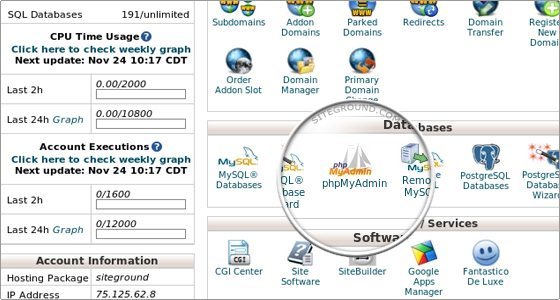
You will need to get into the hosting account and change the WordPress address back to the original location in the database. Get into the hosting account and look for the phpMyAdmin or the MySQL Database menu. Once in phpMyAdmin, you may need to click the drop-down on the far left to choose the correct database if you have more than one. Please don’t ask how to get into phpMyAdmin on your hosting account, I couldn’t possibly cover all the different hosting account options available. Some are very easy and some make it next to impossible to get into or figure out.

phpMyAdmin

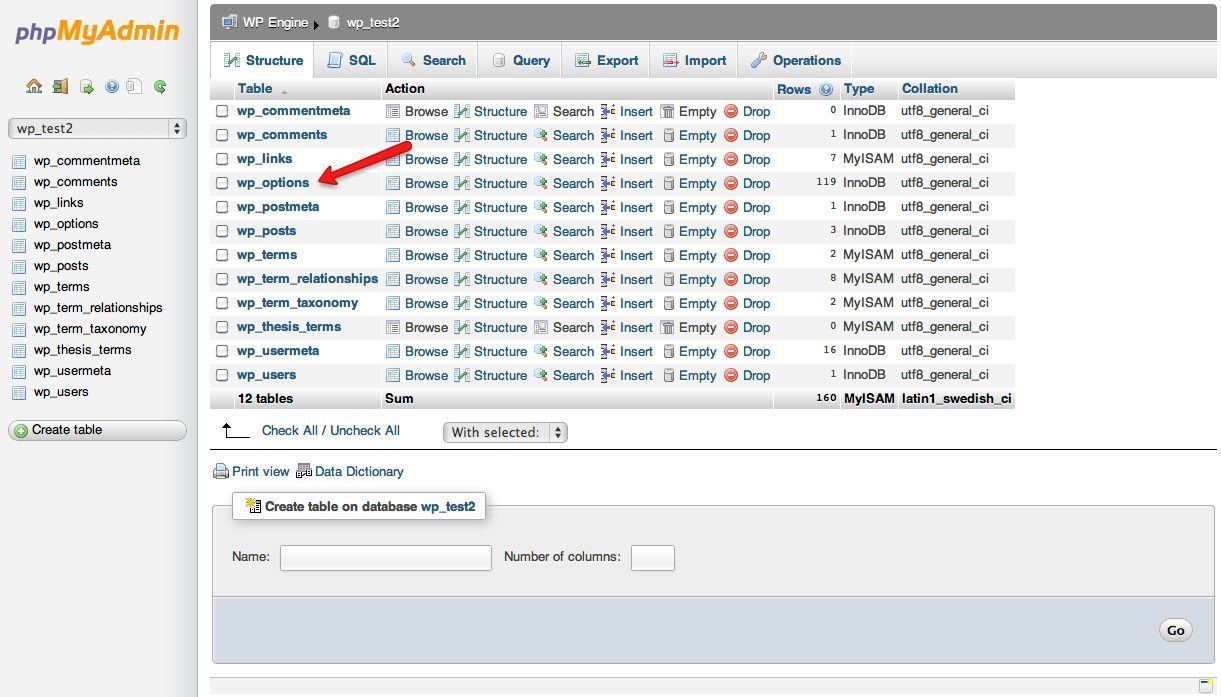
When the list of tables shows on the left click the wp-options table to open it on the right.

phpMyAdmin wp options

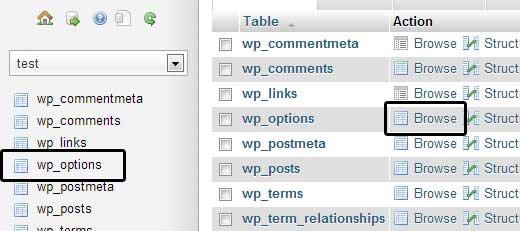
Next, click the Browse tab on the top.

Browse Options Table

After you click the browse tab a list of the options will open, the one to edit is called site URL. Click the pencil icon next to it to open the editor.

Change Site URL phpMyAdmin

Now you should see the URL that you managed to blunder into the WordPress dashboard general settings menu. Simply change it back to the correct location of where the WordPress files are. Scroll down and make sure the Save radio button is ticked and then click the Go button.

Now you should have everything back as it was before you decided to make the change. If you want to move the location of your blog or the files check out how to do it the right way here: Moving WordPress

Filed Under: Tutorials Tagged With: Tutorial

WordPress Version 2.7.1 Now Available

February 12, 2009 by Editorial Staff Leave a Comment

WordPress version 2.7.1 has been quietly released a few days ago. While it is important to keep WordPress up to date, version 2.7.1 has no urgent bug or security fixes.

According to the official WordPress.org site:

2.7.1, the first 2.7 maintenance release, is now available. 2.7.1 fixes 68 tickets. You can automatically upgrade from 2.7 to 2.7.1 via the Tools->Upgrade menu, or you can download the package and upgrade manually.

If you have version 2.7 or in older versions and the automatic upgrade plugin and the right server settings on your hosting account then all you need to do is click the link in the WordPress dashboard to automatically upgrade your WordPress blog.

If you have version 2.7 and can’t upgrade automatically, are geek impaired or intimidated by doing it yourself then don’t sweat much on this version. But don’t put it off for too long! It’s always a good idea to keep up to date for security and to keep one step ahead of the hackers. However, you may want to wait if you need to pay someone to do it for you. The decision is really up to you and I know I am sending mixed signals here, I have had a blog hacked before and believe that the latest version should always be used. But that version was like 2 major releases behind.

I really encourage you to learn how to upgrade WordPress manually yourself, after all, its your blog so you should learn to take full control of it and it really isn’t that hard. If you really want the latest version and can’t do it yourself I am offering a special upgrade price of $30 for the fist five people that sign up. To get the offer fill in the info on this page WordPress Upgrade/Optimization and put “$30 upgrade” in the FTP Username field.

Filed Under: News, Tutorials Tagged With: Tutorial

How To Add Comments To WordPress Pages

February 8, 2009 by Editorial Staff Leave a Comment

There are some WordPress themes that are coded not to show comments on pages but just individual posts. Its should be fairly easy to add comments to WordPress pages for your theme following this simple WordPress guide.

Typical WordPress themes are comprised of multiple files and usually, the single.php file is used for posts and page.php for pages. To find the correct code to use the login to the WordPress dashboard and open the theme editor. In version 2.7 the editor is under the Appearance module. If you see a warning on the bottom of the editor that the files are not writable then the file permissions of the themes need to be changed to be writable on the hosting account to edit them directly from the WordPress dashboard. The location of the theme’s files are in the themes folder within the wp-content folder in the WordPress directory, The path is: YourWordPressFiles/wp-content/themes/YourTheme

Once in the theme editor, I suggest you first make a backup of the file you are going to be editing. Copy all the code of the page.php file and paste it into a text file and save it on your computer. Next look for the single.php file on the right and click it to open it in the editor. Scroll down and look for the code that calls for the comments, the exact code you need can vary but the clue is that it should have the text comments in it like this:

<?php comments_template(); ?>

What you need to do while looking at your single.php file is investigate the area above and below the comments template code to see what else may need to be included to properly display the comments on your pages. Look at a single post on your blog and see if there is anything shown above and below the comments that may need to be added for example you may need to copy the styling for the comments like this:

<div class=”commentsblock”>
<?php comments_template(); ?>
</div>

You may need to carefully examine the differences between the single.php file and the page.php file to determine what is needed and the exact location to place the comments code. Once you determined what code to copy and the location, copy the correct code and click the page.php file. Paste it in the same area on the page.php file and click Update File. You did make a backup right?

Now open a page on your blog to see if the comments section is showing. If there is a problem restore the page.php file with the backup file you saved on your computer and keep testing.

Because all themes are coded differently I can’t possibly cover every conceivable variation out there, for example, some themes may not have a single.php or page.php file. What it really comes down to is to compare a file that has comments showing to one that isn’t and add in what is missing.

Filed Under: Tutorials Tagged With: Tutorial

How To Clean WordPress Database

January 31, 2009 by Editorial Staff Leave a Comment

WordPress has gone through many updates over the past year or so and if you have gone through the updates along with using and updating multiple plugins, you may find your WordPress blog or site to be running pretty sluggish. You could even experience database errors after an upgrade, especially with version 2.7. What I am going to attempt to explain in this WordPress guide is not for the total newbie and some technical knowledge will be needed if you want to attempt to do this.

These are the steps I took to clean up my WordPress database well not really clean up the database but move the old WordPress content to a fresh install on a new database. If you started your WordPress blog on an older version, around and just a guess version 2.2, the database tables were named differently that the current version 2.7, this might be causing some of the database errors after an upgrade. If you have a decent understanding of WordPress and how to move files with an FTP client or within your hosting account then you should be able to do this or use some of the ideas to move your WordPress blog.

WPArenaassumes no responsibility for what happens to your WordPress blog if you follow any of the steps outlined below. Make sure to make a full backup of your files and database before proceeding!

The first step was to do a new fresh install of WordPress in a new directory on your domain. Copy the wp-content folder from the original blog to this new one. After this is done don’t do much configuring on it other than the general settings, permalinks, and necessary plugins to get your theme functioning correctly. If you use the Akismet or Stats plugin don’t activate it yet. I made this mistake and when I added the WordPress API key after the move WordPress.com treated this like a new blog and my stats got reset. I am not sure if it matters and that still may happen regardless of when you activate those plugins.

Probably the hardest part is importing the old posts, and you may want to try this part early on to see if you can do it. Depending on your hosting accounts server options you will probably need to edit the php.ini file or .htaccess file to allow for uploading the large export file from the old blog. Again this is what took me while to get fixed and it took some Google time to get it figured out. Since all hosting accounts are different the way you go about it will vary. So please don’t ask me about this part here, I will tell you all I know now:

First, export the old content from the original WordPress blog. In the dashboard go to Tools, Export and save the file on your computer. Then on the new WordPress dashboard, you can try to import the posts. You might get lucky and this will work the first try if not then here are some suggestions:

If you have a php.ini file on your hosting account you can place a copy of it in the new blog’s wp-admin folder. Open the file to edit it, find the code shown below and increase the memory limit to 20mb and add the post_max_size = 20M section as well.

; Maximum allowed size for uploaded files.
upload_max_filesize = 20M
post_max_size = 20M

If you don’t have access to the php.ini file you can try to place the following code in the .htaccess file.

php_value memory_limit 20M

You can also try to edit two files in the wp-admin folder to increase the memory size as explained here:
WordPress Error Allowed memory size

You may need to experiment with the limit size for your particular file and you should set it back to the original size after you successfully imported the posts.

Another option is to contact your hosting account and ask they increase the memory limit for you. Or as a last resort, you could cut the export file into smaller files. More on the subject here: WordPress Support Forum

Once the new blog is running you can toggle back and forth from the current blog to the new one to get your sidebar widgets and any other items that are visible on the front side of the blog setup. Take this as far as you want, if you want the move to be as transparent as possible then you are trying to duplicate the look of the old blog with this new one. So now you should have a pretty close duplicate blog running on your site in a different directory

Now it’s time to make the switch and this step is optional but I suggest you do it as a safety net and that is to move the original blog to another new directory. Create a new directory and copy all the WordPress files from the original blog into that directory.  Login to the original blog, go to the general settings menu and change both the WordPress address (URL) and the Blog address (URL) to the new directory. The login for the original blog will change to the new URL: domain.com/newblogdirectory. I suggest moving the old blog instead of deleting it at this point to be able to get into the old dashboard and check and copy any settings to finalize the new one.

Next, move the new blog into the old blogs directory. In the new blogs dashboard change both the WordPress address (URL) and the Blog address (URL) to the old original blogs directory. Don’t do or click anything else at this point until you move the files! Next, copy all the files from the new blog and overwrite all the files in the old original directory. That should finalize the move. Now you have the old original blog still running and stashed away as a backup to work from and new fresh blog running where the old one once was. You should be able to delete the directory where you setup the new blog at this point.

Now you can finalize the new blog that is now in the old directory, and once you are sure the move is complete delete the old original blog that is in its new directory. If anyone is familiar with moving WordPress or files within a hosting account you may wonder why I say to move all the files instead of just renaming the directories right? Well, there are shortcuts you can make with the process and that is one of them if the move is from one directory to another. But you may be moving the new blog from a directory to the root of the domain. So, in that case, I suggest copying over the old files with new ones or at least the wp-config.php file. Remember the single most important file to move is the wp-config.php file, it determines what database to use.

Update! If you moved a blog from one directory to another make sure to change the Uploads settings under the Miscellaneous module to reflect the correct directory your blog is in. Failure to do this will drive you nuts when you attempt to upload images into a post.

Filed Under: Tutorials Tagged With: Tutorial

How To Keep A WordPress Post On The Top Of Others: The Sticky Post

January 24, 2009 by Editorial Staff Leave a Comment

There may be times when you want one particular WordPress post to appear on the very top even after other posts are made. That option was once done with various plugins but now it is a built-in feature in WordPress version 2.7. This short WordPress guide will show you just how easy it is to do.

Why would you want to have a “Sticky Post” in the first place? There may be several reasons and the first that comes to mind is to have a WordPress powered website that looks more like a website rather than a blog. You can have the same content always displayed on the very top of the main page promoting your products and services and then below that the traditional blog loop. Still getting the advantage of the ever changing content, yet letting your visitors see what you want them to see first.

The option for this is in WordPress version 2.7 is on the right side of the post editor in the Publish module. Click the Edit link next to Visibility in the Publish module and simply check the box next to Stick this post to the front page . You can also choose any previously published post to be sticky by simply editing the post and choosing this option. Make sure to update the post for changes to take effect. Of course, just reverse the option to remove a Sticky Post. If you have a newer version of WordPress, that isn’t out as of this post but WordPress will eventually change, look for the “Sticky” option under the Publish module or menu.

Filed Under: Tutorials Tagged With: Tutorial

  • « Go to Previous Page
  • Page 1
  • Interim pages omitted …
  • Page 59
  • Page 60
  • Page 61
  • Page 62
  • Page 63
  • Interim pages omitted …
  • Page 74
  • Go to Next Page »

Primary Sidebar

Quick Links

  • About us
  • Brand Material
  • Site Updates
  • Transparency Report
  • Write for us

Footer

Reviews

  • Beaver Builder Review
  • Blockonomics Review
  • WP User Frontend Pro Review
  • Imagely NextGEN Gallery Pro Review
  • Visual Product Designer Review
  • WP Event Manager Review

Resources

  • Choose a Domain name
  • Best WP Hosting Providers 2025
  • Start a WordPress Blog
  • WordPress Permalinks Structure
  • Email Management System
  • Envato Free Files of The Month

Top Resources

  • Choose a Domain name
  • Best WP Hosting Providers 2025
  • Start a WordPress Blog
  • WordPress Permalinks Structure
  • Email Management System
  • Envato Free Files of The Month

Copyright © 2026 · WordPress Arena - A Project of TechAbout LLC.

  • Terms & Conditions
  • Advertise
  • Write for us
  • Disclosure
  • Terms
  • Privacy
  • Contact