

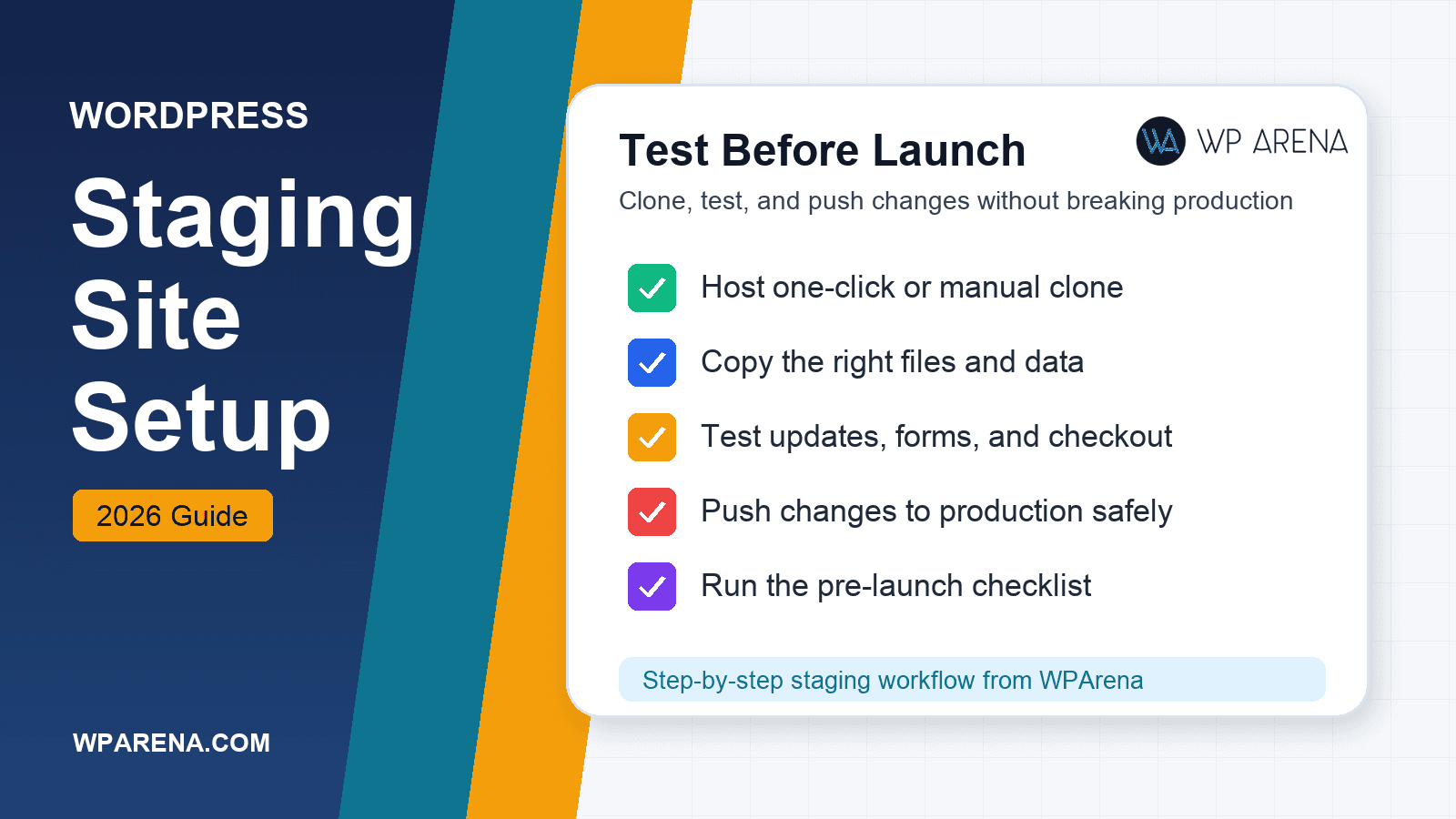
A staging site is a copy of your WordPress site where you can update plugins, test a builder change, or break the checkout flow without taking production down. If you have ever updated WooCommerce on live at midnight and watched the cart die, you already know why staging exists.
This guide covers host one-click staging, a manual clone outline, what to copy, what to test, and how to push live without painting yourself into a DNS corner. Pair it with solid WordPress backups before every push.
What staging is (and is not)
- Is: a private (or restricted) clone of files + database for testing.
- Is not: a coming soon page on production. Use a maintenance / coming soon plugin only for short public lockouts.
- Is not: “I duplicated the folder and hoped URLs would rewrite themselves.”
- Is not: a substitute for version control—but it is often the only safe place freelancers have.
When you actually need staging
- Major plugin or theme updates (WooCommerce, membership, page builders).
- PHP version changes on the server.
- Redesigns in the block editor or Elementor (see Gutenberg vs Elementor).
- Payment gateway, SMTP, or CRM integration changes.
- Anything you cannot explain to a client in one sentence if it fails on live.
You can skip staging for tiny copy edits. You should not skip it for “quick” plugin stack upgrades.
Option A: Host one-click staging (preferred)
Most modern WordPress hosts include staging on mid-tier plans and up. Typical flow:
- In the host panel, open the WordPress site → Staging (wording varies: Staging, Clone, Dev site).
- Create staging. Wait for file + DB copy to finish.
- Open the staging URL (often a subdomain). Log in with the copied wp-admin user.
- Do your updates and tests on staging only.
- Use the host’s Push to live / deploy action when satisfied—or pull live → staging again to refresh the copy.
Hosts worth checking for WordPress staging tooling (sponsored Impact links masked as /go/):
- Hostinger — staging on eligible plans; easy path if you migrated off free hosts.
- Bluehost — staging on WordPress-focused plans.
- Cloudways — strong staging/clone workflow on cloud servers.
- InMotion Hosting — staging on supported WordPress plans.
- Nexcess — managed WordPress staging suited to stores.
- ScalaHosting — worth comparing if you expect to grow into VPS.
If you are leaving a shut-down free host, read the 000webhost review for migration context, then pick a paid plan that includes staging on day one—not as a later upsell you forget to buy. Broader managed options: WP Engine alternatives.
Option B: Manual staging clone
Use this when the host has no staging button.
- Backup first (files + database). Confirm the backup restores somewhere before you trust it.
- Create a subdomain (for example
staging.example.com) with SSL, plus a new database and DB user. - Copy WordPress files to the subdomain document root (including
wp-content). - Export production DB; import into the new database.
- Update
wp-config.phpwith the new DB name, user, password, and host. - Search-replace production URLs to the staging URL (WP-CLI
wp search-replacewith--all-tables, or a trusted migration plugin). Do not casually open the site in a browser mid-replace. - Block indexing: Rank Math / robots noindex on staging, HTTP authentication, or both.
- Disable or sandbox emails, webhooks, cron to external APIs, and live payment gateways.
- Flush permalinks once on staging after login.
If a wrong WordPress Address lockout happens, you will need the same recovery habits as when siteurl changes break login. Keep SSH/SFTP and database access handy. Know what you are changing in wp-config.php before you edit constants.
What to copy vs what to keep unique
- Copy: themes, plugins, uploads, and the database content you need to reproduce bugs.
- Replace on staging: siteurl/home, any hardcoded CDN URLs if they break local assets, and environment flags.
- Do not reuse blindly: production API keys, live payment credentials, production SMTP that can spam real customers, and server cron that hits paid third-party APIs.
What to test on staging
- Core, theme, and plugin updates—one change-set at a time when the risk is high.
- Checkout, login, password reset, forms, search, and cron-dependent features.
- Builder edits on copies of the real templates, not a blank page.
- PHP version bumps before you change production PHP.
- Multisite or language plugins if you use them—URL replace mistakes show up here first.
Pushing staging to production safely
- Schedule a short maintenance window if the push rewrites many files or the DB.
- Take a fresh production backup (files + DB).
- Push via the host tool, or deploy only known-good changed paths if your process is disciplined.
- Purge caches (host, plugin, CDN, and browser spot-check in a private window).
- Spot-check critical templates, wp-admin, and one real transaction in test mode if you sell online.
- Watch error logs and uptime for 15–30 minutes.
Never let staging secrets overwrite production secrets by accident—recheck API keys, payment mode, and email SMTP after a full database push.
Common mistakes
- Leaving staging indexable (duplicate content in Google).
- Running live Stripe/PayPal keys on staging and creating real charges.
- Updating production “just this once” because staging felt slow to create.
- Forgetting object/page caches after deploy.
- Pushing a month-old staging DB over newer production content (comments, orders, posts).
Quick checklist before you touch production
- Backup verified (not only “backup job ran”).
- Staging URL loads over HTTPS and is noindexed or password-protected.
- Payments and transactional email are in test/sandbox mode on staging.
- The change you want to ship is written down (plugins, PHP, template files).
- You know how to roll back if the push fails.
Follow that list and staging stops being theater—it becomes the boring, reliable habit that keeps WordPress sites online.
Conclusion
Use host staging when you can; clone manually when you must; always backup before push. Staging will not make bad plugin choices safe, but it will keep those choices off your customers until you are ready. If your current host has no staging and no path to get it, that is a hosting problem—compare Cloudways, Hostinger, or other managed options before the next risky update.




Responses (0 )