

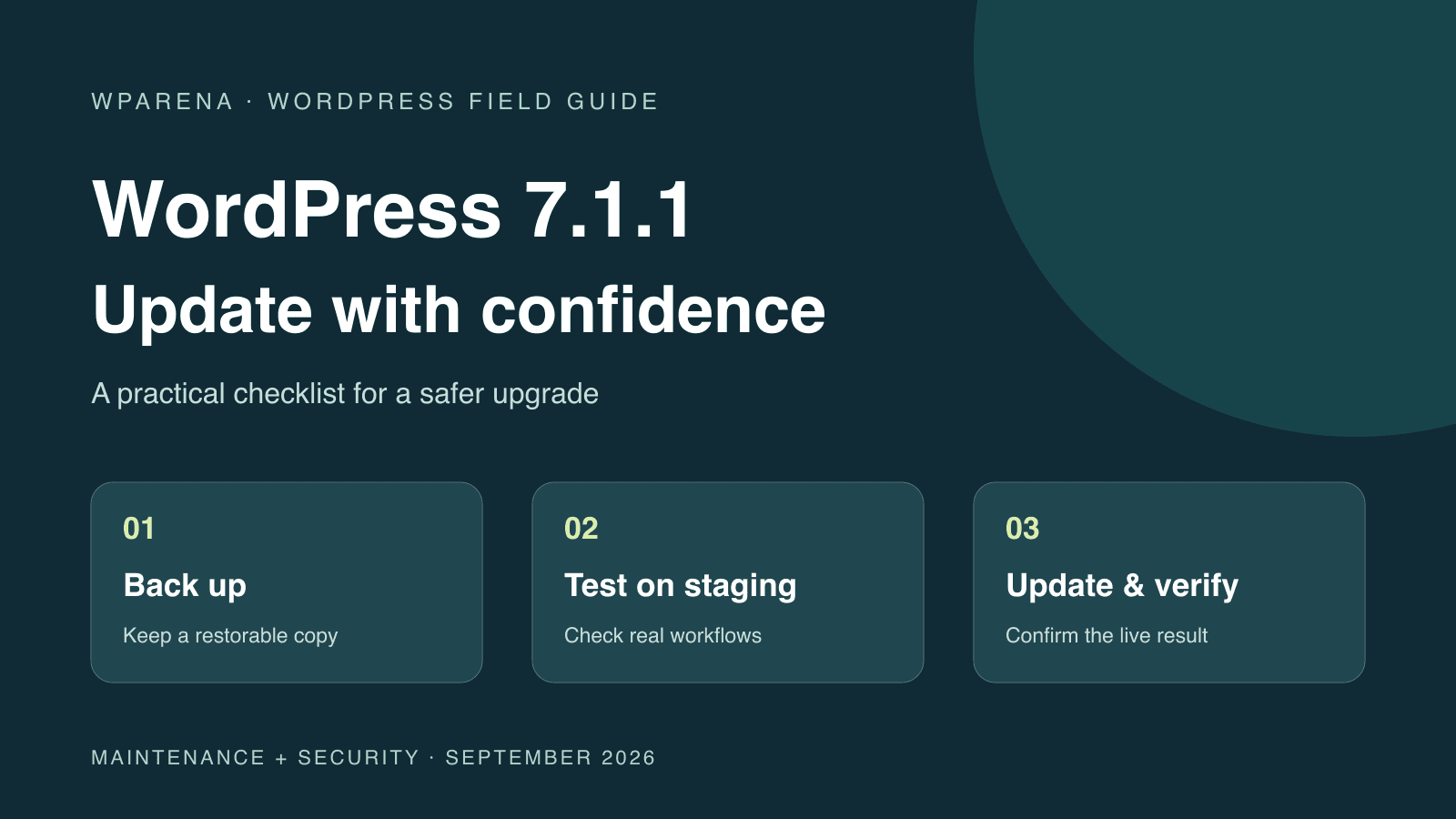
Updated October 10, 2026: The latest stable release is WordPress 7.1.3, published September 17. It is a maintenance and security update for the 7.1 series. If you are still planning an upgrade from 7.0 or an older branch, use 7.1.3 as your target after checking your site’s dependencies. See the official release announcement and our WordPress version guide.
This checklist covers the decisions that matter before and after an update: a restorable backup, hosting compatibility, plugin and theme behavior, publishing, payments, and public-page verification. A successful update message is only the beginning of the checks.
Should you update to WordPress 7.1.3?
Yes. WordPress recommends installing this security release promptly. Sites already running 7.1 are applying a patch within their existing major series. Sites coming from 7.0 or earlier are also crossing a major-version boundary, so test their custom code, editor integrations, and business workflows on staging. Do not keep waiting for 7.0.1: that was advice tied to an earlier release cycle.
| Your starting point | What to do | What to verify |
|---|---|---|
| Already on 7.1 | Back up and apply 7.1.3 promptly, or confirm your host has applied it. | Installed version, editor, login, forms, and key pages. |
| On 7.0 or older | Rehearse the move to 7.1.3 on a current staging copy. | Theme, plugins, custom blocks, integrations, and database changes. |
| A dependency blocks the upgrade | Contact its maintainer and host for a supported, patched path. | The exact incompatible component, mitigation, and a dated resolution plan. |
What changed in the WordPress 7.1 series?
WordPress 7.1 “Mary Lou” arrived on August 19, 2026. The 7.1 Field Guide covers media processing, accessibility, the Abilities API, global styles, SVG icons, editor changes, and developer APIs. Those changes give you a useful testing map: focus on the areas your site actually uses. Real-time collaboration was not included in 7.1.
WordPress 7.1.3 adds maintenance and security fixes. It is not another major feature release. Keep the distinction clear when reading plugin release notes: “works with 7.1” does not prove that your particular combination of extensions and customizations has been tested.
1. Check hosting and software requirements
The official hosting recommendations are PHP 8.3 or newer, MariaDB 10.11 or newer or MySQL 8.0 or newer, and HTTPS. Legacy minimums are not a good production target. Ask your host which supported PHP version works with your plugins before changing it.
- Record WordPress, PHP, database, active theme, and plugin versions.
- Check available disk space and whether the host manages core updates.
- Read compatibility notices for your theme, page builder, store, membership system, and custom plugins.
- Identify page cache, object cache, CDN, and external services.
- Avoid combining a PHP migration, hosting move, redesign, and WordPress upgrade in one untested change.
Use our hosting guide if your provider cannot offer supported runtimes or a usable staging environment.
2. Create a backup you can restore
The official update instructions recommend backing up before you start. Capture the database and files together: uploads, plugins, themes, must-use plugins, and configuration. Store a copy outside the server being changed and confirm who can restore it.
- Label the backup with its time and the installed software versions.
- Restore a copy to staging to confirm that the archive is usable.
- Record where the backup lives and how to reach hosting support.
- For stores and memberships, plan how to preserve orders or registrations made after the backup.
A database rollback can erase new transactions. Do not restore an old database over a busy store without reconciling that activity. Our backup guide explains how to choose and test a recovery workflow.
3. Rehearse the update on staging
Clone current production data and configuration to a protected staging site. Block indexing and prevent test email, scheduled jobs, webhooks, or payment integrations from contacting real customers. Follow our staging setup guide when creating the test environment.
- Save baseline screenshots and note the current behavior of important pages.
- Apply the plugin and theme updates required for compatibility.
- Update WordPress to 7.1.3 and complete any database-update prompt.
- Clear staging caches and inspect PHP and browser errors.
- Run the same workflows that readers, customers, and editors use.
4. Test the editor, media, and custom integrations
Create a disposable staging post and take it through draft, preview, scheduled publication, and revision. Open an older post as well: new content working does not establish that existing blocks still behave correctly.
- Save and reopen posts with custom blocks, synced patterns, and reusable layouts.
- Check Site Editor templates, global styles, navigation, and mobile layouts.
- Upload a representative image and verify the generated sizes and public image URLs.
- Test custom admin screens, role permissions, and editorial approval steps.
- Review integrations that use the Abilities API or AI connectors; confirm credentials, permissions, and expected behavior.
- On headless sites, test REST or GraphQL responses, preview, authentication, and frontend cache invalidation.
Do not claim compatibility from a plugin’s version label alone. Keep a short record of what you actually tested and any unresolved failures.
5. Verify the workflows that keep the site running
| Workflow | Evidence to collect |
|---|---|
| Login and account recovery | Successful login, session after reload, logout, and reset-email delivery to a controlled account. |
| Contact and newsletter forms | Validation, saved entry, expected notification, and no duplicate submission. |
| Store or membership checkout | Sandbox payment, correct order or membership status, receipts, and webhook handling. |
| Search and navigation | Relevant results, working menus, and accessible controls on mobile. |
| Publishing | Saved content reaches the public frontend with the correct images and metadata. |
Use test payment modes on staging. A checkout page loading successfully is not proof that payment confirmation and fulfillment work.
6. Check SEO output and public URLs
Compare the rendered output before and after the update. The goal is to preserve what search engines and readers receive, especially if plugins or templates changed alongside core.
- Check titles, descriptions, canonical URLs, robots directives, and structured data.
- Confirm that the XML sitemap contains the intended public URLs.
- Test representative redirects and confirm their final destinations.
- Open homepage, article, category, search, and 404 templates on desktop and mobile.
- Check images, pagination, internal links, and any language variants.
- Keep staging blocked while confirming that production remains indexable.
Our WordPress SEO guide provides the broader audit workflow. Keep permalink changes separate from this maintenance window unless they have their own tested migration plan.
7. Apply the production update
- Choose a low-traffic window and make sure the recovery owner is available.
- Take a fresh backup and record the starting version.
- Apply the dependency updates already verified on staging.
- Install WordPress 7.1.3 through Dashboard > Updates or your host’s supported update workflow.
- Complete any database update and confirm the installed version.
- Clear affected caches, including the separate frontend cache on a headless site.
- Repeat the key login, editing, form, search, and checkout checks.
- Record the result and monitor errors, failed transactions, and editorial reports.
If the update fails, inspect the error and recovery instructions before retrying. Repeated clicks will not fix exhausted disk space, incompatible code, or file-permission problems.
8. Monitor and recover deliberately
Watch logs and real workflows after deployment. A delayed scheduled task or a payment webhook may expose a problem that a quick visual inspection misses. Compare errors with your baseline so existing warnings are not mistaken for new regressions.
If a failure blocks normal operation, isolate it on staging and decide whether a component fix or a rollback is the fastest safe recovery. Preserve new business data before restoring an older database. Once stable, document the cause and retest the upgrade. See our troubleshooting guide for a systematic investigation.
Frequently asked questions
What is the latest WordPress version?
As checked on October 10, 2026, the latest stable version is WordPress 7.1.3, released September 17. WordPress 7.1 was released August 19.
Should I wait for WordPress 7.0.1?
No. That release is no longer pending. Plan against the current stable release and your siteu2019s actual compatibility requirements.
Does updating core guarantee my plugins work?
No. Test the installed combination, including custom code and external integrations, on staging.
Do automatic updates remove the need for checks?
No. Confirm the installed version, backups, and important workflows after an automatic update too.
Should a headless WordPress site follow this checklist?
Yes. Check the WordPress backend and the separate frontend. Verify API authentication, content delivery, media, previews, and revalidation rather than relying only on the dashboardu2019s success message.
Responses (0 )