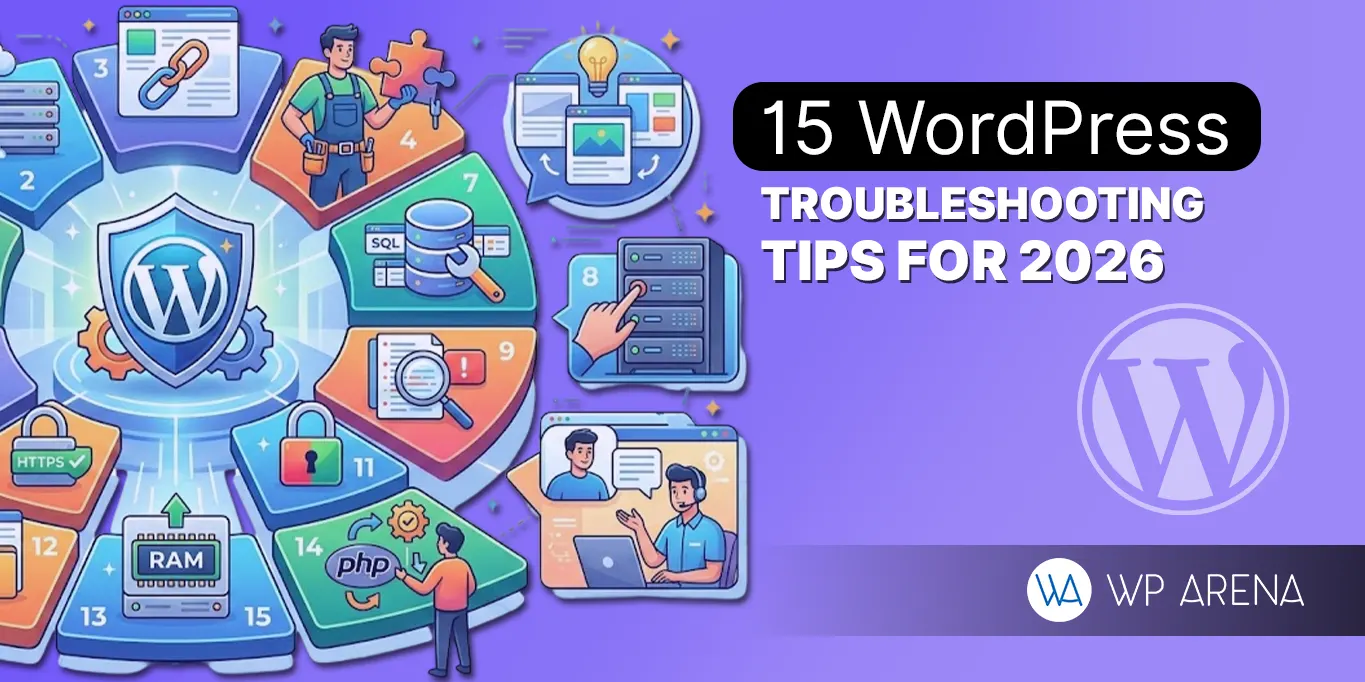
Building websites on WordPress is a popular yet easy way for most developers. But still, some of them are facing issues with WordPress sites. WordPress updates its policies from time to time, and you must understand the WordPress troubleshooting essentials to maintain your website and rank on the SERP.
This guide proves to be a game-changer for you. This will be a deep dive into how you can troubleshoot your WordPress website in 2026. You will know about the common WordPress issues, such as performance glitches, database issues, and error fixes. Whether you are a beginner or an expert these 15 must know tips helps you quickly identify and solve problems quickly.
Why Troubleshooting Matters in 2026
With the addition of pages as per the complexity of the websites, such as plugin additions and custom themes. Here at this point, knowing how to troubleshoot WordPress is mandatory for a smooth website flow. Follow a checklist to prevent errors. Regularly, semantic fixes help maintain SEO guidelines and user engagement. Here are the errors you must keep an eye on:
Broken site functionality
Sometimes, most of the WordPress features stop working and affect users‘ experience. Immediately resolving this issue is necessary.
Poor SEO performance
Errors on your site can reduce the search engine visibility. Fewer users will find your content. Poor SEO performance directly impacts SERP rankings.
Frustrated visitors and lost revenue
User problems when not treated properly can impact the overall brand’s value and reputation. Impacts on sales and conversions.
Here is the comprehensive 2026 guide for maintenance and WordPress troubleshooting, formatted according to your specific word counts and structural requirements.
Backup your website first
It is important to make a copy of your site before stepping into troubleshooting. A complete backup is a guarantee that, in case of any failure, your site can be restored in a short time. In simple words, it is a safety net that will rescue you from attacks. Typically, WordPress troubleshooting steps may result in irreversible data loss. The first principle of web management is having a backup of your database files, whether you are making simple WordPress error fixes or carrying out significant updates.
Recommended Tools:
Industry standards such as UpdraftPlus, BackupBuddy, or Jetpack.
Off-site Storage:
It is not advisable to store your backups on your server. Move them to the cloud, Google Drive or Amazon S3. (https://aws.amazon.com/pm/serv-s3/)
Automation:
You should make weekly or daily schedules to guarantee that you have an updated point of recovery.
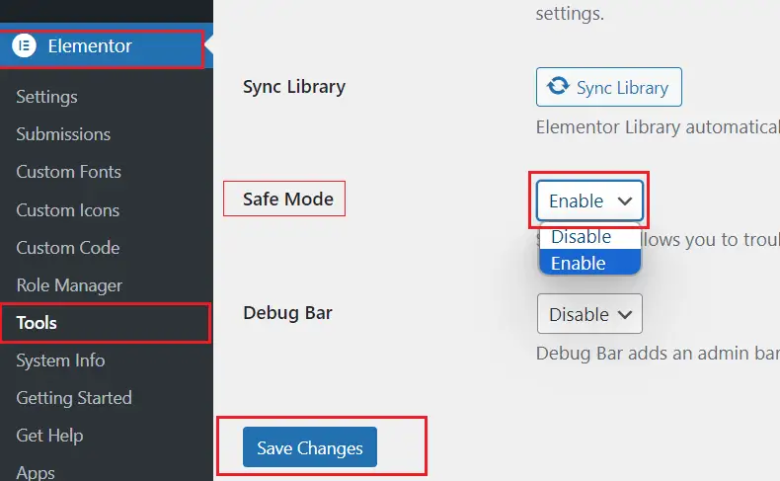
Enable Safe Troubleshooting Mode
Once your site is hit, do not take it offline, as it will affect your visitors. Plugins such as Health Check and Troubleshooting can be considered lifesavers since they will enable the isolation of errors without any impact on live users. This WordPress troubleshooting plugin will provide a virtual clean environment for your isolated user session. All these tools help you turn on and turn off the themes and the plugins in the background. As you will see, it will not impact online presence. This is the most professional way of detecting WordPress website errors.
For more information check:
https://wordpress.org/support/article/debugging-in-wordpress
Clear Browser & WordPress Cache
Caching may enhance theWordPress site speed. But in some cases, websites may have old pages with errors. You should clear the browser cache and WordPress caching, etc., to view the latest version of your site. It is a basic step towards WordPress troubleshooting. Sometimes, a site owner believes there is a fix that has failed or that the WordPress site is not working. But they are just looking at a cached version of the failed version.
Steps to do this:
Here are the steps to clean the browser and WordPress cache.
Browser Cache:
Click on your browser options (Chrome/Firefox) and choose the option of clearing Browsing Data.
Plugin Cache:
Open your caching setup (such as WP Rocket or W3 Total Cache) and select the button to clear all the cache. (https://wp-rocket.me/)
Server Cache:
In the event that you are using the managed hosting service, clear out the object cache through your hosting dashboard.
CDN Cache:
In case of Cloudflare, log in and choose Purge Everything to update edge servers worldwide.
Deactivate Plugins to Find Conflicts
One of the most frequently encountered problems with WordPress is the problem of plugins. When you want to target the error. You probably deactivate all the plugins and reactivate them one after another to locate the actual issue with the plugin. You should be aware of WordPress security, SEO, and caching plugins because they are directly linked to the WordPress core. When the error appears right after a particular plugin activation, it means you have discovered the root. The most certain method of dealing with common WordPress issues is systematic isolation.
Switch to a Default Theme
Display or functionality problems may occur sometimes as a result of a large core update because of the themes. Switch your current theme temporarily to a default theme, such as Twenty Twenty-Four or Twenty Twenty-Five. If the error disappears during the default theme, then you are sure that the problem is in the code of your premium theme or in a certain template file. This basic WordPress theme troubleshooting step allows narrowing down the search area. It helps you to fix the errors in your WordPress site by ensuring that the visual portion of your site is the source of the problem.
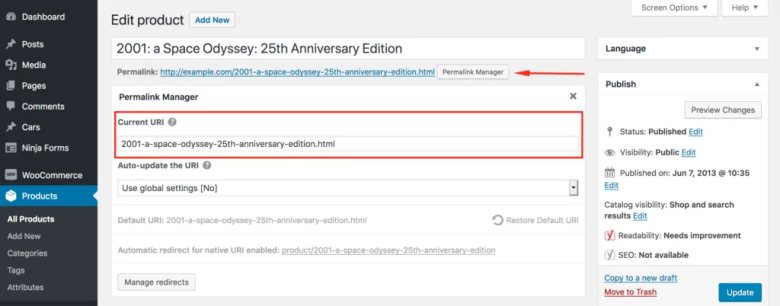
Refresh Permalinks to Fix URL Errors
Wrong permalink settings may cause the 404 error or broken links on the rest of your site. Simply do a WordPress flush to resolve WordPress errors, such as the navigation button that does not require any files to be changed. Just a flush of the rewrite rules can do all. This is among the best WordPress troubleshooting practices.
Here are the refined steps to follow:
- Log in to the WordPress Admin Dashboard.
- In the left-hand sidebar, navigate to settings. Then click on Permalinks.
Check Your .htaccess File.
An infected .htaccess will cause page 500 or loading errors. This is a hidden file that determines how your server processes redirects and security. In order to implement a strategy to apply to a WordPress crash fix. first of all, you should access your site through FTP or File Manager. The following steps are a WordPress troubleshooting FAQ, which can be used to reset it:
- Find the File: Detecting the .htaccess file in the root directory.
- Backup: Save a copy on your computer as a backup.
- Erase: Get rid of the file on the server.
- Clean up: To make a clean copy, go to Settings > Permalinks and click Save Changes.
Fix Common Server Errors
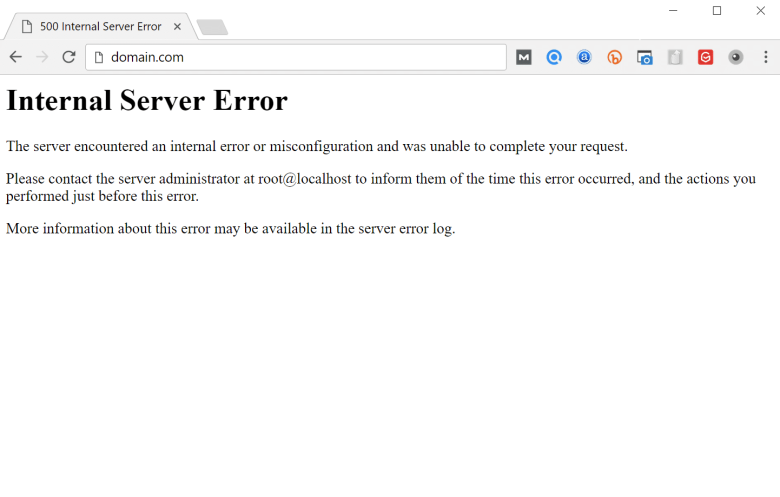
WordPress Web pages may undergo the White Screen of Death (WSOD), 500 Internal Server Error, or breakages in connections to their database. These are severe failures that put the site to a halt. The WordPress white screen of death is usually a PHP conflict or memory depletion. If you want to re-access your sites, check your error logs and turn off any recently installed plugins using FTP. Here are the steps to resolve this:
500 Internal Server Error
It is the most common issue. To resolve it, add more PHP memory limit to wp-config.php. Verify your server logs that point towards certain file permission problems. Like this:
Error while opening a database
This error means that WordPress is not able to communicate with your database. Use error connecting database to ensure that your DB name, user and password are correct in the file wp-config.php.
Correct WordPress Site URL Settings
Wrong site URLs might break your admin login or front-end. It may frequently leave you with a site that isn’t styled or issues in your login attempts. This normally occurs after an installation of an SSL certificate or a change of domains. You have to make sure that the WordPress address and site address are the same. This is one of the most frequent reasons for WordPress admin panel error and overall WordPress site is not working complaints.
- Check Dashboard:
Click on Settings > General and check the URL field.
- Manual Override:
In case of a lockout, you have to add define(‘WP_HOME’, ‘http://example.com’) into your wp-config.php file.
- Database Check:
Check through phpMyAdmin the siteurl and the home rows in the wp_options table.
Update WordPress, Plugins & Themes
Components that are outdated are associated with conflict and security vulnerability. Keeping in a current environment is one of the best WordPress troubleshooting practice to ensure that your environment does not easily go down. Make sure that you make a backup before clicking on update. Make updates to a staging site before implementing them on your live site as a fix to WordPress errors before they happen to your viewers. Manual oversight is, of course, better than selective auto-updates, which only assist in maintaining stability in large version jumps, though.
Also check: https://wordpress.org/plugins/health-check/
Use Debugging Tools
WordPress has built-in debugging features, such as WP_DEBUG and Query Monitor, that are used to locate and fix errors. These tools will not give you an idea of why a page is slow or why it is broken, but they give you the exact line of code that is failing. After a WordPress debugging tutorial, you need to make some changes to your wp-config.php file by inserting the following: WP_DEBUG=true. This enables you to view technical errors in a screen or in a personal log. These WordPress troubleshooting tools transform invisible bugs into actionable data in order to fix them at a quicker pace.
Optimize for Speed & Performance Issues
The performance issues may be in the form of a software failure in the case of the plugins, or slow page-loading, which may irritate users. When your server has become overloaded, then that server may not be able to run scripts, and this will cause your error to be false. Take advantage of caching plugins, compress images and lightweight themes to improve the speed of the site. Frequent optimization will exclude the frequent WordPress troubleshooting requirements since the server will maintain a low load. Speed is more than a luxury in WordPress performance troubleshooting; it is a necessity of the modern web.
- Image Compression:
Image compression tools such as ShortPixel or Smush can be used to compress files.
- Database Cleanup:
Delete the old revisions and the trashed comments to maintain a clean database.
- Content Delivery Network (CDN):
A CDN can be used to distribute the assets in locations that are nearer to your visitors.
Security Hardening to Avoid Issues
Hacked or compromised websites may result in various failures, from redirected pages to a complete crash of the entire website. Enhancing the security of your WordPress is one of the proactive methods to address WordPress security problems and resolutions before they begin. Locking out the site will save you the hassle of having malicious scripts. It also eliminates WordPress errors in the future.
- Security Plugins:
Have Wordfence or Sucuri installed to monitor in real-time and firewalls.
- Two-Factor Authentication (2FA):
Keep your account as an administrator out of brute force attacks.
- Proper File Permissions:
Make sure your folders are 755 and files 644 in order not to allow any unauthorized editing.
Use a Staging Environment
A staging environment is where you can test out changes with troubleshooting without impacting your live site. This is fundamental in any WordPress troubleshooting list that is used by professional webmasters. By following the directions, you are heading towards a clone site of your site, and thus, there would be no downtime of the site. It becomes particularly significant when it deals with high-traffic sites or online-based shops, which leave a mark of money per minute of the error. Test all your new plugins or your new theme changes here first to make sure that they are 100% compatible with your current setup.
When to Ask for Expert Help
There are some problems that need professional help. When you have used the WordPress troubleshooting checklist and the site is still not online, then it is time to seek help from professionals. The support of hosting or professional WordPress programmers can save time and avoid additional mistakes. They are capable of dealing with complicated WordPress support, such as server-level blockage or corrupted databases. In search of WordPress issues and resolutions, you need to leave your error logs and backup data to the professional so that the process works swiftly. Also, you can get your business back online in the shortest time possible.
Conclusion
Troubleshooting is required periodically to make your WordPress site fast, secure, and functional. With this WordPress troubleshooting checklist, you will be able to deal with the troublesome problems of WordPress, optimize the performance, and even prevent unwarranted downtimes. The most important aspects of a high-performing site are proactive maintenance and systematic troubleshooting. These tips can be started now and your WordPress site will be error free in 2026 and beyond.
FAQs
Why does my WordPress site show a blank white screen?
Sometimes this issue occurs due to some plugin conflicts or theme issues. Enable debugging mode, which helps to identify the actual cause of the problem.
Is it safe to deactivate all plugins during the troubleshooting?
Yes, it is safe, at least when you are in troubleshooting mode. There will be no impact on the visitors, and you can re-enable the plugins one at a time to figure out the problem without compromising your live site.
What should be the frequency of WordPress troubleshooting checks?
Preferably, updates and backups should be reviewed at least once a week, as well as the performance. Frequent maintenance will aid in the avoidance of larger problems and less emergent troubleshooting.
What time to call my hosting provider?
Server errors such as 500 Internal Server Error, database connection issues, or crashing repeatedly are best addressed by contacting the hosting support. They are able to monitor server logs and resource limits in a better way.


 Munazza Shaheen
 Editorial Staff