


Installing WordPress can be a very daunting task for those with limited knowledge. Especially if you try to read the official guide. Uploading the files in the proper location and then setting up a database and getting the correct information in the configuration file. So much for the famous 5-minute install huh? If you have picked the correct hosting account then you might be lucky enough to be able to install WordPress with a few clicks of your mouse.
 What used to be a multiple step process is now down to a few mouse clicks. Most of the better hosting accounts now offer automatic installation of most of the popular website scripts right from the hosting account control panel. First, there was Fantastico and now there is Simple Scripts Application (One Click Installs and More). The last time I used an installation script to install WordPress both were available to choose from and having used both I noticed a slight difference in the time it took with Simple Scripts being a bit faster. By faster, I mean Simple Scripts took like 30 seconds!
You should be able to easily verify if Simple Scripts or Fantastico is available in the host's control panel. As I said most decent hosting accounts offer it right on the main menu page as shown below.
What used to be a multiple step process is now down to a few mouse clicks. Most of the better hosting accounts now offer automatic installation of most of the popular website scripts right from the hosting account control panel. First, there was Fantastico and now there is Simple Scripts Application (One Click Installs and More). The last time I used an installation script to install WordPress both were available to choose from and having used both I noticed a slight difference in the time it took with Simple Scripts being a bit faster. By faster, I mean Simple Scripts took like 30 seconds!
You should be able to easily verify if Simple Scripts or Fantastico is available in the host's control panel. As I said most decent hosting accounts offer it right on the main menu page as shown below.
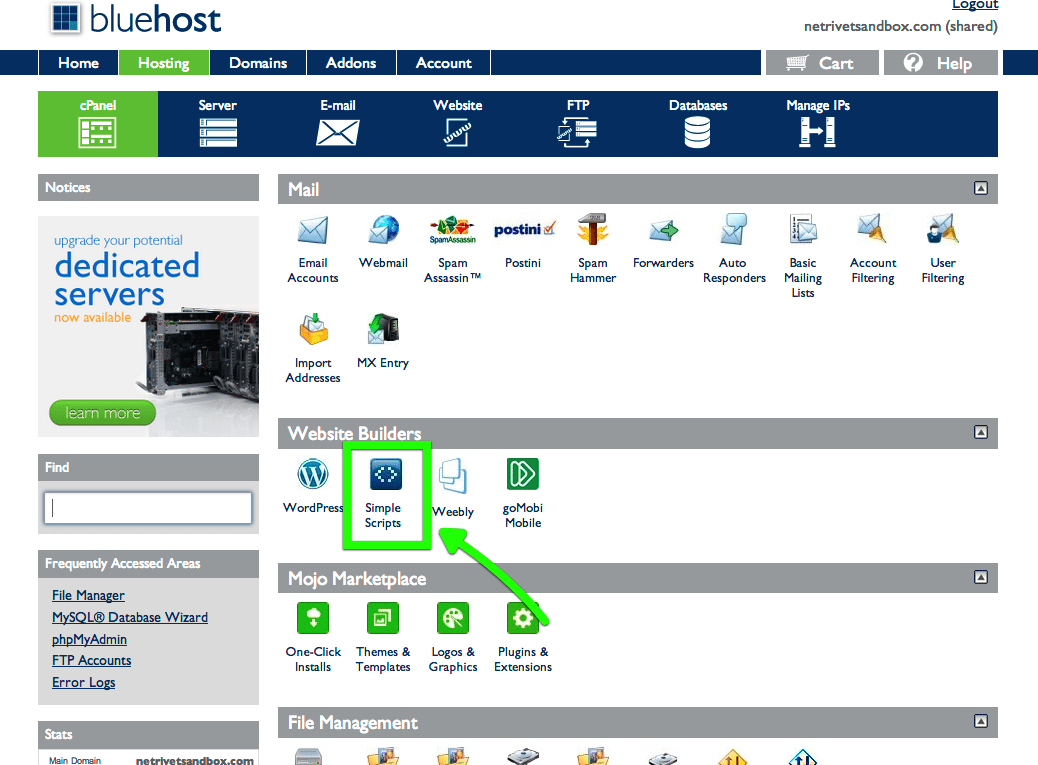 Just click the Simple Scripts icon to get started. The next page shows you all of the available scripts to choose from.
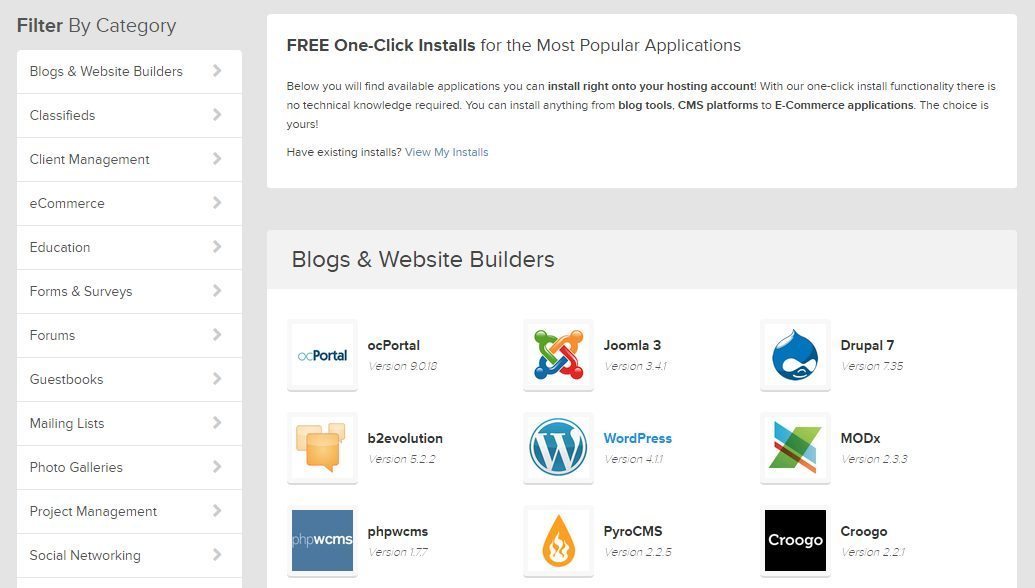 In this case, WordPress was in the second row of the list, click the WordPress icon and next you will get a short overview of the script and then an icon on the bottom to Install Now.
 The next screen gives you several options to choose the version you want to install, I recommend the latest stable version.
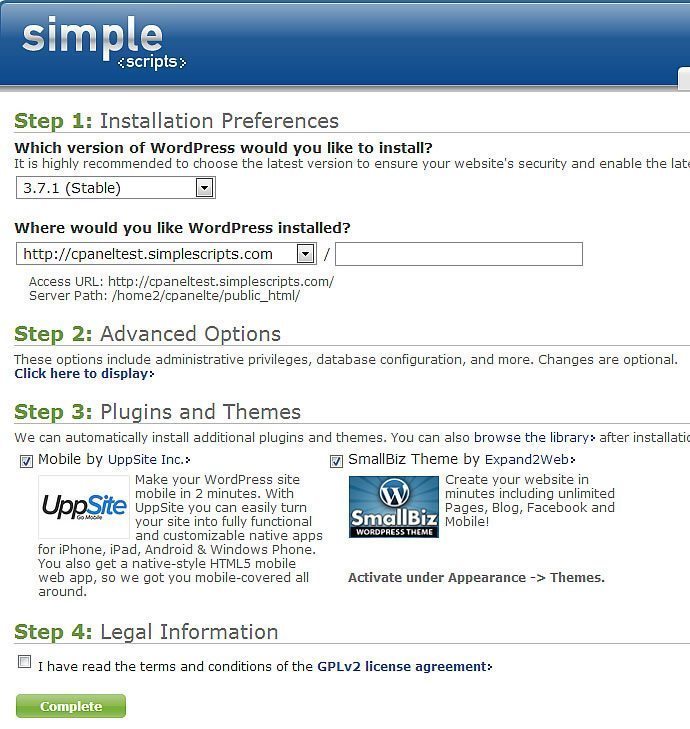 Next fill in the site name and choose whether or not to let the script generate an administration login which is a username and password and create a database. I suggest to uncheck the Generate me an Administrator Login box and make your own username and password. Keep the Automatically create a new database option checked unless you know how to or already have a database setup to use.
Below is the options page with the Generate me an Administrator Login box not checked. You will also need to check the bottom two legal agreement boxes to continue.
Next fill in the site name and choose whether or not to let the script generate an administration login which is a username and password and create a database. I suggest to uncheck the Generate me an Administrator Login box and make your own username and password. Keep the Automatically create a new database option checked unless you know how to or already have a database setup to use.
Below is the options page with the Generate me an Administrator Login box not checked. You will also need to check the bottom two legal agreement boxes to continue.
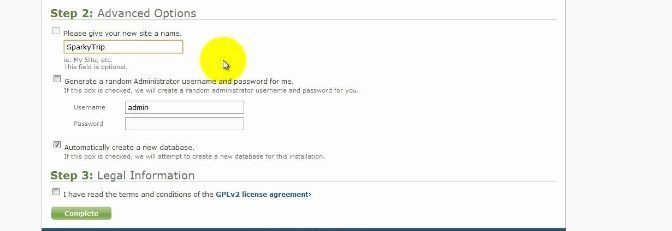 Once you have the options filled in and checked click the Complete icon and your WordPress blog will be done in a matter of seconds, Or at least it was on this Bluehost account.
The next few screens will go by pretty fast depending on your connection speed, in this case, they went by so fast I had no time to make a screen capture of them. When it’s done you will be presented with a completion page with the login details.
Now you will have the latest version of WordPress installed, but guess what? You will still need to use and FTP client to install your theme and all your plugins and then learn how to optimize it. In fact, the easy part is installing WordPress. The hard, time-consuming part is figuring out how to optimize and correctly use your WordPress blog. If you need help check out my WordPress Optimization service. I also highly recommend Bluehost Hosting for your WordPress site.
Once you have the options filled in and checked click the Complete icon and your WordPress blog will be done in a matter of seconds, Or at least it was on this Bluehost account.
The next few screens will go by pretty fast depending on your connection speed, in this case, they went by so fast I had no time to make a screen capture of them. When it’s done you will be presented with a completion page with the login details.
Now you will have the latest version of WordPress installed, but guess what? You will still need to use and FTP client to install your theme and all your plugins and then learn how to optimize it. In fact, the easy part is installing WordPress. The hard, time-consuming part is figuring out how to optimize and correctly use your WordPress blog. If you need help check out my WordPress Optimization service. I also highly recommend Bluehost Hosting for your WordPress site.
What used to be a multiple step process is now down to a few mouse clicks. Most of the better hosting accounts now offer automatic installation of most of the popular website scripts right from the hosting account control panel. First, there was Fantastico and now there is Simple Scripts Application (One Click Installs and More). The last time I used an installation script to install WordPress both were available to choose from and having used both I noticed a slight difference in the time it took with Simple Scripts being a bit faster. By faster, I mean Simple Scripts took like 30 seconds!
You should be able to easily verify if Simple Scripts or Fantastico is available in the host's control panel. As I said most decent hosting accounts offer it right on the main menu page as shown below.
Just click the Simple Scripts icon to get started. The next page shows you all of the available scripts to choose from.
In this case, WordPress was in the second row of the list, click the WordPress icon and next you will get a short overview of the script and then an icon on the bottom to Install Now.
The next screen gives you several options to choose the version you want to install, I recommend the latest stable version.
Next fill in the site name and choose whether or not to let the script generate an administration login which is a username and password and create a database. I suggest to uncheck the Generate me an Administrator Login box and make your own username and password. Keep the Automatically create a new database option checked unless you know how to or already have a database setup to use.
Below is the options page with the Generate me an Administrator Login box not checked. You will also need to check the bottom two legal agreement boxes to continue.
Once you have the options filled in and checked click the Complete icon and your WordPress blog will be done in a matter of seconds, Or at least it was on this Bluehost account.
The next few screens will go by pretty fast depending on your connection speed, in this case, they went by so fast I had no time to make a screen capture of them. When it’s done you will be presented with a completion page with the login details.
Now you will have the latest version of WordPress installed, but guess what? You will still need to use and FTP client to install your theme and all your plugins and then learn how to optimize it. In fact, the easy part is installing WordPress. The hard, time-consuming part is figuring out how to optimize and correctly use your WordPress blog. If you need help check out my WordPress Optimization service. I also highly recommend Bluehost Hosting for your WordPress site.







Responses (0 )