

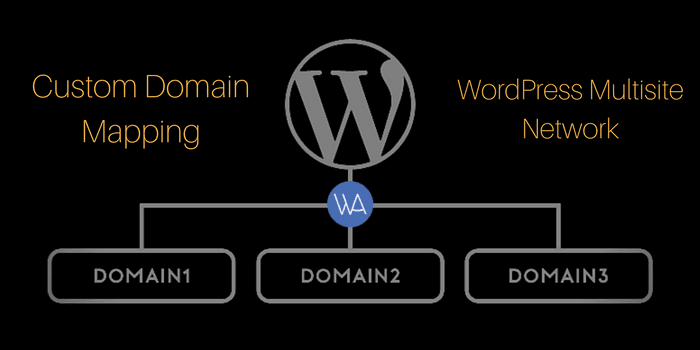
Once the WordPress Multisite setup is completed, you can use a custom domain for your blog, such as WPCouponCode.com, instead of the default address you get when you sign up, like example.wparena.com. This is called Domain Mapping; it’s a paid feature of WordPress.com.
Further, if you are self-hosting your WordPress site, then all you have to enable your WordPress into Multisite and need few plugins to manage your network sites.
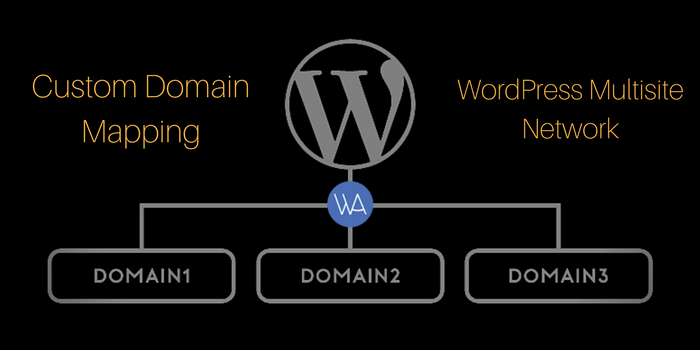 First of all, you have to enable the Multisite feature in WordPress. Afterward, you have the choice to do custom domain mapping with a plugin or without a plugin. We will cover both methods in this tutorial.
First of all, you have to enable the Multisite feature in WordPress. Afterward, you have the choice to do custom domain mapping with a plugin or without a plugin. We will cover both methods in this tutorial.
- WordPress Multisite Custom Domain Mapping With a Plugin
- WordPress Multisite Custom Domain Mapping without a plugin
Custom Domain Mapping with a Plugin
There is a well-renowned plugin called "WordPress MU Domain Mapping" that can help you to map a custom domain easily. Let's take a deep look into this plugin settings.1. WordPress MU Domain Mapping Plugin
WordPress MU Domain Mapping Plugin allows users of a WordPress Multisite Network to map their blog/site to a custom domain. Let's install it on a Multisite Network.- Install the plugin in the usual way into the regular WordPress plugins folder.
- After installation, "Network Activate" the plugin.
- Move sunrise.php into wp-content/. If there is a sunrise.php there already, you’ll just have to merge them as best as you can.
- Edit wp-config.php and uncomment or add the SUNRISE definition line. If it does not exist please ensure it’s on the line above the last “require_once” command.
define( 'SUNRISE', 'on' ); - As a “Super Admin”, visit Super Admin -> Domain Mapping to create the domain mapping database table and set the server IP address or a domain to point CNAME records at.
- Make sure the default Apache virtual host points at your WordPress multisite network, so it will handle unknown domains correctly. On some hosts, you may be required to get a dedicated IP address. A quick check: in a web browser, type in the IP address of your install. If you are using CPanel, use the Park a Domain menu to set the mapped domain to your main installation.
- Do not define COOKIE_DOMAIN in your wp-config.php as it conflicts with logins on your mapped domains.
Configuration
On Super Admin->Domain Mapping menu, you can configure the following settings:- “Remote Login” can be disabled. Useful if you’re hosting totally separate websites.
- “Permanent redirect” uses a 301 redirect rather than 302 to send visitors to your domain mapped site.
- “User domain mapping page” allows you to disable Settings->Domain Mapping that the user uses.
- “Redirect administration pages to network’s original domain (remote login disabled if this redirect is disabled)” – with this checked, if a user visits their dashboard on a mapped domain it will redirect to the dashboard on the non-mapped domain. If you don’t want this, remote login will be disabled for security reasons.
- “Disable primary domain check. Sites will not redirect to one domain name. May cause duplicate content issues.” – ignore the primary domain setting on your sites. The same content will be available on multiple domains and may cause problems with Google because of duplicate content issues.
For Cpanel users
If your domain uses the nameservers on your hosting account you should follow these instructions. If the name servers are pointed elsewhere, change the A record or CNAME as documented above. Add a wildcard subdomain/virtual host record to your site’s DNS record in Web Host Manager (WHM). If you do not have access to WHM, you must email your hosting company and ask them to make this one change for you. Should be no problem:- Go to “Edit DNS Zone” and select the domain of your WordPress Multisite installation and click “Edit”.
- Below “Add New Entries Below This Line”, enter in the first box (Domain) an asterisk: “*”.
- The second box, TTL, should be “14400”.
- The third box should be “IN”.
- Select "A" Record Type from the drop down “A”.
- And in the last box, paste in the IP address of your website/network.
- Under “Create a New Parked Domain” enter the domain name you want to add to your network.
- Click the “Add Domain” button.
- It should add the domain to the list of parked domains and under “Redirect to” it will say “not redirected”. That is OKAY.
Custom Domain Mapping Without a Plugin
You’ve seen how to do custom domain mapping with a plugin above. It is also possible to map a custom domain in WordPress Multisite without any plugin. Let's take a look below. If you are using the latest version of WordPress, all you need to follow these steps as below.- Upload your wp-config.php file to convert your single user WordPress to a Multisite Network and add the following line of code above the line ”/* That’s all, stop editing! Happy blogging. */”. (You can find detail about How to add a Multisite feature in WordPress.)
define(‘WP_ALLOW_MULTISITE’, true);
Now login to your admin and you can see “Network” under tool option. - Click on the "Network" link in the Tools menu loads the network setup/installation page. It should look like this.
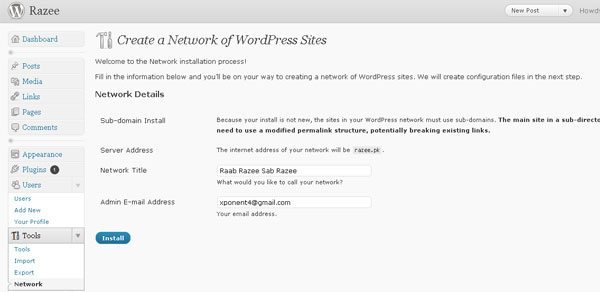 After adding required information in “Create a Network”, install and update your wp-config.php file and.htaccess. Before updating never forget to backup your both file.
Now you will see a New feature in admin panel as “Super Admin” in Dashboard.
After adding required information in “Create a Network”, install and update your wp-config.php file and.htaccess. Before updating never forget to backup your both file.
Now you will see a New feature in admin panel as “Super Admin” in Dashboard. - Login to your cPanel and create the wildcard subdomain for your main domain.
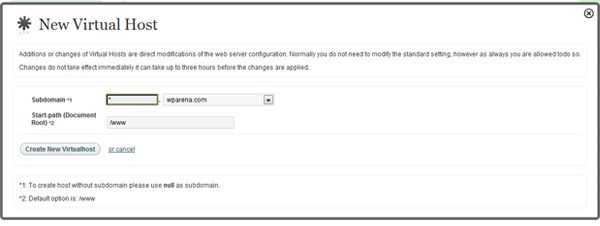 Don’t put any name under Subdomain instead of name put * (asterisk) and select your domain name and Document Root must be your WordPress path.
 - Go to the Super Admin panel and select on All Sites, Add New Site, write the Subdomain, Site Title and email address and click on "Add Site".

- After adding your new site, now Edit from the subdomain. Change the value of Domain, Siteurl, Home, and Fileupload Url to suit to your new domain.

- The most important part is to Edit your wp-config.php file again and change the value as follow:
define( ‘DOMAIN_CURRENT_SITE’, ‘domain name.com’ );
Intodefine( ‘DOMAIN_CURRENT_SITE’, “. $_SERVER[‘HTTP_HOST’].” );








Responses (12 )