


You must have seen WordPress Powered Websites with customized login page. Sometimes you have to create a new login page for your users and for a client required new and customized wp-admin page for login to the admin panel. There are different ways to customize WordPress Login page template. If you use WordPress Plugin, there are some limitations, for example, activate plugin will not match your installed theme and provide less customization. So there is a need to create your own Custom WordPress login page template as part of your theme.
 WordPress Add New Blank Page & Page Template[/caption]
 White Label Branding for WordPress Multisite[/caption]
Are you running a WordPress Multisite Network? Are you a WordPress developer or a Web Designer who uses WordPress to develop websites for your clients? Have you ever wished that it was easier to customize the menu’s and logo’s on each subsite in your WordPress Multisite Network? Would you like to give each subsite the ability to do their own branding? Look no further! This plugin lets you control the branding of the main site and all sub-sites in a network of websites powered by WordPress Multisite.
White Label Branding for WordPress Multisite[/caption]
Are you running a WordPress Multisite Network? Are you a WordPress developer or a Web Designer who uses WordPress to develop websites for your clients? Have you ever wished that it was easier to customize the menu’s and logo’s on each subsite in your WordPress Multisite Network? Would you like to give each subsite the ability to do their own branding? Look no further! This plugin lets you control the branding of the main site and all sub-sites in a network of websites powered by WordPress Multisite.
 Pathway Custom WordPress Login Page[/caption]
Are you bored default WordPress login page? Pathway let you customize your WordPress login page, You can customize unlimited designs from the admin options, and bring to your clients a new login page design.
Pathway Custom WordPress Login Page[/caption]
Are you bored default WordPress login page? Pathway let you customize your WordPress login page, You can customize unlimited designs from the admin options, and bring to your clients a new login page design.
 Wp Nice Screen Login - Customize Admin Login Page[/caption]
WP Nice Screen Login is the final solution to customize the “WordPress Admin Login Page”. You can choose from 5 default themes to redesign the Login Page, and bring to your clients a new professional page to login
Wp Nice Screen Login - Customize Admin Login Page[/caption]
WP Nice Screen Login is the final solution to customize the “WordPress Admin Login Page”. You can choose from 5 default themes to redesign the Login Page, and bring to your clients a new professional page to login
 Login Logo WordPress Plugin[/caption]
This plugin allows you to customize the logo on the WordPress login screen. There is zero configuration. You just drop the logo file into your WordPress content directory, named
Login Logo WordPress Plugin[/caption]
This plugin allows you to customize the logo on the WordPress login screen. There is zero configuration. You just drop the logo file into your WordPress content directory, named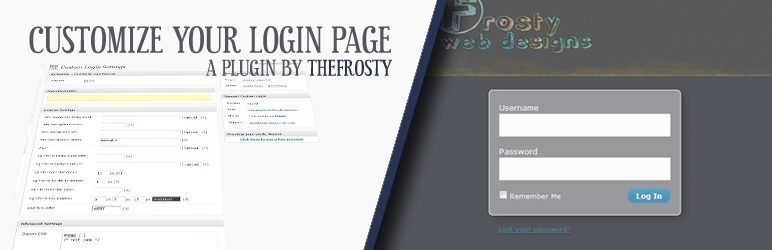 Custom Login WordPress Plugin[/caption]
Activate this plugin and customize your WordPress login screen. Use the built-in and easy to use settings page to do the work for you. There's no need to understand CSS at all! Now featuring an HTML & CSS box for advanced users to up the customization!
Custom Login WordPress Plugin[/caption]
Activate this plugin and customize your WordPress login screen. Use the built-in and easy to use settings page to do the work for you. There's no need to understand CSS at all! Now featuring an HTML & CSS box for advanced users to up the customization!
 WordPress Admin Colors & Branding[/caption]
Customize the WordPress admin interface with you own color scheme and logos. Perfect for delivering a white label WordPress for clients and customers. This is the only plugin available that allows dynamic color choice for the admin interface, designed specifically for WordPress 3.2 and WordPress 3.3.
WordPress Admin Colors & Branding[/caption]
Customize the WordPress admin interface with you own color scheme and logos. Perfect for delivering a white label WordPress for clients and customers. This is the only plugin available that allows dynamic color choice for the admin interface, designed specifically for WordPress 3.2 and WordPress 3.3.
 Ninety Ajax Login/Register for WordPress[/caption]
Our Sidebar Login/Register plugin for WordPress does exactly what it says on the tin; Logins and Registrations with a touch of AJAX magic. Simple! It also has a nice ‘logged in’ view, and a lost password form for those forgetful folk.
Ninety Ajax Login/Register for WordPress[/caption]
Our Sidebar Login/Register plugin for WordPress does exactly what it says on the tin; Logins and Registrations with a touch of AJAX magic. Simple! It also has a nice ‘logged in’ view, and a lost password form for those forgetful folk.
 Single Sign-On For Magento And WordPress[/caption]
The Scenario where you'd want to use this extension:
You are creating a website, or own a website, that is built using a mixture of Magento and WordPress. It may be that WordPress is used to manage pages and a blog, while Magento is used purely for its e-commerce functionality. Or perhaps all your pages and e-commerce functionality are managed through Magento, and WordPress is simply there as a blog platform.
Single Sign-On For Magento And WordPress[/caption]
The Scenario where you'd want to use this extension:
You are creating a website, or own a website, that is built using a mixture of Magento and WordPress. It may be that WordPress is used to manage pages and a blog, while Magento is used purely for its e-commerce functionality. Or perhaps all your pages and e-commerce functionality are managed through Magento, and WordPress is simply there as a blog platform.
Creating a New Custom-login Page
[caption id="attachment_12805" align="alignnone" width="570"] How to Customize & Create a new Login Page for WordPress based website[/caption] First of all create a new PHP template with "custom-login.php" name and upload it in WordPress Theme folder (/wp-content/themes/your-theme). Add following code before uploading or after uploading the file; you can edit your page and add the codes.Full Code Preview of Custom login Template
https://gist.github.com/WPArena/aec8531519747ea2feaef619d4beb044#file-custom-login-php Because we are using jQuery, so never forget to add jQuery library in your header.php file as followsStep 7: Adding jQuery’s ajax function
https://gist.github.com/WPArena/aec8531519747ea2feaef619d4beb044#file-jquery-ajax-jsAdd New Blank Page
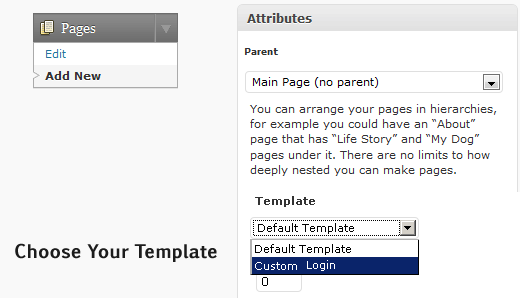
After uploading your new page template, go to "New Page" under pages from the WordPress Dashboard. Name the page as your own choice and select the template type from Template list "Custom Login" and Publish it. Now you can add this page wherever you want for further instruction read this post; WordPress Shortcode with loop, meta, category, pagination, Gallery and Plugins [caption id="attachment_12796" align="alignnone" width="520"] WordPress Add New Blank Page & Page Template[/caption]
Customize the WordPress Login Screen Logo
You can replace the WordPress logo from WordPress login page by replacing "logo-login.png" image file. Login to hosting via FTP and browse /wp-admin/images/ and replace with your own logo but the name must be same. You have to change the image link as open wp-login.php file and change following line according to your own URL.<!--?php bloginfo('name'); ?>
You can also customize the WordPress login screen by using the following WordPress Plugins.
1. White Label Branding for WordPress Multisite
[caption id="attachment_12797" align="alignnone" width="590"] White Label Branding for WordPress Multisite[/caption]
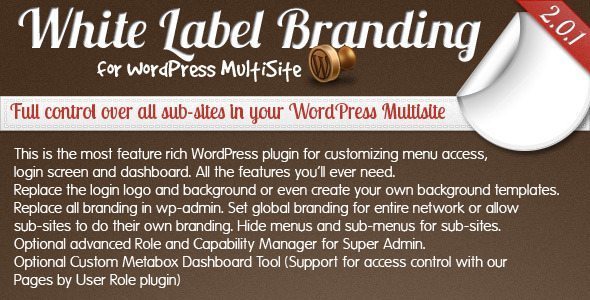
Are you running a WordPress Multisite Network? Are you a WordPress developer or a Web Designer who uses WordPress to develop websites for your clients? Have you ever wished that it was easier to customize the menu’s and logo’s on each subsite in your WordPress Multisite Network? Would you like to give each subsite the ability to do their own branding? Look no further! This plugin lets you control the branding of the main site and all sub-sites in a network of websites powered by WordPress Multisite.
2. Pathway - Custom WordPress Login Page
[caption id="attachment_12798" align="alignnone" width="590"] Pathway Custom WordPress Login Page[/caption]
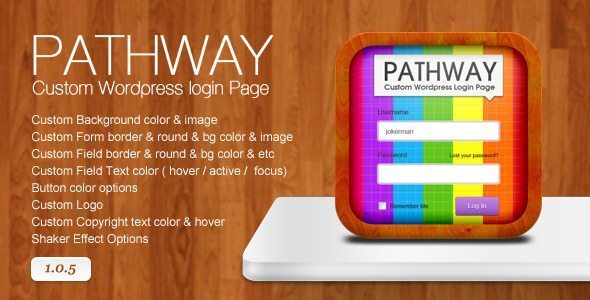
Are you bored default WordPress login page? Pathway let you customize your WordPress login page, You can customize unlimited designs from the admin options, and bring to your clients a new login page design.
3. WP Nice Screen Login - Customize Admin Login Page
[caption id="attachment_12799" align="alignnone" width="590"] Wp Nice Screen Login - Customize Admin Login Page[/caption]
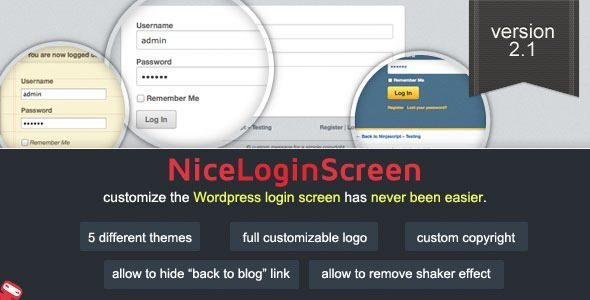
WP Nice Screen Login is the final solution to customize the “WordPress Admin Login Page”. You can choose from 5 default themes to redesign the Login Page, and bring to your clients a new professional page to login
4. Login Logo
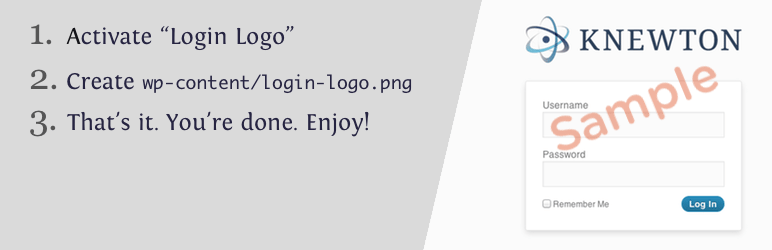
Heads up: Login Logo is still listed on the WordPress plugin directory but has not had a release since September 2024, and it is no longer actively maintained. [caption id="attachment_12800" align="aligncenter" width="772"] Login Logo WordPress Plugin[/caption]
This plugin allows you to customize the logo on the WordPress login screen. There is zero configuration. You just drop the logo file into your WordPress content directory, namedlogin-logo.png and this plugin takes over.
5. Custom Login
[caption id="attachment_12801" align="aligncenter" width="772"] Custom Login WordPress Plugin[/caption]
Activate this plugin and customize your WordPress login screen. Use the built-in and easy to use settings page to do the work for you. There's no need to understand CSS at all! Now featuring an HTML & CSS box for advanced users to up the customization!
- Works great for client site installs.
- Comes with a Photoshop template included in the library files (default theme).
- Read more about the Custom Login Plugin & most recent blog post.
6. WordPress Admin Colors & Branding
[caption id="attachment_12802" align="alignnone" width="590"] WordPress Admin Colors & Branding[/caption]
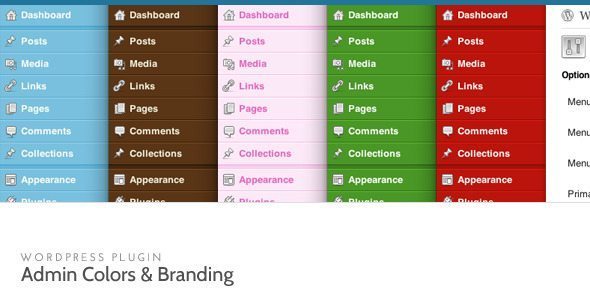
Customize the WordPress admin interface with you own color scheme and logos. Perfect for delivering a white label WordPress for clients and customers. This is the only plugin available that allows dynamic color choice for the admin interface, designed specifically for WordPress 3.2 and WordPress 3.3.
7. Ninety Ajax Login/Register for WordPress
[caption id="attachment_12803" align="alignnone" width="590"] Ninety Ajax Login/Register for WordPress[/caption]
Our Sidebar Login/Register plugin for WordPress does exactly what it says on the tin; Logins and Registrations with a touch of AJAX magic. Simple! It also has a nice ‘logged in’ view, and a lost password form for those forgetful folk.
8. Single Sign-On For Magento And WordPress
[caption id="attachment_12804" align="alignnone" width="590"] Single Sign-On For Magento And WordPress[/caption]
The Scenario where you'd want to use this extension:
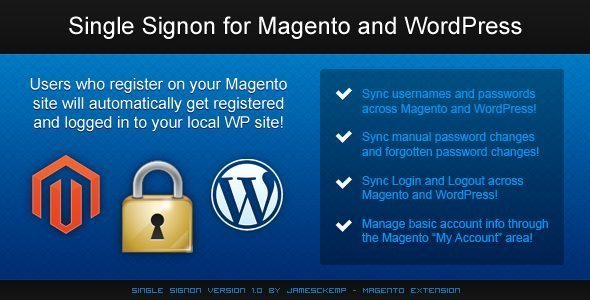
You are creating a website, or own a website, that is built using a mixture of Magento and WordPress. It may be that WordPress is used to manage pages and a blog, while Magento is used purely for its e-commerce functionality. Or perhaps all your pages and e-commerce functionality are managed through Magento, and WordPress is simply there as a blog platform.







Responses (2 )