
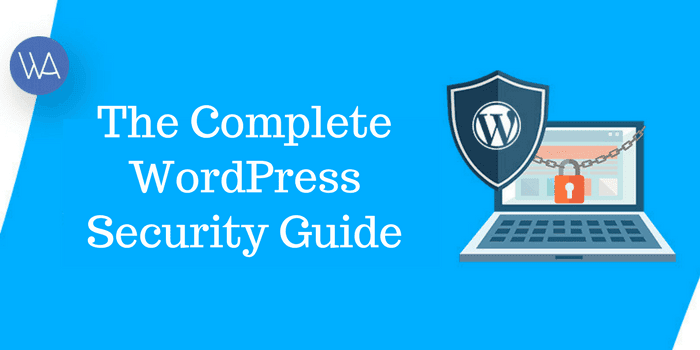
Updated June 8, 2026. WordPress security is not one plugin, one setting, or one clever trick. It is a stack of boring, repeatable habits: update the software, reduce who can log in, harden the server, keep recoverable backups, monitor changes, and know what to do when something looks wrong.
This guide is written for site owners, bloggers, agencies, WooCommerce stores, membership sites, and publishers who want a practical WordPress security checklist they can actually follow. It consolidates the important lessons from older WPArena security tutorials into one current pillar guide for 2026.
As of June 8, 2026, the current major WordPress branch is WordPress 7.0, released on May 20, 2026. WordPress 6.9.4 was the March 2026 branch release. If your dashboard is behind, your first security job is to understand why before adding more plugins.
Security is risk reduction, not magic. A serious setup makes cheap attacks fail, limits the damage from a stolen password or vulnerable plugin, and gives you a clean recovery path if the site is compromised.
WordPress Security Checklist for 2026
If you only have one hour today, start here.
- Update WordPress core, plugins, themes, PHP, and database software.
- Delete unused plugins, inactive themes, abandoned integrations, and old admin accounts.
- Use unique passwords stored in a password manager.
- Require two-factor authentication for every administrator and editor.
- Limit login attempts at the edge, host, web server, or security plugin layer.
- Disable or restrict XML-RPC if your site does not need it.
- Use HTTPS everywhere and fix mixed-content problems.
- Keep tested off-site backups for both files and database.
- Use a WAF, malware scanner, and activity log on sites that earn money or handle users.
- Set sane file permissions: usually 644 for files and 755 for directories.
- Protect
wp-config.php, rotate salts after incidents, and disable dashboard file editing. - Moderate registrations, comments, pingbacks, and trackbacks instead of letting bots fill the database.
- Scan for injected redirects, pharma spam, hidden links, fake admins, and unknown cron jobs.
- Document who owns hosting, DNS, CDN, backups, email, and the WordPress administrator accounts.
That checklist is the short version. The rest of this guide explains what each item means, why it matters, and how to make it part of a normal maintenance routine.
The Real WordPress Threat Map
Most WordPress attacks are not cinematic. They are automated, repetitive, and opportunistic. Bots look for known vulnerable plugins, weak passwords, exposed login endpoints, outdated themes, writable files, and sites with no recovery plan.
| Threat | What it looks like | First defense |
|---|---|---|
| Brute force login attempts | Many failed login requests against wp-login.php or xmlrpc.php |
2FA, rate limiting, WAF rules, strong passwords |
| Plugin or theme vulnerability | A known XSS, SQL injection, file upload, or privilege escalation bug is exploited | Fast updates, fewer plugins, vulnerability monitoring |
| Malware injection | Unknown PHP files, hidden JavaScript, spam links, redirect scripts, or strange cron tasks | File integrity checks, malware scanning, clean backups |
| Pharma hack or SEO spam | Google shows casino, drug, or fake product snippets for your pages | Clean files and database, remove injected redirects, request recrawl |
| Registration spam | Fake users, disposable emails, bot signups, profile links, database bloat | Disable open registration, approvals, honeypots, CAPTCHA, rate limits |
| Comment and trackback spam | Spam comments, pingbacks, fake trackbacks, moderation queue overload | Moderation rules, anti-spam plugin, disable trackbacks if unused |
| Bad hosting configuration | Writable files, outdated PHP, no WAF, no backups, weak isolation | Managed hosting, least privilege, server hardening, off-site backups |
The best security plan is layered. If one layer fails, the next one should slow the attacker down or reduce the damage.
1. Keep WordPress, Plugins, Themes, and PHP Updated
Old software is still the easiest way to lose a WordPress site. Core updates matter, but most real-world incidents start with a plugin, theme, abandoned extension, or compromised password.
For 2026, your update routine should include:
- WordPress core, including minor security releases.
- All active plugins and themes.
- Inactive plugins and themes, or better, removing them completely.
- PHP and database versions supported by your host.
- Premium plugin licenses, because expired licenses often mean missed security updates.
- Custom theme and plugin code maintained in a private repository.
Do not update blindly on a revenue-critical site. Use staging for major core releases, WooCommerce upgrades, membership plugins, page builders, forms, payment systems, and anything that changes authentication. But do not use staging as an excuse to ignore security releases for weeks.
For small sites, a weekly update window is enough. For stores, communities, and client sites, check updates at least twice a week and subscribe to vulnerability alerts from your security plugin, host, or vulnerability database.
2. Remove What You Do Not Use
Every plugin is a trust decision. A plugin can add useful features, but it also adds code, database tables, settings, and sometimes public endpoints. If you no longer need it, remove it.
Audit your plugins with these questions:
- Is the plugin still actively maintained?
- Was it updated recently enough to be trusted?
- Does it have a security history you understand?
- Does it overlap with another plugin already installed?
- Does it add public forms, upload fields, login flows, payment logic, or API endpoints?
- Would the site break if it were disabled?
If the answer is unclear, test in staging. Remove inactive plugins and unused themes from production. Keep only one fallback default theme if your setup needs it.
For a deeper plugin hygiene mindset, see WPArena's guide on why less is more for WordPress plugins.
3. Secure Logins With Strong Passwords, 2FA, and Least Privilege
A stolen admin password can bypass a lot of technical hardening. Treat administrator accounts like keys to your business.
Use unique passwords
Every administrator should use a unique, long password. Do not reuse hosting, email, FTP, database, WordPress, Stripe, PayPal, CDN, or social account passwords. A password manager makes this realistic.
If you need a primer, read WPArena's guide to how password managers help protect accounts.
Require 2FA
Two-factor authentication should be mandatory for administrators, editors, store managers, membership managers, and anyone who can publish or install code. Use a maintained 2FA plugin, single sign-on provider, or identity provider. Authenticator apps and hardware security keys are stronger than SMS.
Consider passkeys for admins
Passkeys are useful because they are resistant to phishing and password reuse. If you adopt passkeys, enroll at least two authenticators per admin so one lost device does not lock the team out.
Apply least privilege
Not everyone needs to be an administrator. Give users the lowest role they need:
- Use Administrator only for people who manage the site itself.
- Use Editor for publishing and editorial control.
- Use Author or Contributor for writers.
- Use Shop Manager only where WooCommerce management is needed.
- Remove accounts for former writers, contractors, agencies, and employees.
Review users monthly. A forgotten admin account is a common backdoor.
4. Slow Down Brute Force Attacks
Brute force attacks are automated login attempts. Some use common passwords. Others use credential stuffing, where attackers try username and password pairs leaked from other services.
Good defenses include:
- Strong passwords and 2FA.
- Rate limits for
wp-login.php. - Rate limits or restrictions for
xmlrpc.php. - Temporary IP bans for repeated failed logins.
- CAPTCHA or Cloudflare Turnstile for suspicious traffic.
- Activity logs that show failed logins, successful logins, and account changes.
If you use a CDN or managed WAF, block as much abusive traffic as possible before it reaches PHP. App-level login limit plugins help, but they still consume server resources when the attack reaches WordPress.
5. Decide What to Do With XML-RPC
xmlrpc.php is useful for some older clients, mobile apps, Jetpack features, and integrations. It is also a frequent brute-force target.
If you do not use XML-RPC, disable it or block it at the WAF/server layer. If you do use it, rate-limit it and monitor it. Do not disable it blindly if a plugin depends on it. Test first.
6. Use HTTPS Everywhere
HTTPS protects login credentials, cookies, checkout details, contact forms, and admin sessions in transit. In 2026, a production WordPress site should not treat SSL as optional.
Check these items:
- The certificate is valid and auto-renewing.
- HTTP redirects to HTTPS.
- Canonical URLs use HTTPS.
- Images, scripts, CSS, fonts, and embeds do not create mixed-content warnings.
- Admin, login, checkout, account, and form pages always load over HTTPS.
WPArena has a practical guide on using SSL and HTTPS with WordPress. If your certificate is installed but browsers still show warnings, use the troubleshooting steps in common SSL connection errors and fixes.
7. Harden the WordPress File System
File permissions determine who can read, write, or execute files. Permissions that are too open can turn a small vulnerability into a full site compromise.
Common defaults are:
644for files.755for directories.- No public file or folder should be
777.
Protect wp-config.php because it contains database credentials, salts, and core configuration. On many hosts, tighter permissions such as 640 can work, but test before changing permissions on a live site.
Disable theme and plugin editing from the WordPress dashboard by adding this to wp-config.php:
define( 'DISALLOW_FILE_EDIT', true );That setting does not stop an attacker who already has server access, but it prevents a stolen admin account from immediately editing PHP files through the dashboard.
8. Protect wp-config.php, wp-admin, and wp-includes
Some old security tutorials recommended huge .htaccess blocks. In 2026, the better rule is simple: apply targeted protections, test them, and avoid rules that break legitimate WordPress behavior.
Useful hardening steps include:
- Prevent direct access to
wp-config.php. - Disable directory indexing.
- Restrict
wp-login.phporxmlrpc.phpwhen your workflow allows it. - Protect backups, exports, logs, and old archives from public access.
- Keep custom upload directories from executing PHP.
For Apache, disabling directory browsing is often as simple as:
Options -IndexesFor Nginx, do this in the server configuration rather than .htaccess, because Nginx does not read .htaccess files.
Always test these changes on staging first. A bad rule can block media, admin AJAX, REST API routes, WooCommerce checkout, membership login, or image optimization.
9. Secure the Database
Database security is about containment. If one site is compromised, the attacker should not automatically control every other site on the same server.
Use these practices:
- Use a unique database and database user for each WordPress site.
- Do not reuse database passwords across projects.
- Use strong database passwords.
- Limit remote database access unless it is truly needed.
- Back up the database before migrations, cleanup work, plugin changes, and large content edits.
- Do not leave old database dumps inside public web directories.
Changing the default table prefix can reduce automated noise on a fresh installation, but it is not a complete security measure. If you already run a mature site, do not rename tables on production unless you have a backup, a staging test, and a rollback plan.
10. Use Backups Like a Security Feature
A backup is not just a convenience. It is the difference between a stressful cleanup and a business-ending incident.
A real WordPress backup plan includes:
- Database backups.
- Uploads and media backups.
- Theme, plugin, and custom-code backups.
- Off-site storage, not only a copy on the same server.
- Multiple restore points.
- Restore testing, not just backup creation.
Do not assume a backup works because a plugin says it completed. Test a restore on staging. Confirm the restored site can log in, load images, display posts, process forms, and run key plugins.
For WooCommerce, membership, LMS, marketplace, and community sites, backup frequency matters. A daily backup may not be enough if orders, signups, course progress, or paid subscriptions change every hour.
11. Choose Security Plugins Carefully
A security plugin can help, but it cannot fix poor hosting, abandoned plugins, weak passwords, missing backups, or ignored alerts.
When choosing a security plugin, look for:
- Login protection and 2FA.
- Malware scanning and file integrity checks.
- Known vulnerability alerts for installed plugins and themes.
- Firewall or WAF integration.
- Activity logging.
- Clear documentation and active maintenance.
- Low false positives for your type of site.
Wordfence, Sucuri, Solid Security, Patchstack, MalCare, Cloudflare, and host-provided security systems are all common options, but the right setup depends on your site. A high-traffic publisher, WooCommerce store, small personal blog, and enterprise intranet do not need the exact same stack.
Do not install three overlapping security plugins that all try to control login rules, file scanning, firewall behavior, and headers. Overlap creates noise and makes troubleshooting harder.
12. Protect Against Plugin XSS and Supply-Chain Issues
Cross-site scripting, usually shortened to XSS, lets attackers inject scripts into pages, admin screens, forms, or stored content. Plugin XSS bugs have been a recurring WordPress security problem for years because plugins often handle forms, shortcodes, blocks, widgets, and user-generated content.
You reduce that risk by keeping a smaller plugin list and watching updates closely.
- Install plugins from trusted developers.
- Avoid abandoned plugins, even if they still work.
- Update quickly when a plugin publishes a security fix.
- Replace plugins that repeatedly ship serious vulnerabilities.
- Review custom code that outputs user input.
- Do not let untrusted users add raw HTML, JavaScript, iframes, or embeds.
If a vulnerability alert names a plugin you use, do not wait for visible signs of compromise. Patch, check logs, scan the site, and confirm no new admin users or suspicious files were created during the vulnerable window.
13. Control Registration Spam
Registration spam happens when bots create fake user accounts. This is common on membership sites, communities, stores, LMS sites, forums, and any site with public registration enabled.
Start with the simplest question: do visitors actually need to register?
If not, go to Settings > General and disable open registration. If registration is required, add friction in the right places:
- Manual approval for small communities.
- Email verification for new accounts.
- Honeypot fields on registration forms.
- CAPTCHA or Turnstile for suspicious traffic.
- Rate limits on registration endpoints.
- Disposable email blocking where it makes sense.
- Profile-link restrictions for new users.
Do not make signups painful for real users. A good registration defense blocks bots without turning every customer into a puzzle solver.
14. Stop Comment, Pingback, and Trackback Spam
Comment spam is old, but it is still alive. Trackback and pingback spam are even worse because many sites no longer use them for anything useful.
Use these settings:
- Require comment moderation for first-time commenters.
- Hold comments with multiple links for review.
- Close comments on old posts if your site does not need long-term discussion.
- Disable pingbacks and trackbacks if you do not actively use them.
- Use a maintained anti-spam plugin for public comment forms.
- Delete spam users and spam comments in batches after backing up busy sites.
Old tricks like redirecting spammers somewhere else are not a modern security strategy. Use moderation, rate limits, WAF rules, 403 responses, or 410 responses. Do not redirect spam traffic to unrelated sites, competitors, or questionable pages.
15. Understand Security Through Obscurity
Hiding that a site runs WordPress can reduce low-effort noise, but it is not real protection by itself. Attackers can detect WordPress through HTML, assets, REST endpoints, cookies, plugin paths, feeds, and behavior.
Reasonable obscurity steps include:
- Removing obvious version output where possible.
- Avoiding the username
admin. - Using a custom login URL only if it does not break your workflow.
- Reducing public plugin fingerprints when easy.
But never treat obscurity as a replacement for updates, 2FA, WAF rules, backups, and least privilege. A hidden login URL without 2FA is still a weak login.
16. Watch for Malware and Hacked-Site Symptoms
A hacked WordPress site does not always show a giant warning banner. Many attackers want to stay quiet because they are using the site for spam, redirects, phishing, or search manipulation.
Look for these signs:
- Unknown admin users.
- New files in uploads, cache, or plugin directories.
- PHP files inside image upload folders.
- Hidden iframes, scripts, or encoded PHP.
- Unexpected redirects, especially only for mobile visitors or search visitors.
- Search results showing drug, casino, essay, adult, or fake product snippets.
- Google Search Console security warnings.
- Unusual cron jobs or scheduled tasks.
- Changed payment, form, SMTP, or admin email settings.
- Traffic drops after search engines detect spam.
When in doubt, compare the site against a clean backup and scan both files and database content.
17. What to Do If Your WordPress Site Is Hacked
Do not panic, and do not start deleting random files. Work in order.
- Take a fresh backup of the current compromised state. You may need it for investigation.
- Put the site into maintenance mode if users, payments, or private data are at risk.
- Change passwords for WordPress admins, hosting, SFTP/SSH, database, CDN, email, and third-party services.
- Remove unknown admin users and revoke suspicious application passwords.
- Update WordPress core, plugins, and themes.
- Export a list of installed plugins, themes, users, and recent file changes.
- Scan files for malware and compare WordPress core against a clean copy.
- Check uploads for executable files.
- Search the database for injected scripts, iframes, spam links, hidden posts, and bad redirects.
- Check Rank Math, Yoast, Redirection plugins, server config, CDN rules, and
.htaccessfor injected redirects. - Restore from a known-clean backup if cleanup confidence is low.
- After cleanup, request search recrawling and review security issues in Google Search Console.
Do not call a site clean until you know how the attacker got in. If the entry point remains, the site can be reinfected within hours.
18. Clean Up Pharma Hacks and SEO Spam
A pharma hack is a type of SEO spam where attackers inject drug-related, casino, essay, or fake product keywords into your site. Sometimes visitors see normal pages while Googlebot sees spam. Sometimes the spam is hidden in database fields, template files, cached pages, or redirect rules.
Cleanup requires more than deleting visible spam.
- Check post content, excerpts, custom fields, widgets, and reusable blocks.
- Search theme and plugin files for suspicious encoded code.
- Review redirect rules in WordPress, Rank Math, server config, and CDN config.
- Check whether attackers created hidden pages or changed existing drafts.
- Purge caches after cleanup.
- Use Search Console to inspect affected URLs.
- Rotate credentials and patch the original vulnerability.
If search results still show spam after cleanup, wait for recrawling and use URL inspection for important pages. Search snippets can lag behind the cleaned page.
19. Run Safe Security Audits and Penetration Tests
A penetration test is useful when it is scoped. It is risky when someone blindly runs aggressive scanners on production.
Before a test, define:
- Which domain, subdomain, staging site, and IPs are in scope.
- Whether login attacks are allowed.
- Whether form submissions, checkout, email sending, and account creation can be tested.
- What time window is safe.
- Who receives alerts during the test.
- What counts as an emergency stop.
For most site owners, a practical audit is enough:
- Review users and roles.
- Check updates and vulnerable plugins.
- Scan malware and file changes.
- Review login and firewall logs.
- Confirm backups and restore ability.
- Check HTTPS, security headers, and exposed files.
- Test registration, comments, forms, upload fields, and account pages.
Run this audit quarterly for normal sites and monthly for stores, paid communities, client sites, and high-traffic publishers.
20. Choose Better Hosting
Hosting is part of WordPress security. A weak host can make every other decision harder.
Look for:
- Supported PHP versions.
- Server-level caching that does not break logged-in pages.
- WAF or easy CDN integration.
- Backups with restore testing.
- Malware scanning or incident support.
- SFTP/SSH instead of plain FTP.
- Good account isolation between sites.
- Fast support during security incidents.
If you are choosing a host now, use WPArena's WordPress hosting guide as a starting point, but evaluate security features as seriously as speed and price.
21. Add Monitoring and Logs
You cannot respond to what you cannot see.
At minimum, monitor:
- Successful and failed logins.
- New users and role changes.
- Plugin and theme installs, activations, deactivations, and updates.
- File changes in themes, plugins, uploads, and WordPress core.
- Post, page, redirect, and SEO metadata changes.
- Unexpected traffic spikes, 404 spikes, and login spikes.
- Uptime, SSL expiry, and server resource usage.
For teams, decide who receives alerts. An alert nobody reads is not monitoring.
22. Security Headers Worth Considering
Security headers help browsers handle your site more safely. They are not a substitute for secure code, but they are useful.
Common headers include:
Strict-Transport-Securityfor HTTPS enforcement.Content-Security-Policyto limit where scripts, frames, images, and styles can load from.X-Frame-Optionsor CSP frame rules to reduce clickjacking risk.Referrer-Policyto control referrer leakage.Permissions-Policyto restrict browser features.
Be careful with Content Security Policy on WordPress. Page builders, ad networks, analytics, embeds, forms, and payment widgets can break if the policy is too strict. Start in report-only mode if your host or CDN supports it.
23. A 30-Day WordPress Security Maintenance Plan
Security fails when it depends on memory. Put it on a calendar.
Every week
- Check updates.
- Review admin users.
- Review failed login spikes.
- Confirm backups completed.
- Check critical forms and checkout flows after updates.
Every month
- Test a backup restore on staging.
- Remove unused plugins, themes, users, and integrations.
- Review security plugin alerts.
- Check Search Console for security or spam warnings.
- Review redirect rules and SEO metadata for unexpected changes.
Every quarter
- Audit roles and permissions.
- Review hosting, PHP, database, and CDN settings.
- Review custom code and third-party scripts.
- Run a full malware and file integrity scan.
- Document the incident response process.
Recommended Security Stack by Site Type
| Site type | Minimum setup | Extra protection |
|---|---|---|
| Personal blog | Updates, 2FA, backups, anti-spam, HTTPS | Basic WAF and activity log |
| Business website | Managed hosting, 2FA, backups, WAF, malware scan, forms protection | Security monitoring and monthly restore test |
| WooCommerce store | Everything above plus payment monitoring, frequent backups, least-privilege staff roles | Edge WAF, uptime monitoring, incident response plan |
| Membership or LMS site | 2FA for staff, registration controls, frequent database backups, activity logs | SSO/passkeys, fraud checks, stricter account review |
| Publisher or high-traffic site | CDN/WAF, editorial role controls, plugin discipline, redirect monitoring | Dedicated staging, deployment workflow, file integrity alerts |
WordPress Security FAQ
Is WordPress secure in 2026?
Yes, WordPress can be secure when maintained properly. The platform is widely used, so it is also widely targeted. Most incidents come from weak passwords, outdated plugins, abandoned themes, bad hosting, exposed forms, or poor recovery planning.
What is the most important WordPress security step?
Keep software updated and protect administrator accounts with unique passwords and 2FA. If you do only those two things, you eliminate a large share of common compromises.
Do I need a WordPress security plugin?
Most sites benefit from one well-chosen security plugin or host security suite. Use it for 2FA, login protection, vulnerability alerts, malware scans, and logs. Do not install several overlapping security plugins unless you know exactly which feature each one controls.
Should I hide my WordPress login URL?
It can reduce bot noise, but it is not enough. Use 2FA, strong passwords, rate limiting, monitoring, and WAF rules. Hiding the login URL is a supporting tactic, not the foundation.
Should I disable XML-RPC?
Disable or restrict XML-RPC if your site does not use it. If Jetpack, mobile apps, or integrations depend on it, rate-limit and monitor it instead of blocking it blindly.
How often should I back up WordPress?
For low-change blogs, daily backups may be enough. For WooCommerce, memberships, LMS, and communities, back up more often because orders, users, and progress can change throughout the day. Always test restores.
What should I do first if my site is hacked?
Take a backup of the current state, restrict access if users are at risk, rotate credentials, remove unknown admins, patch everything, scan files and database content, and identify the entry point before declaring the site clean.
Are comments and trackbacks a security risk?
They can be. Public forms attract bots. Use moderation, anti-spam tools, rate limits, and disable pingbacks or trackbacks if your site does not need them.
Final Word
WordPress security is not about fear. It is about making the common attacks uneconomical and making recovery predictable. Update early, use fewer plugins, protect privileged accounts, keep backups you have tested, monitor changes, and treat every redirect, plugin, user, and file permission as part of the same system.
If your site is already hacked, start with recovery. If your site is clean, start with the checklist. Either way, the best day to harden a WordPress site is before the next automated scan finds it.
Further reading: official WordPress versions, WordPress 7.0 release notes, WordPress hardening guide, WordPress brute-force guidance, and the WordPress security overview.


Responses (10 )