Editorial Staff

How to Customize WordPress Header: Background Color, Font Size, and Image
New WordPress users often require assistance with customizing their website header. This includes tasks such as changing the background color and image, adjusting the font size and style, and making…
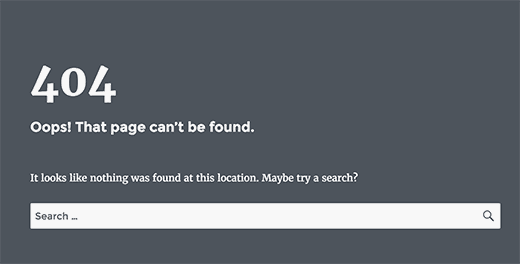
How to Customize WordPress Error 404 Page
 Noor Mustafa Raza
Error 404 pages are crucial for guiding users when a URL seeks a missing page on your website. While it’s common to underestimate the necessity of a 404 page in…
OceanWP Theme Review: An All-Rounder Free WordPress Theme
OceanWP is an exceptional free WordPress theme that provides a diverse range of premium features, making it a superb choice for any website. Its stylish design and extensive functionality have…
How to Check WordPress Version Easily in Different Ways
 Arslan Rashid
How can you determine the WordPress version of a site without accessing the CMS Backend? The most reliable method is to log in to the “wp-admin” area and check under…
8 Most Unusual WordPress Websites
 Erica Sunarjo
The WordPress CMS remains one of the pivotal stakeholders in the internet as we know it. Studies have shown that 45.8% of the entire web is powered by WordPress alone.…

27 Top SEO Companies in the World
SEO firms boost businesses by enhancing search engine rankings and operations. They create quality content, build high-quality links, and analyze data for effective outcomes. Proficient SEO analysts offer businesses various…

Major and Secondary Search Engines and Directories to Submit Website
There are a few major search engines, and hundreds of smaller ones that vary in specificity. What benefits can search engines offer to your website? A search engine is software…
Integrating An Email Management System Into WordPress
WordPress is a versatile platform suitable for various types of websites, including blogs, news sites, magazines, universities, colleges, eCommerce, and other business websites. It can handle a wide range of…

Top Premium WordPress Plugins & Themes
Design and functionality are essential aspects of any successful website. And with the abundance of WordPress themes and plugins available, you have the power to elevate your site to new…

How to Improve WordPress Navigation Menu
A well-structured and organized navigation menu is essential for any website. It allows visitors to quickly find the content they are looking for, improving their overall browsing experience. In this…
Publishing Blog Posts via Email: WordPress and Blogger
If you want to add posts to your blog without opening the WP Admin and logging in, you can set up your WordPress installation to accept posts sent via email.…
Ultimate Guide to Managing WordPress Multi Sites
If you are planning to run a WordPress multisite, there are several crucial steps you need to follow in order to set everything up correctly. It’s important to thoroughly follow…

12 Ways To Monetize Your WordPress Blog
In today’s world, content creation has become a popular medium for self-expression and sharing opinions or expertise. However, many creators devote significant time and effort to their blog posts without…

Comparing the Best Employee Engagement Software in the Market
Employee engagement is pivotal to fostering a vibrant, thriving workplace culture. A well-engaged workforce is often marked by increased productivity, reduced turnover, and enhanced job satisfaction. In today’s digital era,…
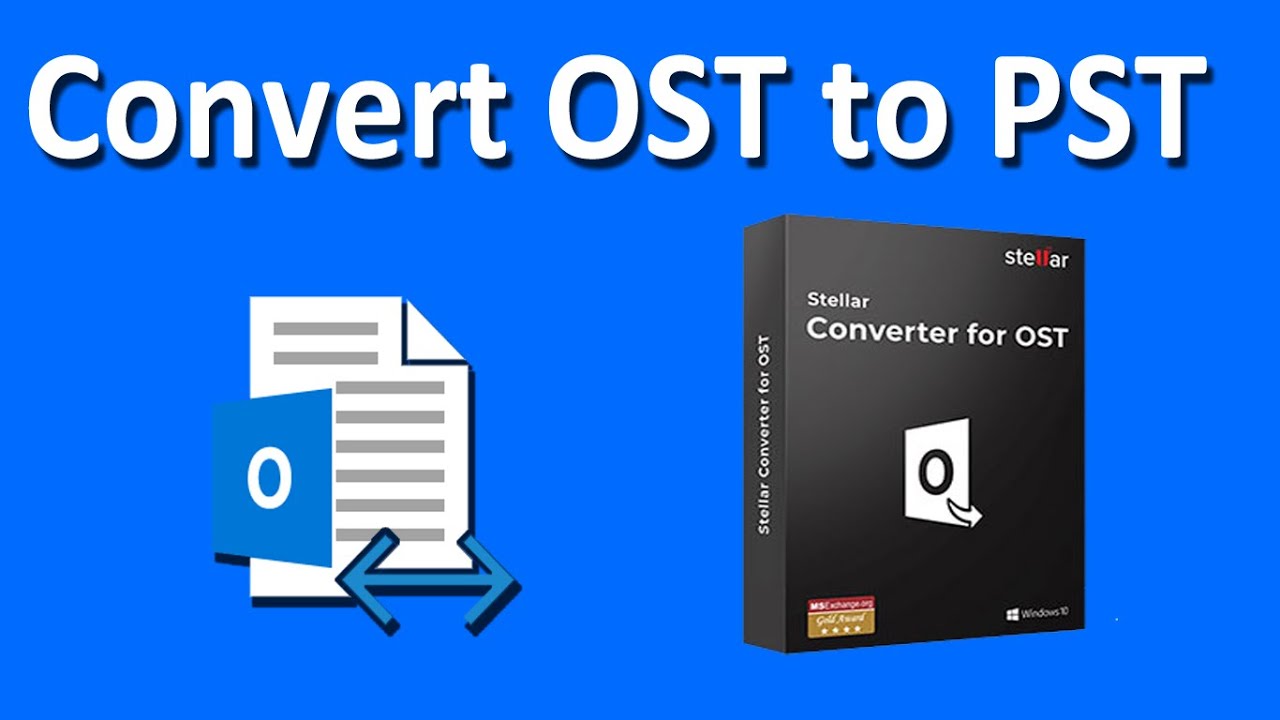
Stellar Converter for OST Review: Best Tool for OST to PST Conversion
Outlook, when connected with Exchange Server, Outlook.com, Office 365, or IMAP account, creates an OST file to store the synchronized copy of the mailbox data on local storage. The OST…

How To Use WordPress as an eCommerce Store
The digital era has propelled online shopping into the limelight, making e-commerce a thriving sector. Leveraging platforms like WordPress can greatly simplify launching an online store. Here’s a comprehensive guide…
How To Add Link To a Custom WordPress Footer
Customizing your WordPress website is a great way to make it unique. One easy way to do this is by adding links to the footer of your theme’s template. This…

How To Screw Up Your WordPress Blog
WordPress is a powerful platform that allows you to create stunning blogs and websites. However, if you’re not careful, you can inadvertently make mistakes that can negatively impact your blog’s…